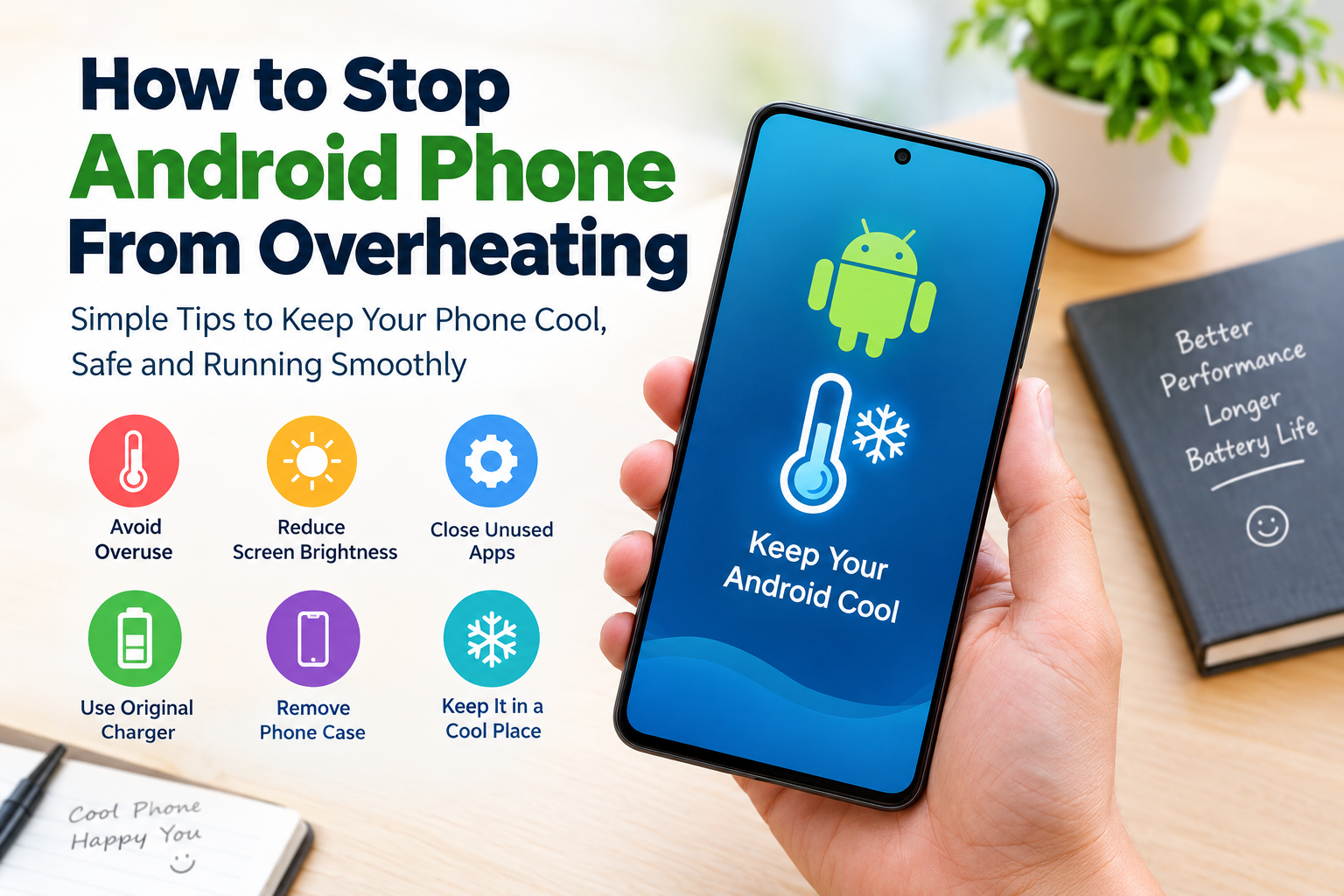
An Android phone can become warm during normal use, especially when I am charging it, playing games, watching videos, or using the camera for a long time. However, when the phone becomes unusually hot or stays hot for a long period, I pay attention to it because excessive heat can affect performance, battery life, and overall phone health.
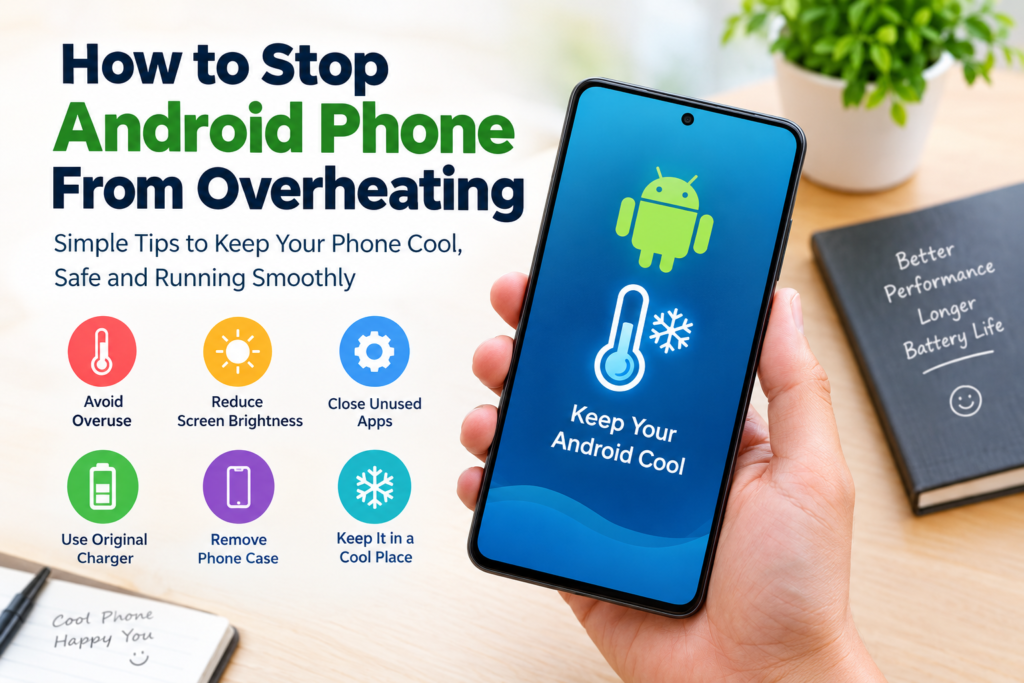
In my experience, most Android overheating problems can be reduced by making a few simple changes to the way the phone is used. You do not always need a special cooling app or an expensive accessory. Simple habits such as reducing screen brightness, closing demanding apps, keeping the phone away from direct sunlight, and using a suitable charger can make a noticeable difference.
In this guide, I will explain how to stop an Android phone from overheating and what you can do when your phone becomes too hot.
Why Does an Android Phone Overheat?
Before fixing an overheating problem, it helps to understand why it happens. An Android phone produces heat whenever its processor, display, battery, modem, or other internal components are working.
Gaming is one of the common reasons because demanding games keep the processor and graphics hardware busy. Streaming high quality videos for a long time can also make the phone warm. Using GPS navigation, mobile data, Bluetooth, and the camera continuously can add more workload.
Charging can naturally make a phone warmer too. If I use the phone heavily while it is charging, the temperature can rise even more.
Another common reason is environmental temperature. Leaving a phone inside a hot car or using it under direct sunlight can make it heat up quickly.
Stop Using the Phone for a While
When my Android phone becomes noticeably hot, the first thing I do is stop using it for a few minutes. Continuing to play games, record videos, or browse social media while the phone is already hot can make the problem worse.
Put the phone down and allow it to return to a normal temperature naturally. If you are charging it, consider disconnecting it until it cools down.
I avoid putting a hot phone inside a refrigerator or freezer because sudden temperature changes and moisture can create additional problems. Normal room temperature is usually a much better environment for cooling.
Reduce Screen Brightness
The display can consume a significant amount of power, particularly when brightness is set very high. If I keep my screen brightness at maximum for long periods, I notice that the phone can become warmer and the battery drains faster.
Try reducing the brightness to a comfortable level. You can also enable adaptive brightness if your Android phone provides that option.
Reducing screen brightness is a simple step, but it can help lower power consumption during everyday use.
Close Apps That Are Using Too Many Resources
Some applications continue performing tasks in the background even when you are not actively using them. A poorly optimized application can sometimes consume excessive processor power or battery.
If your phone suddenly becomes hot without an obvious reason, check the battery section in Settings. Android devices often provide information about which applications have been using the most battery.
If one application is consuming an unusually large amount of battery, consider closing it, updating it, or uninstalling it if the problem continues.
I would not recommend constantly force closing every application throughout the day. Android is designed to manage background applications automatically. Instead, focus on applications that are actually causing unusual battery or performance problems.
Avoid Heavy Gaming While Charging
One habit I try to avoid is playing demanding games while the phone is charging.
Gaming already creates heat because the processor and graphics hardware are working hard. Charging also produces some heat. Combining both activities can increase the overall temperature.
If you want to play a demanding game, letting the phone charge first and then playing without the charger connected can be a better approach.
The same idea applies to other demanding activities such as long video recording, video editing, or using navigation for extended periods.
Remove the Phone Case Temporarily
A phone case protects the device from scratches and accidental drops, but some thick cases can reduce how easily heat escapes from the phone.
If your Android phone becomes unusually hot, especially while charging, temporarily removing the case may help it cool more easily.
You do not necessarily need to stop using a case permanently. The important thing is to check whether the case is trapping heat during demanding activities or charging.
Keep Your Phone Away From Direct Sunlight
Direct sunlight can raise the temperature of a phone very quickly. This is especially noticeable during summer or in a hot vehicle.
I recommend keeping your Android phone in a shaded and ventilated place whenever possible. Avoid leaving it on a dashboard, near a window with strong sunlight, or inside a parked car.
If you are using navigation outdoors, try to position the phone where it has some protection from direct sunlight while still remaining visible and safe to use.
Use a Suitable Charger and Cable
The charger and cable you use can also matter. I prefer using the charger supplied by the phone manufacturer or a reputable compatible charger that meets the phone’s charging requirements.
A damaged cable, poor quality charger, or unsuitable accessory may cause charging problems and unnecessary heat.
If your phone becomes extremely hot every time you connect a particular charger, stop using that charger and check the charging accessories.
It is also worth keeping the charging port clean and dry. Never use damaged charging equipment simply because it still appears to work.
Check for Software Updates
Software updates can sometimes improve battery management, performance, and system stability. If your Android phone is overheating frequently, check whether an operating system or application update is available.
I also keep important applications updated because developers regularly release fixes for performance and battery related problems.
After installing an update, give the phone some time to settle. System maintenance tasks can temporarily increase processor activity, so a phone may feel warmer for a short period.
Turn Off Features You Are Not Using
Wireless features such as Bluetooth, mobile hotspot, GPS, and certain network connections can consume additional power when they are actively being used.
You do not need to disable everything all the time. Instead, turn off features that you are not using when they are unnecessary.
For example, if I am finished using a mobile hotspot, I turn it off. The same applies to Bluetooth when I am not connected to an accessory.
These small changes can reduce unnecessary battery activity and may help keep the phone cooler.
Avoid Using Your Phone in Hot Places
Ambient temperature has a major effect on how easily your phone can cool itself.
If the surrounding environment is already hot, the phone has less ability to release heat. This can become especially noticeable when you are outdoors during a hot day.
Whenever possible, use the phone in a cooler shaded area. Avoid placing it on hot surfaces or leaving it underneath blankets, pillows, or other materials that can restrict airflow.
Restart the Phone
Sometimes a simple restart can help when an application or system process becomes stuck and continues using excessive resources.
If your phone is warm without any obvious reason, save your work and restart it. After restarting, check whether the temperature returns to normal.
A restart is not a permanent solution for a hardware problem, but it can help resolve temporary software issues.
Check Battery Usage
Android provides useful battery information on many devices. Open Settings and look for the Battery section. The exact menu names can differ between Samsung, Google Pixel, Xiaomi, OnePlus, Oppo, Vivo, and other Android phones.
Look for applications that are consuming an unusually high amount of battery.
If one application consistently appears at the top and your phone becomes hot while using it, update the application or investigate its settings. If necessary, uninstall it and see whether the overheating problem disappears.
Do Not Rely on Cooling Apps
There are many applications that claim to cool Android phones. In my view, I would not depend on these apps as the main solution.
A phone cools down when the source of excess heat is reduced. Closing unnecessary processes, lowering workload, avoiding direct sunlight, and allowing the device to rest are generally more useful approaches.
Some cooling apps may simply provide information or close background processes that Android already manages. They cannot physically remove heat from the phone in the same way that proper environmental cooling can.
What to Do If Your Phone Gets Extremely Hot
If your Android phone becomes extremely hot, stop using it and disconnect it from the charger. Move it away from direct sunlight and place it somewhere cool and dry.
Do not cover the phone with blankets or place it against a heat source. Also avoid extreme cooling methods such as putting it in a refrigerator or freezer.
If the phone repeatedly becomes extremely hot during normal use, even when you are not gaming or charging, the problem deserves more attention. Persistent overheating can sometimes be related to a damaged battery, charging issue, faulty application, or hardware problem.
In that situation, contacting the phone manufacturer or an authorized repair service is a sensible step.
Final Thoughts
Learning how to stop an Android phone from overheating does not have to be complicated. In many cases, the solution starts with simple changes in everyday usage.
I recommend avoiding heavy tasks while charging, reducing screen brightness, keeping the phone away from direct sunlight, checking battery usage, updating software, and using reliable charging accessories. Giving the phone regular breaks during demanding activities can also help.
A little heat during gaming, charging, or heavy use can be normal. What matters is paying attention when the phone becomes unusually hot, overheats frequently, or shows other warning signs.
By following these simple Android overheating prevention tips, you can create better everyday habits and help your phone remain comfortable to use while protecting its battery and overall performance.