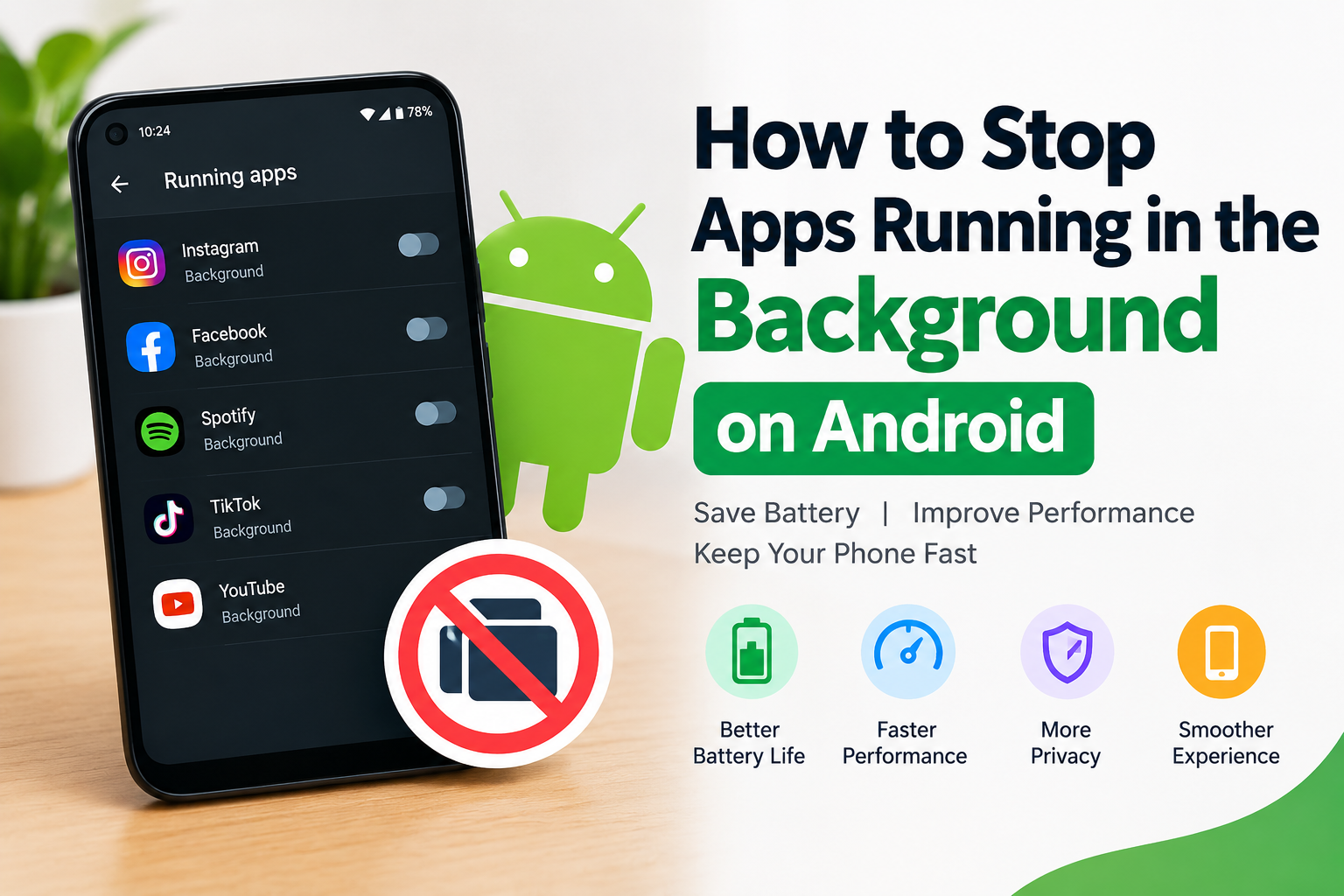
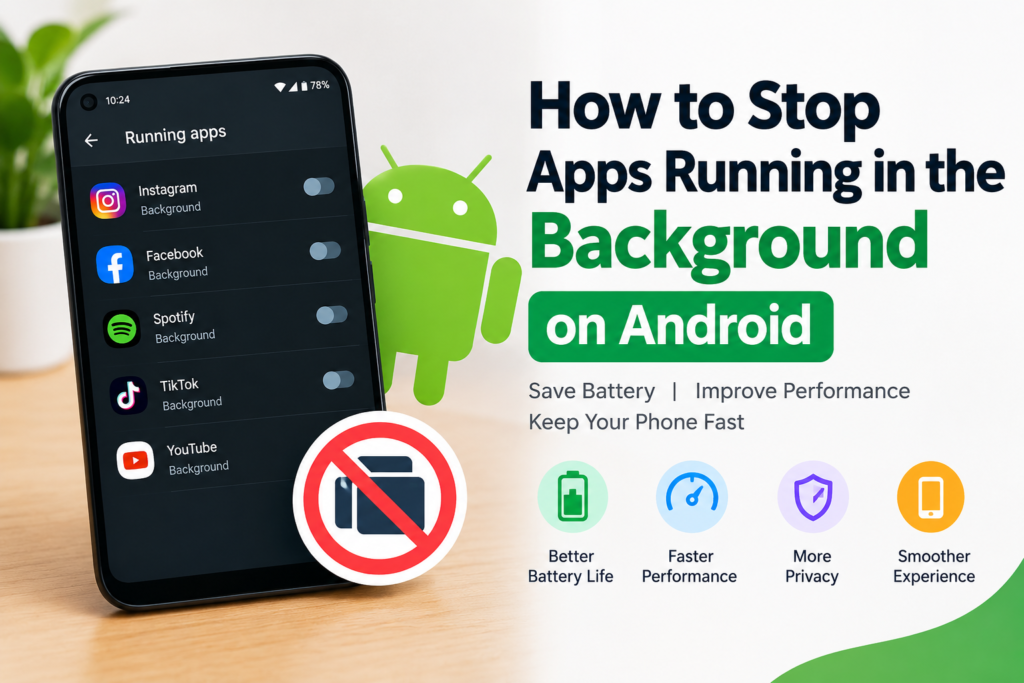
I have noticed that one of the common reasons an Android phone starts feeling slow is that too many apps continue working in the background. Sometimes we open an app, use it for a few minutes, and then move to another app. Even after we stop using it, some apps may continue performing tasks in the background.
Background activity can be useful because it allows apps to send notifications, update information, sync accounts, and perform other important tasks. However, when too many apps are allowed to run in the background, they can consume battery, mobile data, memory, and system resources.
If your Android phone is losing battery quickly, becoming slower, or using more mobile data than expected, learning how to stop apps running in the background can be helpful.
In this guide, I will explain several simple methods that I personally consider useful for controlling background apps on Android.
What Does Running in the Background Mean?
When an app is running in the background, it means the app is performing certain tasks even though you are not actively using it on your screen.
For example, a messaging app may check for new messages while you are using another application. An email app may synchronize new emails. A music app may continue playing audio after you leave the main screen.
Some background activity is necessary for apps to work properly. The problem usually starts when unnecessary apps are constantly using resources.
Android has built in systems for managing background activity. The exact options can be different depending on your phone manufacturer, Android version, and device model.
Why Should You Stop Unnecessary Background Apps?
There are several reasons why you may want to control background apps.
The first reason is battery life. Apps that frequently perform background tasks can consume additional power.
The second reason is mobile data usage. Some applications regularly connect to the internet to refresh information, download content, or synchronize data.
Another reason is performance. Modern Android phones are designed to manage memory automatically, but having many demanding applications active at the same time can still affect your experience.
I also recommend checking background activity when your phone becomes unusually warm. An application performing frequent tasks can sometimes contribute to increased battery and processor usage.
However, I would not recommend stopping every background app. Some applications need background access for notifications and other important features.
Method 1: Restrict Background Battery Usage
One of the easiest ways to control an Android app is through its battery settings.
The general steps are:
- Open Settings on your Android phone.
- Tap Apps or Apps and notifications.
- Select the application you want to control.
- Tap Battery or App battery usage.
- Look for the available background usage options.
- Choose a more restricted option if your phone provides one.
Different Android phones use different names for these settings. You may see options related to unrestricted usage, optimized usage, or restricted usage.
I usually recommend checking apps that you rarely use but that appear to consume a noticeable amount of battery.
Keep in mind that restricting an app can affect how quickly it receives notifications or updates.
Method 2: Force Stop an App
If an application is currently behaving strangely or consuming excessive resources, you can use the Force Stop option.
To do this, open:
Settings > Apps > Select the App > Force Stop
Then confirm your choice.
Force stopping an app closes its current processes. The app can usually start again when you open it.
I find this method useful when an application becomes unresponsive or appears to be using an unusual amount of battery or resources.
It is not something I recommend doing repeatedly for every application. Android is already designed to manage apps automatically, so force stopping should generally be used when there is a specific reason.
Method 3: Disable Background Data
Some apps use mobile data while working in the background. If you want to reduce this activity, you can check the data usage settings for individual applications.
Open Settings, then look for Apps, select an app, and check its Mobile data, Data usage, or similar option.
Depending on your Android version, you may find an option to prevent background data usage.
This can be especially useful for applications that frequently refresh content.
However, remember that restricting background data can prevent an application from updating information until you open it again or connect it to an unrestricted network.
Method 4: Turn Off Auto Sync for Unnecessary Accounts
Automatic synchronization allows your phone and apps to keep information updated.
For example, your phone may synchronize contacts, email, calendars, and other account information.
If you have accounts that you no longer use, removing them can reduce unnecessary synchronization.
You can review your accounts through the Android Settings application. Look for Accounts, Passwords and accounts, or a similar option depending on your device.
I recommend keeping synchronization enabled for services that you actually use. Instead of disabling everything, it is better to remove unnecessary accounts and services.
Method 5: Uninstall Apps You Do Not Use
Sometimes the simplest solution is to remove applications that you no longer need.
Many people install an app for a particular purpose and then forget about it. Even if you rarely open an application, it may still perform certain background tasks depending on its permissions and settings.
To uninstall an application, you can usually press and hold its icon and select Uninstall.
You can also go to:
Settings > Apps > Select the App > Uninstall
Removing unused applications can free storage space and reduce the number of services that need to be managed by your phone.
Before uninstalling an application, make sure you do not need any information stored inside it.
Method 6: Check Which Apps Use the Most Battery
If your main concern is battery drain, I recommend checking the battery usage screen before changing settings.
Open Settings and search for Battery usage.
You should see information about which applications have used the most battery recently.
This gives you a better idea of where the problem may be.
For example, if an application that you barely use appears near the top of the battery usage list, you can open its settings and check whether background activity can be restricted.
I think this is better than randomly stopping applications because you are working with actual information from your phone.
Method 7: Turn Off Unnecessary Notifications
Notifications themselves are not always a major battery problem, but unnecessary notifications can encourage you to open applications frequently.
You can review notification permissions through the Settings application.
Go to Settings > Notifications > App notifications and select the applications you do not want to receive frequent notifications from.
You do not have to turn off notifications for every application. I recommend keeping important notifications enabled for messaging, calls, banking, security, and other services you rely on.
Method 8: Use Battery Saver When Necessary
Android phones normally include a Battery Saver feature.
You can find it under Settings > Battery on many devices.
Battery Saver can reduce certain background activities and help your phone last longer when the battery is getting low.
I find this especially useful when I am traveling or when I know I will not have access to a charger for several hours.
The exact behavior of Battery Saver depends on the phone and Android version.
Should You Stop All Background Apps?
I would not recommend stopping every background application.
Android is designed to manage applications automatically. Some background activity is necessary for normal smartphone functions.
For example, messaging applications may need background access to deliver notifications. Email applications may need synchronization to receive new messages. Music applications may need to remain active while playing audio.
If you restrict everything, some applications may stop working as expected.
Instead, focus on applications that are unnecessary, consume unusual amounts of battery, or use more mobile data than you want.
Does Stopping Background Apps Improve Android Performance?
It can help in certain situations, but it is not a guaranteed solution for every slow phone.
If one application is constantly consuming resources because of a problem, restricting or uninstalling that application may improve the overall experience.
However, repeatedly closing every application is not always useful. Android manages memory differently from a traditional computer, and the system may automatically manage applications that are not currently needed.
If your phone is consistently slow, I would also recommend checking available storage, updating Android and applications, removing unused apps, and restarting the device.
How to Find Problematic Apps
The best approach is to observe your phone rather than making random changes.
Start by checking battery usage. Then check mobile data usage if you are concerned about data consumption.
Pay attention to applications that you rarely use but that appear to be active frequently.
You can also notice practical signs. If your phone becomes warm when you are not doing anything demanding, the battery percentage drops unusually quickly, or mobile data disappears faster than expected, checking background activity may be worthwhile.
Final Thoughts
Learning how to stop apps running in the background on Android does not mean you need to disable every application on your phone.
In my experience, the better approach is to identify unnecessary applications and control them individually. Android already provides several useful options, including battery restrictions, background data controls, Force Stop, Battery Saver, notification settings, and app removal.
I recommend starting with the battery usage screen because it can show you which applications are actually consuming significant resources. From there, you can decide whether an app needs unrestricted background activity or whether it can safely be restricted.
You should also remember that Android settings can look different on Samsung, Google Pixel, Xiaomi, OnePlus, Motorola, and other phones. If you cannot find an option mentioned in this guide, use the Settings search bar and type terms such as battery usage, background activity, data usage, or apps.
The goal is not to stop everything. The goal is to keep unnecessary background activity under control while allowing important applications to work normally.
With a few simple adjustments, you can reduce unnecessary battery and data usage and keep your Android phone running comfortably for everyday tasks.