In my view, protecting an Android account is one of the most important things we can do when using a smartphone. Our phones are connected to email, photos, contacts, banking apps, social media, cloud storage, and many other personal services. If someone gets access to the main account connected to the phone, they may be able to access much more than we expect.
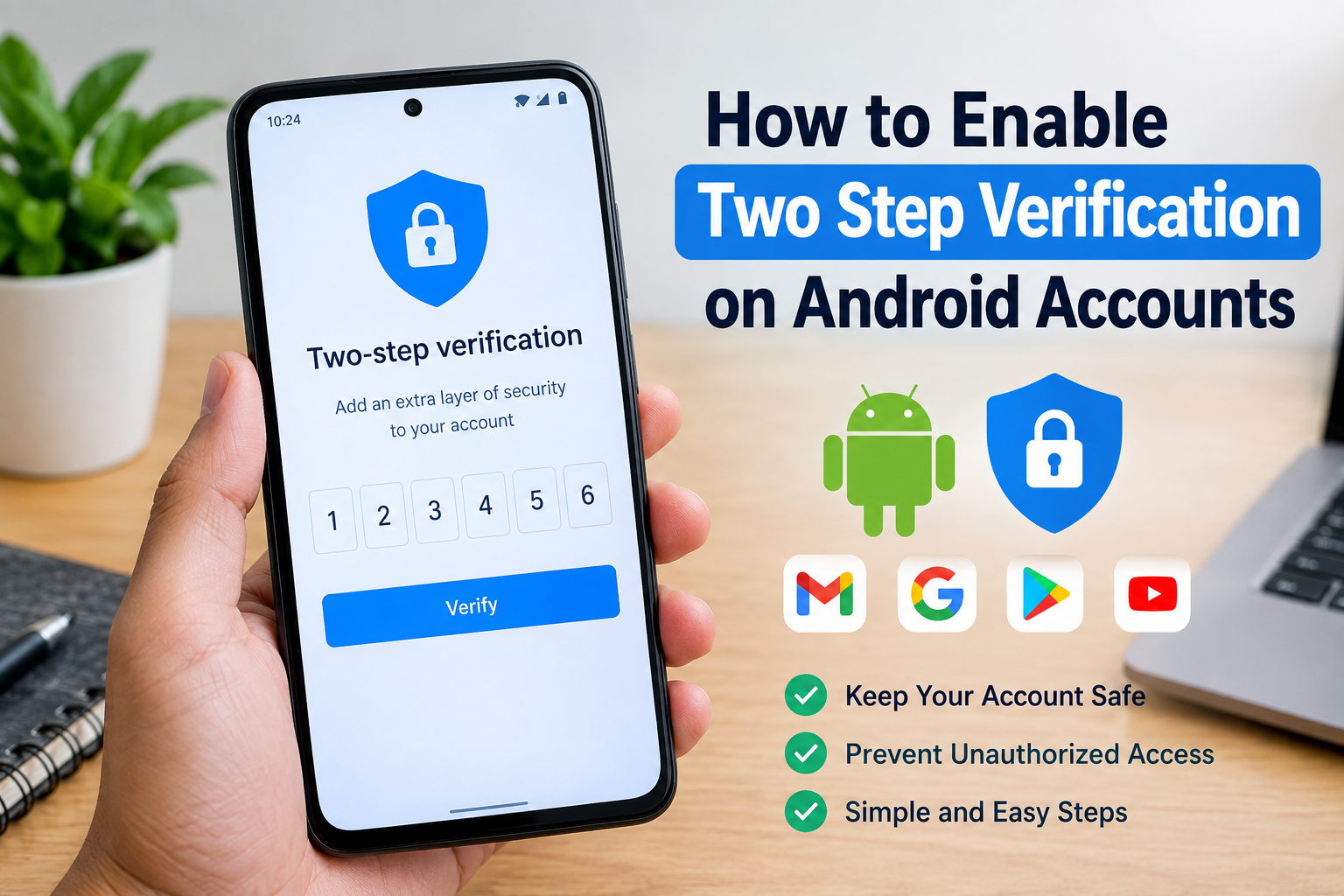
This is why I recommend enabling two step verification on important Android accounts. Two step verification adds another security check when someone tries to sign in. Even if a person somehow knows your password, they may still need a second verification method before they can access the account.
In this guide, I will explain how to enable two step verification on Android accounts, what options you may see, and what you should do to keep your account protected.
What Is Two Step Verification?
Two step verification is an additional security feature that requires more than just your password when you sign in to an account.
Normally, you enter your email address and password. With two step verification enabled, the account may ask you for another confirmation. Depending on your account and security settings, this could be a verification code, a prompt on your trusted phone, an authenticator app, a security key, or another approved method.
I think of it as adding another lock to the same door. Your password is the first lock, while the second verification method provides another layer of protection.
This is especially useful if you reuse passwords, accidentally enter your password on a fake website, or your password becomes known to someone else.
Why Should You Enable Two Step Verification on Android?
Android phones are often connected to a Google Account. This account can be used for services such as Gmail, Google Photos, Google Drive, YouTube, Google Play, contacts, and other Google services.
Because one account can connect to many services, protecting it is important.
The biggest benefit of two step verification is that a stolen password alone may not be enough for someone to access your account. The attacker would generally need the additional verification method as well.
Two step verification can also provide useful notifications when someone attempts to sign in. If you receive an unexpected verification request, you may realize that someone is trying to access your account.
For me, this is one of the simplest security improvements that an Android user can make.
How to Enable Two Step Verification on Android
The exact names of settings can vary depending on your Android version, phone manufacturer, and account configuration. However, the general process is straightforward.
Step 1: Open Settings
Start by opening the Settings app on your Android phone.
On many Android devices, you can find the Google section inside Settings. Tap Google to access Google Account related settings.
Some phones may display your account information directly near the top of the Settings screen.
Step 2: Open Your Google Account
Look for an option such as Manage your Google Account.
Tap it to open your account settings.
You will normally see different sections for personal information, security, privacy, and other account features.
For this guide, the section we need is Security.
Step 3: Open the Security Section
Tap Security.
This section contains several options related to protecting your Google Account. You may see information about your password, devices, recent security activity, recovery options, and two step verification.
Scroll through the page until you find 2 Step Verification or Two Step Verification.
Tap this option to continue.
Step 4: Sign In if Required
Google may ask you to enter your password before you can change important security settings.
Enter your account password carefully.
This additional confirmation helps prevent another person who may have temporary access to your unlocked phone from changing important security settings without your knowledge.
Step 5: Start the Two Step Verification Setup
After opening the two step verification settings, follow the instructions shown on your screen.
Google may recommend using prompts on your trusted Android phone. You may also see other verification methods depending on your account.
Read the available options carefully before completing the setup.
Step 6: Choose a Verification Method
There can be several ways to confirm that you are the person trying to sign in.
One common option is a Google prompt. When you attempt to sign in on another device, a notification can appear on your trusted phone asking you to confirm the login.
Another option can involve receiving a verification code. Depending on your account settings, you may be able to use a phone number for this purpose.
Authenticator apps can also generate verification codes without relying on text messages.
Security keys are another option for users who want a physical security device.
The available choices can change over time, so I recommend choosing methods that you can reliably access.
Use More Than One Recovery Method
One thing I consider very important is having a backup method.
Imagine that two step verification is enabled and your phone is lost, damaged, or unavailable. You still need a safe way to prove that the account belongs to you.
Your account may provide backup codes or other recovery options.
Backup codes are particularly useful because they can help you sign in when your normal verification method is unavailable. Store them somewhere secure rather than leaving them in an easily accessible location.
You should also keep your recovery phone number and recovery email address up to date if those options are available.
Be Careful With Verification Requests
Two step verification improves account security, but it does not mean that you can ignore suspicious messages.
One common trick is to convince someone to approve a login request that they did not initiate.
For example, you may receive a verification notification while you are not trying to sign in. If you approve it without checking, you could accidentally allow another person to access your account.
My advice is simple. If you did not start the login, do not approve the request.
If something looks suspicious, check your account security activity and change your password if necessary.
Keep Your Android Phone Secure
Two step verification is only one part of account security.
Your Android phone itself should also be protected with a strong screen lock. A PIN, password, or other supported security method can help prevent unauthorized physical access.
I also recommend keeping Android and your important apps updated. Software updates can include security improvements and bug fixes.
Avoid installing applications from unknown sources unless you understand exactly what you are installing. Downloading apps from trusted sources reduces the risk of installing malicious software.
It is also useful to review the permissions granted to apps. If an application does not need access to certain information or hardware, consider removing unnecessary permissions where Android allows you to do so.
What If You Lose Your Phone?
Losing your phone can be stressful, especially when it is used for account verification.
Before this happens, make sure your recovery information is current and that you have another way to access your account.
You can also review the devices connected to your Google Account from the security settings. If you lose a phone permanently, review your account and remove access from devices you no longer control when appropriate.
If your phone is stolen, do not wait unnecessarily before securing your important accounts.
Two Step Verification Is Worth Using
In my opinion, enabling two step verification is one of the easiest ways to improve Android account security.
It does not make an account completely impossible to attack, but it adds an important layer between an attacker and your personal information.
The most important thing is to set it up correctly and maintain your recovery options. Do not enable two step verification and then forget about your backup methods.
Take a few minutes to check your trusted devices, recovery information, verification methods, and recent account activity from time to time.
Final Thoughts
Learning how to enable two step verification on Android accounts does not have to be complicated. If you use a Google Account on your Android phone, opening your account security settings and following the two step verification setup can significantly improve your account protection.
I recommend using a strong and unique password together with two step verification. Keep your recovery information updated, protect your phone with a secure screen lock, and never approve a login request that you did not initiate.
Account security is something that is easy to ignore until there is a problem. Spending a few minutes setting up two step verification today can help provide better protection for your email, photos, files, contacts, and other important information connected to your Android account.