
When I use an Android phone, I like having control over how different tasks work. One of the simplest ways to make an Android phone feel more personal is by changing the default apps. Android often asks which app I want to use when I open a link, play a video, view a photo, or perform another action. If I accidentally select the wrong app as the default, it can become annoying because Android may stop asking me and automatically open that app every time.
The good thing is that changing default apps on Android is usually simple. The exact steps can be slightly different depending on the phone brand and Android version, but the basic process is almost the same. In this guide, I will explain how I change default apps on Android and how you can manage them easily.
What Are Default Apps on Android?
A default app is an application that Android automatically uses for a particular task. For example, if you have two web browsers installed, Android can use one of them as your default browser. Whenever you tap a website link, that browser will open automatically.
The same idea applies to other types of apps. You might have several gallery apps, music players, video players, email applications, or phone apps installed. Android allows you to choose which one should handle certain actions.
I find this feature especially useful when I install a new app and want to use it instead of the application that came with my phone.
Why Change Default Apps?
There are several reasons why someone might want to change default apps.
The first reason is convenience. If you prefer one browser over another, setting it as your default means you do not have to choose it every time you open a link.
Another reason is features. Some apps provide better privacy settings, customization options, or extra features compared with the default application.
You may also change default apps after installing a new application. For example, if you install a new browser and like it more than your current browser, you can make it your default.
Sometimes the change is simply accidental. You may tap an option that says to always use a particular application. Later, you may realize that you actually wanted to use another app. In that situation, you can change the default setting from Android’s Settings.
How to Change the Default Browser
Changing the default browser is one of the most common things people do on Android.
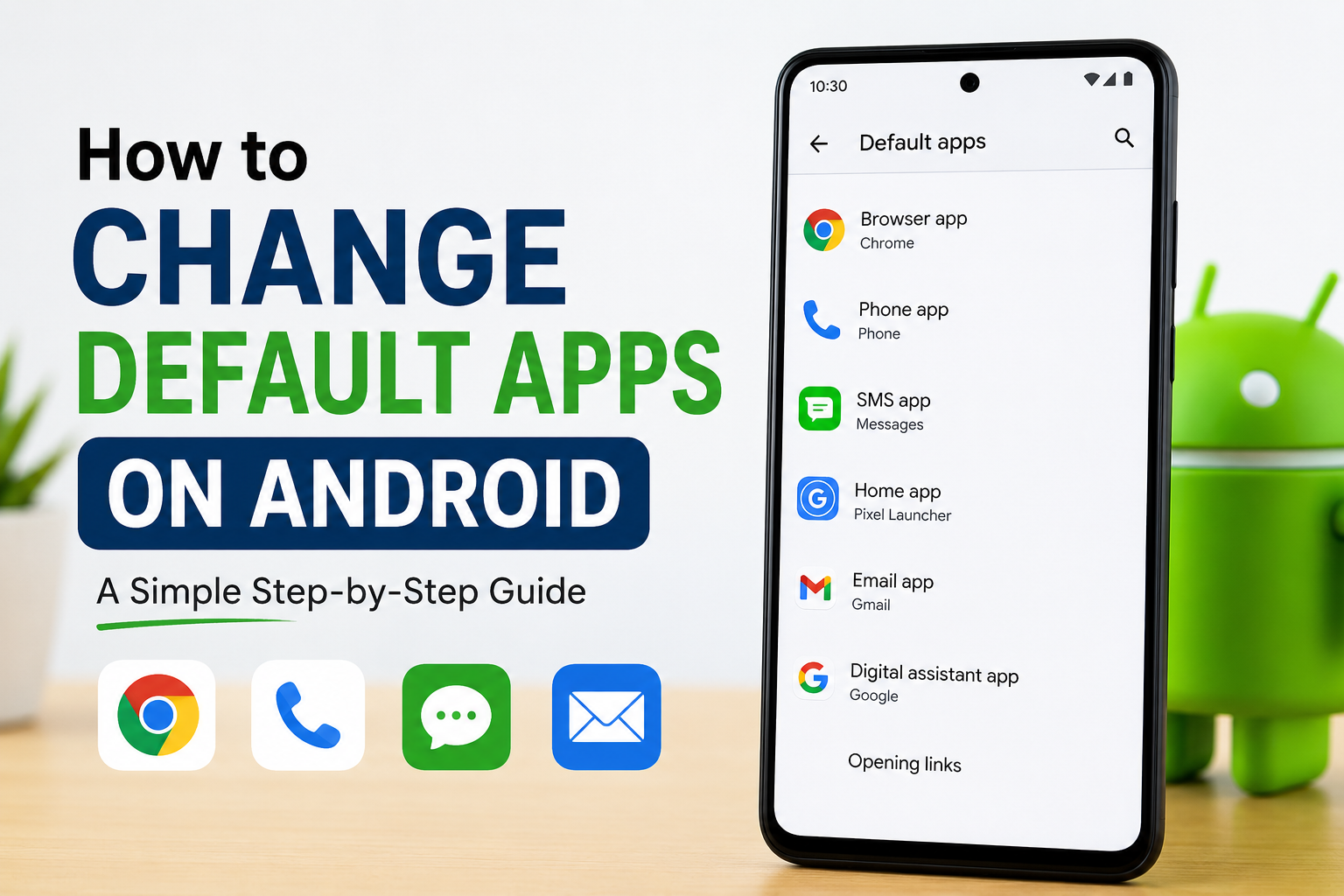
First, open the Settings app on your phone. Look for an option called Apps or Apps & notifications, depending on your Android version.
Inside the Apps section, look for Default apps. On some phones, you may need to select Choose default apps.
You should see several categories. Find Browser app and tap it.
Android will show you the browsers installed on your phone. Select the browser you want to use as your default.
After selecting it, Android should automatically use that browser whenever you tap a website link.
I recommend checking this setting whenever you install a new browser. It saves time and makes the phone behave the way you prefer.
How to Change the Default Phone App
If you have more than one phone or calling application installed, you can usually choose which one Android should use for calls.
Open Settings and go to Apps. Then select Default apps.
Look for Phone app or Calling app. Tap the option and choose the application you want to use.
The exact name can vary depending on your phone manufacturer. Some Android phones may place this setting under a section related to special app access or default applications.
After making the selection, your chosen application should handle phone calls whenever Android uses the default phone app.
How to Change the Default Messaging App
Some Android phones allow you to select a default SMS or messaging application.
To check this, open Settings and go to Apps. Find Default apps and look for SMS app or Messaging app.
Tap it and select the messaging application you want to use.
This can be useful if you have installed a different messaging application and prefer its interface or features.
Keep in mind that some messaging applications may have their own requirements or limitations, so make sure the app you choose supports the features you need.
How to Change Default Apps for Links
Android also gives you control over which apps open certain links.
For example, you might have multiple applications that can open a particular type of link. Android can sometimes automatically open the link in one specific application.
To manage this, open Settings, go to Apps, and select the application you want to check.
Look for an option such as Open by default, Set as default, or Opening links.
Here you may see options related to supported links. You can change whether the application is allowed to open certain links automatically.
The wording can be different on Samsung, Google Pixel, Xiaomi, OnePlus, Motorola, and other Android phones, so do not worry if your screen does not look exactly the same.
How to Clear a Default App
Sometimes I do not want to choose another default app immediately. Instead, I want Android to ask me again the next time I perform an action.
In that situation, clearing the existing default can be useful.
Open Settings and go to Apps. Find the application that is currently being used as the default.
Tap the app and look for Open by default or a similar option.
Depending on your Android version, you may see an option such as Clear default preferences or settings for opening supported links.
After clearing the relevant setting, Android may ask you which application you want to use the next time you perform that action.
This is helpful if you are unsure which app you want to keep as your permanent choice.
Changing Default Apps on Samsung Galaxy Phones
Samsung phones use a customized version of Android, so some settings may look different.
On many Galaxy phones, I can open Settings, select Apps, and then look for Choose default apps.
From there, I can select categories such as browser, digital assistant, home app, phone app, and other supported defaults.
Samsung frequently updates its software, so the exact menu names can change with different versions of One UI.
If you cannot find the setting, using the search option inside Settings is usually the easiest method. Simply search for Default apps.
Changing Default Apps on Google Pixel Phones
Google Pixel phones generally use a cleaner version of Android.
To manage defaults, open Settings, select Apps, and then tap Default apps.
You should see different categories for supported default applications.
Choose the category you want to change and select your preferred app.
One thing I like about this approach is that the settings are generally easy to understand. If your Pixel uses a newer Android version, the names or arrangement may be slightly different.
What If Android Does Not Show the App?
Sometimes an app does not appear in the default app list. This does not necessarily mean something is wrong.
The application may not support the particular function you are trying to assign to it. Android only displays apps that are capable of handling a specific type of task.
For example, an app cannot become your default browser unless it is designed to work as a web browser.
If an app should support the function but does not appear, make sure the application is installed correctly and updated. Restarting the phone can also help in some situations.
What Happens When You Install a New App?
When I install a new application that can perform an existing task, Android may ask me which app I want to use.
For example, if I install another browser, I may eventually be asked which browser should open web links.
Android may offer options such as using the app Just once or Always. Choosing Always normally makes that application the default for that type of action.
If I am not sure, I prefer choosing the temporary option first. That allows me to test the application before making it the permanent default.
How to Reset Default App Preferences
If you have changed many default settings and want to start fresh, Android can usually reset app preferences.
Open Settings, go to Apps, and look for an option related to resetting app preferences. On some phones, you may need to open the menu from the Apps screen before finding this option.
Resetting app preferences can affect more than just default applications. Depending on your Android version, it may also reset disabled apps, notification restrictions, background data restrictions, and other app related preferences.
Your personal files and application data are generally not deleted by this type of reset, but I still recommend reading the confirmation message carefully before continuing.
Common Problems When Changing Default Apps
One common problem is that the menu location is different from what you see in an online guide. This happens because Android manufacturers customize their software.
Another issue is that an application may not support becoming a default app. In that case, there may be nothing you can change from the Default Apps menu.
Sometimes an app update can also change how links or files are handled. If something suddenly opens in a different application, checking your default app settings is a good first step.
I also recommend keeping your important apps updated because outdated versions may not work properly with newer Android software.
My Recommendation for Managing Default Apps
Personally, I think it is better to choose default apps based on how often you use them and how comfortable you are with them. You do not need to use the apps that came preinstalled on your phone.
If another browser gives you a better experience, use it. If another messaging application works better for you, consider making it the default.
At the same time, I would avoid installing many applications that perform exactly the same task unless you actually need them. Having too many similar apps can make it harder to remember which one is handling your links, files, or other actions.
Final Thoughts
Changing default apps on Android is a simple way to personalize your phone. Whether you want to change your browser, phone app, messaging app, or the way links are opened, Android gives you several options.
The basic process is usually to open Settings, go to Apps, find Default apps, and choose the application you prefer. If you accidentally selected an app as the default, you can usually go back to its settings and clear or change the preference.
Android versions and phone manufacturers can place these settings in different locations, but the general idea remains the same. Once you understand how default apps work, managing them becomes much easier.
For me, the best approach is to test an application before making it the permanent default. That way, I can see whether I actually like using it. A few small changes in the Default Apps settings can make an Android phone feel much more convenient and personalized.
