I think the battery is one of the most important parts of any Android phone. We can have a great camera, a fast processor, a beautiful display, and plenty of storage, but none of these things are very useful if the battery cannot hold a charge properly. This is why I believe checking battery health on Android is something every phone user should understand.
Battery health is different from the battery percentage that we normally see at the top of the screen. The percentage tells us how much power is currently available. Battery health gives us a better idea about the overall condition and capacity of the battery.
In this guide, I will explain how to check battery health on Android, what the battery health information means, how to check it when your phone does not provide a built in option, and what you can do to keep your battery healthy for longer.
What Is Battery Health on Android?
Battery health describes the condition of your phone battery compared with when the battery was new. Over time, rechargeable batteries naturally lose some of their original capacity.
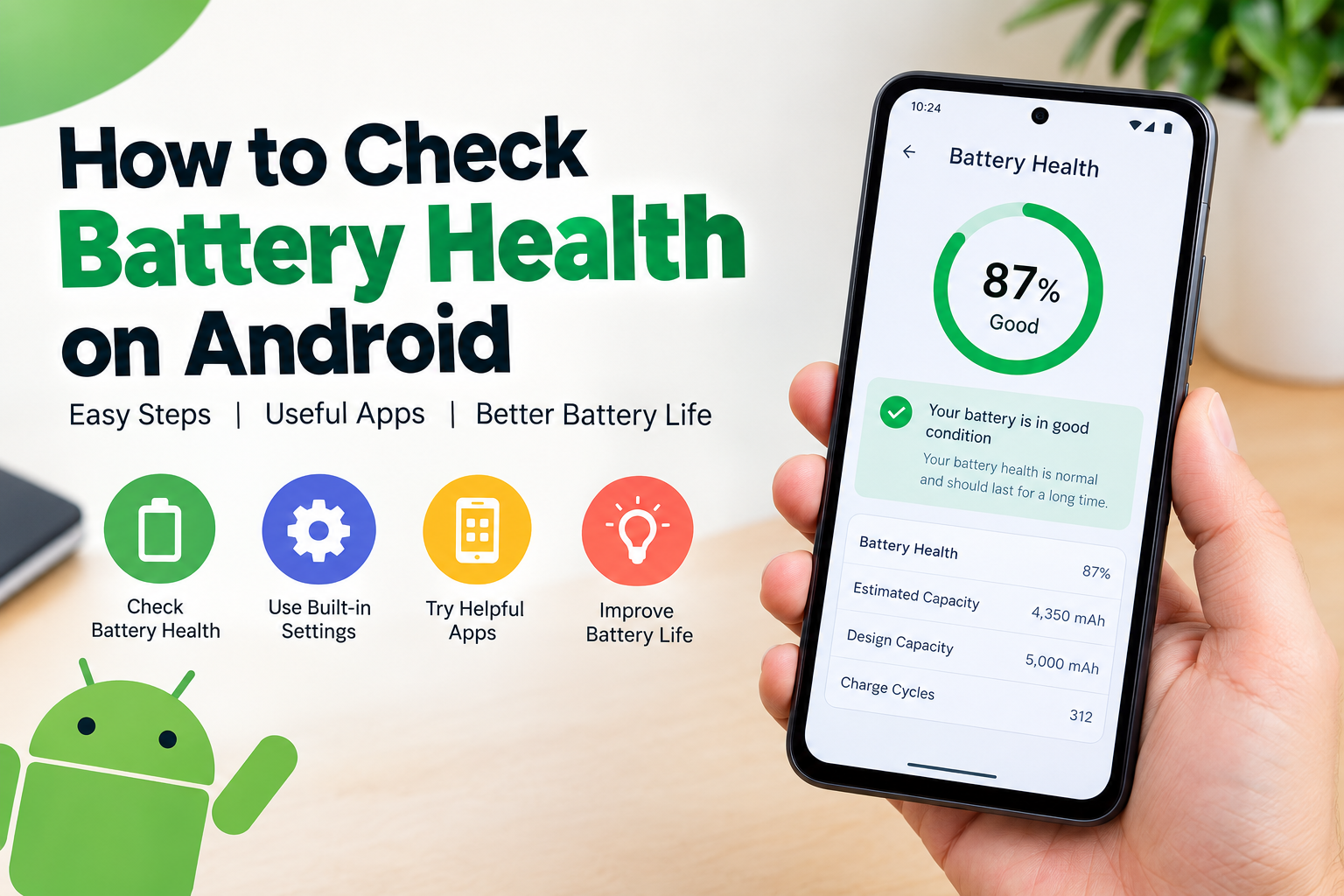
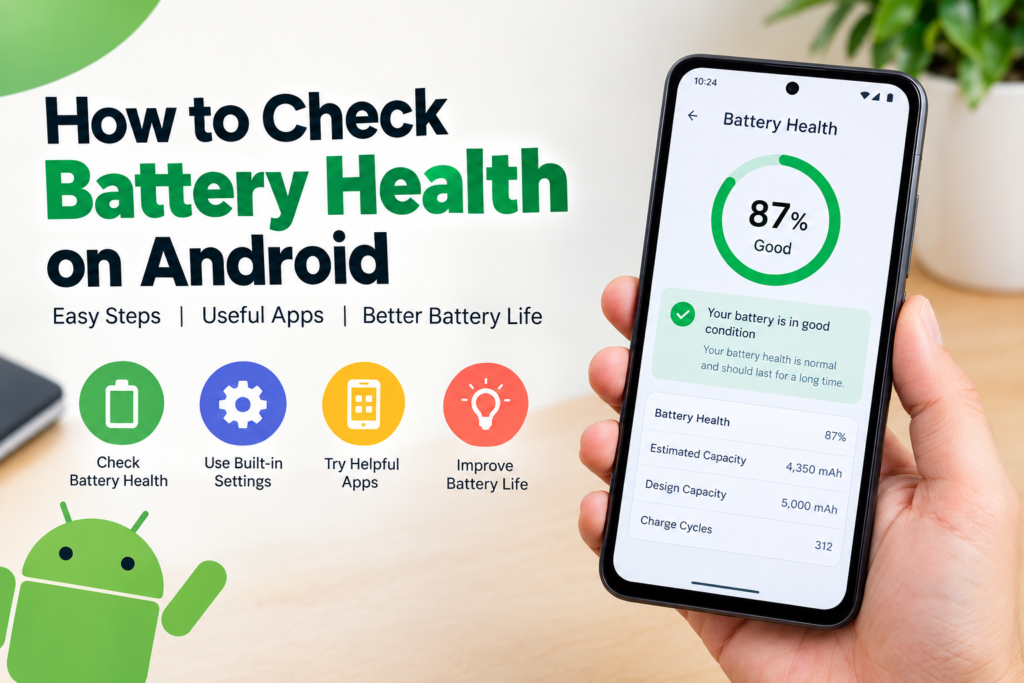
For example, imagine your phone originally had a battery capacity of 5000 mAh. After many months or years of charging and daily use, the battery may no longer be able to store the same amount of energy. Its actual capacity could gradually become lower.
This means you may notice that your phone needs charging more frequently than it did when you first purchased it.
Battery health can help you understand whether this reduced battery life is caused by normal usage, battery aging, or another problem.
Battery Percentage and Battery Health Are Different
One common mistake I see among Android users is confusing battery percentage with battery health.
If your phone shows 80 percent battery, it simply means the battery currently has approximately 80 percent of its available charge.
Battery health is different. It tells you about the long term condition of the battery.
For example, a phone could show 100 percent charge while still having reduced battery health. If the battery has aged significantly, that 100 percent may represent much less energy than the battery could store when it was new.
Understanding this difference makes it much easier to identify battery problems.
Check Battery Health Using Android Settings
The easiest method is to check your phone’s built in battery settings. However, the exact options can vary depending on the manufacturer, Android version, and phone model.
Start by opening the Settings app on your Android phone.
Look for an option called Battery. Tap it and check the available battery information.
Some newer Android phones may provide additional battery information, including battery health, battery capacity, charging optimization, or battery diagnostics.
If you see an option such as Battery Health, Battery Information, or Battery Diagnostics, open it to view the available details.
Not every Android phone provides a direct battery health percentage. If you cannot find this option, do not assume there is something wrong with your phone. Many manufacturers simply use different battery menus or do not display a health percentage.
Check Battery Health on Samsung Phones
Samsung phones have several battery and device care features that can help users understand battery condition.
Open Settings and look for Battery and Device Care or a similar battery management section. From there, check the battery information and diagnostics options available on your device.
On some Samsung models, Samsung Members can also provide diagnostic tests for different parts of the phone, including the battery.
The exact menu names can change depending on the One UI version and phone model, so if you do not see the same options, search for Battery inside the Settings app.
Check Battery Health on Google Pixel Phones
Google Pixel phones also provide useful battery information through the Settings application.
Open Settings and select Battery. You can review battery usage, battery performance information, and other available battery options.
Some newer Pixel models provide more detailed battery information than older devices. If your particular model does not show a simple battery health percentage, you can still use battery usage information to identify unusual battery behavior.
For example, if your phone suddenly loses power much faster than normal, checking battery usage can help identify whether a particular application is responsible.
Use a Battery Health App
If your Android phone does not provide built in battery health information, you can use a trusted battery monitoring application.
There are several applications available through the Google Play Store that can estimate battery capacity and provide information about charging cycles, temperature, voltage, and battery usage.
One popular type of battery monitoring app works by comparing the estimated current battery capacity with the original design capacity.
Keep in mind that these applications may provide estimates rather than exact laboratory measurements. I would therefore use them as a useful guide instead of treating the displayed percentage as a perfect measurement.
When installing any battery application, I recommend checking its developer, reviews, permissions, and reputation before giving it access to your device.
Check Battery Health With Diagnostic Information
Some Android phones provide diagnostic menus that contain technical battery information.
Depending on the manufacturer, you may be able to see details such as battery temperature, voltage, charging status, and other technical information.
These details can be useful when troubleshooting battery problems.
For example, if your phone becomes unusually hot during normal use, battery temperature information may help you understand whether overheating is occurring.
However, I would avoid changing technical settings unless you understand exactly what they do. Diagnostic information is useful for checking the phone, but changing hidden settings can sometimes cause unexpected problems.
Signs That Your Android Battery May Be Aging
You do not always need a battery health percentage to recognize an aging battery.
One of the most obvious signs is reduced battery life. If your phone used to last most of the day but now needs charging several times, the battery may have lost some of its original capacity.
Another sign is unexpected shutdowns. If the phone turns off even though the battery percentage appears reasonable, the battery may be struggling to provide stable power.
You may also notice that the battery percentage drops unusually quickly.
For example, if the phone falls from 80 percent to 50 percent during a short period without heavy use, it is worth checking battery usage and battery condition.
Unexpected heating can also be a warning sign, especially if it happens during light tasks.
Check Which Apps Use Your Battery
Battery health is not always the reason for poor battery life. Sometimes an application is consuming too much power.
To check this, open Settings and go to Battery. Look for Battery Usage or a similar option.
You should see a list of applications and how much battery they have used.
If one application is using a surprisingly large amount of battery, check whether you really need it running in the background.
You can update the application, restrict unnecessary background activity, or uninstall it if it continues causing problems.
This simple check can sometimes improve battery life without replacing the battery.
How to Keep Your Android Battery Healthy
Once you understand your battery health, the next step is taking care of the battery.
I recommend avoiding unnecessary heat whenever possible. High temperatures can negatively affect rechargeable batteries over time. Try not to leave your phone in direct sunlight or inside a hot vehicle.
Using a reliable charger and cable is also important. Poor quality charging accessories can create charging problems and may cause unnecessary heat.
Another useful habit is keeping your Android phone updated. Software updates can sometimes improve battery management and fix applications that consume excessive power.
You can also use battery saving features when you need longer battery life. Lowering screen brightness, reducing unnecessary background activity, and turning off features you are not using can make a noticeable difference.
Do You Need to Replace Your Android Battery?
If your battery health has declined significantly and the phone no longer provides acceptable battery life, you may eventually consider replacing the battery.
Before doing this, I recommend checking whether the phone is still under warranty and whether the manufacturer provides an official battery replacement service.
For phones with built in batteries, I would avoid opening the device yourself unless you have the proper technical experience. A professional repair center is generally a safer option.
If the battery is swollen, damaged, extremely hot, or behaving dangerously, stop using the phone and seek professional assistance.
How Often Should You Check Battery Health?
I do not think you need to check battery health every day. Battery condition changes gradually, so checking it occasionally is usually enough.
I would check battery health when I notice a clear change in battery performance, unusually fast battery drain, unexpected shutdowns, or excessive heating.
Checking the battery after long periods of heavy use can also help you understand how your phone is aging.
Final Thoughts
Learning how to check battery health on Android is a simple way to understand the condition of your phone. The exact method depends on your Android version and phone manufacturer, so the battery health option may not appear in the same place on every device.
Start by checking the built in Battery section in Settings. If your phone does not provide detailed battery health information, a reputable battery monitoring application can provide useful estimates.
I also recommend looking beyond the battery health percentage. Battery usage, charging behavior, temperature, unexpected shutdowns, and overall battery life can tell you a lot about your phone’s condition.
Most importantly, taking care of your battery from the beginning can help you get more useful years from your Android phone. Avoid excessive heat, use reliable charging accessories, keep your software updated, and pay attention to unusual battery behavior.
With these simple habits, you can better understand your Android battery and know when it may be time to take action.