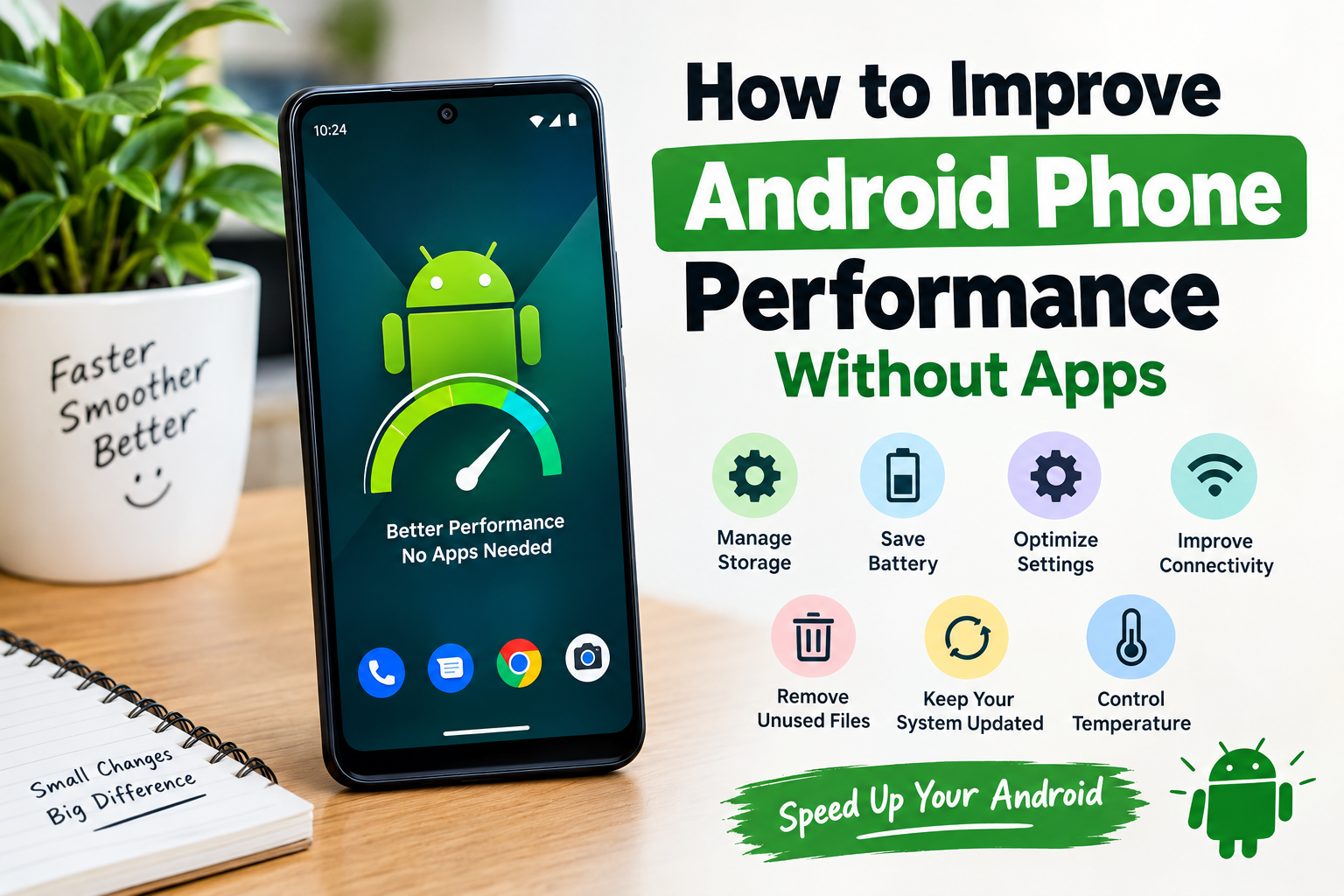
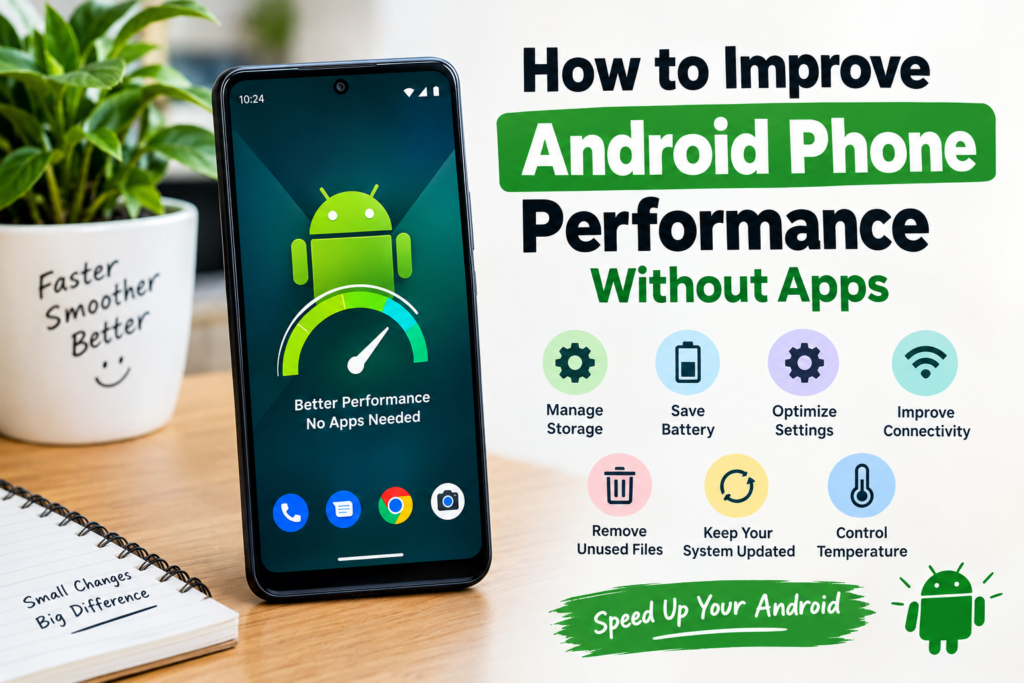
If your Android phone has started feeling slow, you do not always need a cleaning app, booster app, or another third party tool to fix it. In my experience, many Android performance problems can be improved by making a few simple changes in the phone settings and taking better care of the device.
Over time, phones collect unnecessary files, unused apps, background processes, and other data that can affect the overall experience. A phone may begin taking longer to open apps, responding slowly to touches, or struggling when several apps are open at the same time.
The good thing is that you can improve Android phone performance without apps. In this guide, I will share the methods I personally consider most useful for making an Android phone faster, smoother, and easier to use.
1. Restart Your Android Phone Regularly
One of the simplest ways to improve Android phone performance is to restart the device.
When you use your phone for several days without restarting it, different apps and system processes may continue running in the background. A restart gives the phone a fresh start and can clear temporary processes that are no longer necessary.
I usually recommend restarting your phone when it starts behaving unusually slowly. You do not need to restart it constantly, but doing so occasionally can help when performance suddenly becomes poor.
Restarting is especially useful if your phone feels slow after using many different apps throughout the day.
2. Free Up Storage Space
Low storage is one of the common reasons an Android phone may feel slower. When your internal storage becomes almost full, managing files and creating temporary data can become more difficult.
Go to your phone’s storage settings and check how much space is available. Remove files you no longer need, such as old downloads, duplicate photos, large videos, and unnecessary documents.
You should also check your Downloads folder. I often find that this folder contains files that were downloaded months ago and are no longer useful.
Try to keep a reasonable amount of free storage instead of filling your phone completely. This can give Android more room to work with.
3. Uninstall Apps You Do Not Use
Another easy way to improve Android phone performance without apps is to remove applications that you no longer use.
Many people install an app for a specific purpose and then forget about it. Some applications may continue performing background activities or sending notifications even when you rarely open them.
Open your app list and look for applications you have not used for a long time. If you do not need them, uninstall them.
This not only frees storage space but can also reduce unnecessary background activity.
4. Clear App Cache When Necessary
Android applications can store temporary files called cache. Cache can help apps load certain content faster, but over time some applications may accumulate a large amount of temporary data.
If one particular app is behaving slowly, crashing, or taking too much space, clearing its cache may help.
You can normally find this option by opening Settings, selecting Apps, choosing the application, and then looking for Storage or Storage and cache.
Be careful not to confuse clearing cache with clearing app data. Clearing app data can remove stored information and may sign you out of the application.
5. Keep Your Android System Updated
System updates are important for more than adding new features. Updates can also include bug fixes, security improvements, and performance changes.
Check Settings and look for the Software Update or System Update section. The exact name and location can vary depending on your Android phone manufacturer.
I recommend keeping your phone updated when official updates are available and your device supports them.
You should also update important applications through the official app store when updates are available. Updated software can sometimes solve problems that were present in older versions.
6. Reduce Unnecessary Background Activity
Some applications perform tasks in the background even when you are not actively using them. Depending on the phone and Android version, you may be able to control background activity through battery or app settings.
Look through applications that you rarely use and check whether they really need to run in the background.
For example, a simple application that you only open once a month may not need constant background activity.
However, I would not recommend disabling background activity for every application. Messaging, email, navigation, and other important services may need background access to work correctly.
The goal is to reduce unnecessary activity, not to disable everything.
7. Remove Unnecessary Widgets
Widgets can be useful because they display information directly on your home screen. However, having too many widgets can make your home screen unnecessarily busy.
Take a look at your home screen and remove widgets that you rarely use.
If you have multiple weather, news, clock, calendar, or other information widgets, consider keeping only the ones that are genuinely useful.
A simpler home screen can make your phone feel cleaner and easier to use.
8. Reduce Animation Effects
Android uses animations when opening applications, switching screens, and performing other actions. These animations make the interface look attractive, but on an older phone they can sometimes make the device feel slower.
Some Android phones allow users to reduce animation settings through Developer Options.
If you decide to use Developer Options, change settings carefully. Do not change options that you do not understand.
Reducing animation does not necessarily make the phone’s hardware faster. Instead, it can make the interface feel more responsive because transitions happen more quickly.
9. Avoid Keeping Too Many Apps Open
Modern Android phones are designed to manage memory automatically. Therefore, constantly force closing every application is not always necessary.
Still, if you have been using several demanding applications, such as games, video editors, or other resource intensive tools, closing applications you no longer need can sometimes help.
I prefer to let Android manage ordinary background applications and only close an app when it is causing a problem or using excessive resources.
This is more practical than repeatedly clearing every application from the recent apps screen.
10. Keep Your Phone Cool
Temperature can have a noticeable effect on smartphone performance.
When a phone becomes very hot, it may reduce its performance to control the temperature. You might notice slower gaming, reduced responsiveness, or other changes while the device is overheating.
Avoid leaving your phone in direct sunlight for long periods. Also, try not to use demanding applications while the phone is extremely hot.
If your phone becomes unusually warm during charging, gaming, or other activities, give it some time to cool down.
Keeping your device at a reasonable temperature is a simple part of maintaining good Android performance.
11. Check Battery Usage
Your battery settings can help you identify applications that are consuming unusual amounts of power.
Open Settings and look for Battery or Battery Usage. You may see which applications have been using the most battery recently.
If an application you rarely use is consuming a large amount of battery, check its settings and consider whether you still need it.
High battery usage can sometimes indicate that an application is doing more background work than expected.
12. Delete Old Downloads and Large Files
Photos and videos are usually responsible for a large portion of storage usage. However, old downloads, screen recordings, documents, and messaging media can also consume significant space.
Open your file manager and review your folders.
Instead of deleting everything quickly, look through large files first. If you have important photos, videos, or documents, back them up before removing them from your phone.
This simple cleanup can free considerable storage without installing any additional cleaning application.
13. Use Lite Versions When Available
Some Android phones, especially older models, can struggle with large applications and demanding services.
When an official lightweight version of an application is available, it may use fewer resources. However, availability varies by application, region, and device.
Another option is to use the mobile website for services that you do not use frequently instead of installing another application.
The fewer unnecessary applications you keep installed, the easier it can be to manage your phone.
14. Reset Your Phone Only as a Last Resort
If your Android phone remains extremely slow after trying the normal solutions, a factory reset is one option to consider.
However, I would never recommend doing this as the first step.
A factory reset removes personal data, installed applications, and many settings from the device. Before performing one, make sure important photos, contacts, documents, and other information are safely backed up.
After the reset, the phone starts with a cleaner software environment.
If the phone is still slow after a factory reset, the problem may be related to hardware, battery condition, storage wear, overheating, or the age of the device.
Final Thoughts
Improving Android phone performance without apps is often easier than many people think. You do not necessarily need a phone booster or cleaning application to make your device feel better.
In my experience, simple habits can make a meaningful difference. Keeping enough free storage, removing unused applications, clearing problematic app caches, installing official system updates, controlling unnecessary background activity, and keeping the phone cool are all practical steps.
I also believe it is better to understand what is slowing your phone down rather than installing several apps that promise to make everything faster. Some cleaning apps can create additional notifications and background activity, which is the opposite of what you want.
Start with the simplest solutions first. Restart your phone, check storage, remove unnecessary files, review installed apps, and look at battery usage. If your phone is still slow, continue with the more advanced settings carefully.
Most importantly, remember that every Android phone is different. Menu names and settings can vary between Samsung, Google Pixel, Xiaomi, OnePlus, Motorola, and other devices. The general principles remain similar, but you may need to look in slightly different places.
With regular maintenance and sensible settings, you can often keep an Android phone running smoothly without installing extra performance apps.