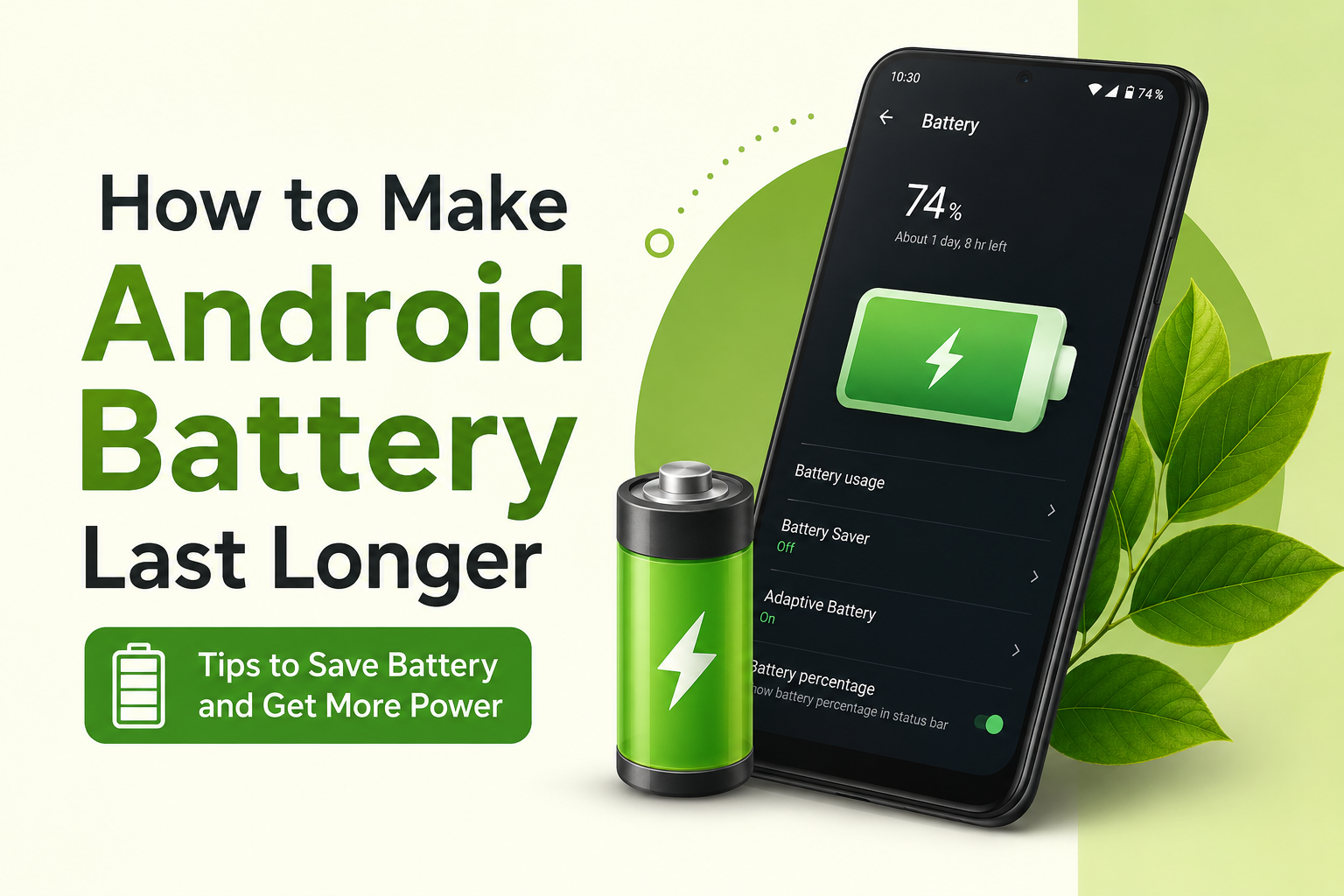
I think one of the most frustrating things about using an Android phone is seeing the battery percentage drop faster than expected. A phone may start the day with a full charge, but after a few hours of browsing, watching videos, using social media, or simply keeping mobile data on, the battery can become surprisingly low.
In my experience, getting better battery life is not always about buying a new phone or carrying a power bank everywhere. There are many simple settings and habits that can help an Android battery last longer throughout the day. Some of them take only a few seconds to change, while others are related to the way we use our phones.
In this article, I will share the methods I personally find useful for improving Android battery life and reducing unnecessary battery consumption.
Reduce Screen Brightness
The screen is one of the biggest sources of battery consumption on most smartphones. A bright display looks great, especially outdoors, but keeping the brightness unnecessarily high can drain the battery quickly.
I usually keep my screen brightness at a comfortable level instead of using maximum brightness all the time. If your phone supports adaptive brightness, you can enable it so the phone automatically adjusts the screen according to the surrounding light.
This small change can make a noticeable difference, especially if you use your phone for several hours every day.
Use a Shorter Screen Timeout
Another simple setting that I recommend checking is screen timeout. If your phone stays awake for several minutes after you stop using it, the battery continues to drain.
I prefer using a short screen timeout, such as 30 seconds or one minute. This means the display turns off quickly when I am not using the phone.
It may seem like a small adjustment, but these extra minutes of screen time can add up during the day.
Turn Off Always On Display When You Do Not Need It
Some Android phones have an Always On Display feature that shows the time, notifications, or other information while the screen is technically off.
This feature can be useful, but it can also consume additional battery. If you are trying to make your battery last longer, consider turning it off or using a less demanding option if your phone provides one.
I personally think this is worth trying when battery life is more important than having information constantly visible.
Check Which Apps Are Draining Your Battery
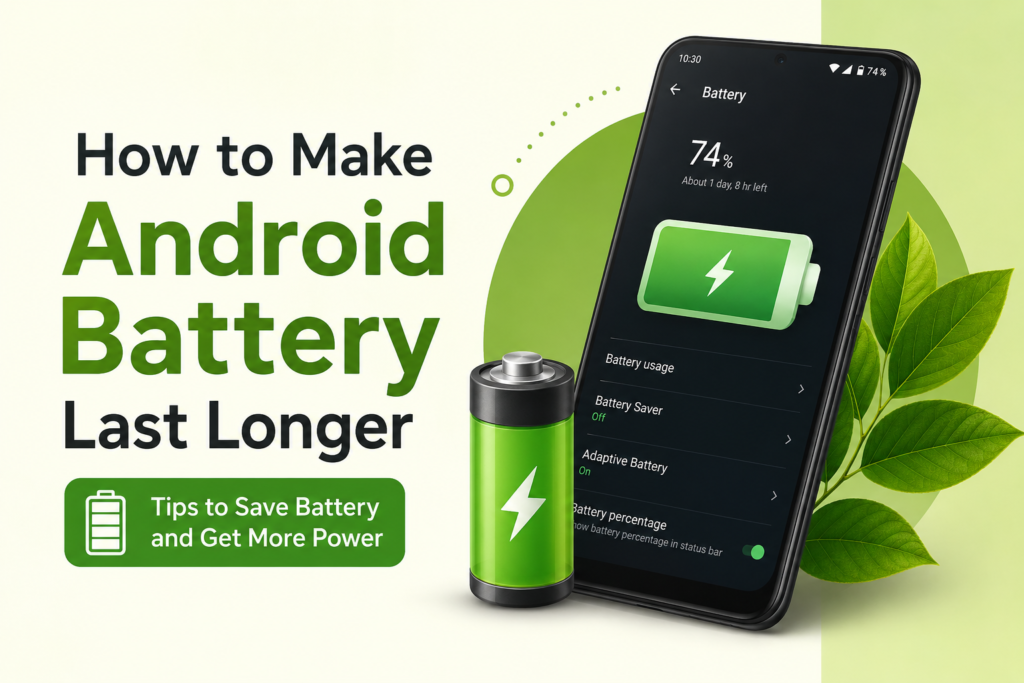
Android provides battery usage information that can show which applications are consuming the most power.
I recommend checking this section whenever you notice unusual battery drain. You may find that an application you rarely use is running frequently in the background.
Go to your phone’s Settings and look for the Battery section. The exact name can be different depending on your Android version and phone manufacturer.
If one app is using an unusually large amount of battery, you can investigate its background activity, update it, restrict it, or uninstall it if you no longer need it.
Restrict Unnecessary Background Activity
Many applications continue doing things in the background even when you are not actively using them. Some may check for updates, synchronize information, access your location, or send notifications.
I do not recommend restricting every application because some apps need background access to work properly. Instead, focus on applications that do not need to run constantly.
Android often provides battery optimization or background usage controls that allow you to reduce unnecessary activity.
This can help prevent your phone from wasting battery while sitting in your pocket or on a table.
Turn Off Bluetooth and Location When They Are Not Needed
Bluetooth and location services are useful features, but there is no reason to keep every connection active when you are not using it.
For example, if I am not connected to wireless headphones, a smartwatch, or another Bluetooth device, I may turn Bluetooth off.
The same idea applies to location services. Some applications need location access, but not every application needs it all the time.
You can review app permissions and decide which applications should have access to your location. This can also improve privacy while reducing unnecessary activity.
Use WiFi When Available
Mobile data can sometimes use more battery than WiFi, particularly when the cellular signal is weak.
When I am at home or somewhere with a reliable WiFi connection, I prefer using WiFi instead of mobile data. A weak cellular signal can make the phone work harder as it tries to maintain a connection.
If you are in an area where the mobile signal is constantly changing or very weak, you may notice faster battery drain.
Avoid Unnecessary Notifications
Notifications may not seem like a major battery problem, but frequent notifications can repeatedly wake the screen, activate sounds or vibrations, and cause applications to perform background work.
I recommend disabling notifications that you do not actually need.
For example, if a shopping application sends several promotional notifications every day, there is usually little benefit in allowing all of them.
Keeping only useful notifications can make your phone less distracting and may also help save some battery.
Use Battery Saver Mode
Most Android phones include a Battery Saver feature. I find it especially useful when I know I will be away from a charger for a long time.
Battery Saver can reduce background activity, limit certain features, and make other changes designed to extend battery life.
I normally use it when my battery is getting low and I still need the phone to last for several more hours.
Some phones also allow you to automatically turn Battery Saver on at a specific battery percentage.
Keep Your Phone Cool
Temperature can have a significant effect on smartphone battery performance. Excessive heat is not good for the battery and can also cause the phone to perform poorly.
I try to avoid leaving my phone in direct sunlight or inside a hot car. I also avoid using demanding applications for long periods when the phone becomes extremely hot.
Gaming, video recording, navigation, and other intensive activities can generate heat. If the phone becomes very hot, giving it some time to cool down is usually a good idea.
Keep Android and Apps Updated
Software updates can sometimes include performance improvements, bug fixes, and battery related improvements.
For this reason, I recommend keeping Android and regularly used applications updated when updates are available.
An outdated application may sometimes have a bug that causes excessive background activity or battery consumption.
However, after a major software update, battery usage can temporarily behave differently while the phone completes background tasks. If you notice unusual drain immediately after an update, give the device some time before assuming something is seriously wrong.
Reduce Unnecessary Vibration
Vibration is useful when you want silent alerts, but frequent vibration can consume additional power.
If your phone receives a large number of notifications throughout the day, reducing unnecessary vibration can help slightly.
I prefer keeping vibration for important calls and alerts while disabling it for less important interactions such as keyboard touches or minor notifications.
Reduce Screen Refresh Rate
Many modern Android phones offer high refresh rate displays such as 90Hz, 120Hz, or higher. These displays make scrolling and animations feel smoother.
However, a higher refresh rate can also consume more battery.
If your main priority is battery life, check whether your phone allows you to switch to a standard refresh rate or an adaptive refresh rate.
I think this is a useful option for people who want to extend battery life without changing too many other settings.
Delete Apps You Do Not Use
Over time, it is easy to install dozens of applications and then forget about them.
Some of these apps may continue running services, sending notifications, or checking for information in the background.
I recommend going through your installed applications every few months. If you have not used an app for a long time and do not need it, uninstalling it can simplify your phone and potentially reduce unnecessary battery usage.
Avoid Unnecessary Widgets and Live Wallpapers
Widgets can be useful because they provide information directly on your home screen. However, some widgets regularly update their information.
Live wallpapers can also require additional processing compared with a simple static wallpaper.
If battery life is your main concern, I recommend using a simple wallpaper and keeping only the widgets that you actually use.
Use Dark Mode When It Makes Sense
Dark Mode can be helpful for reducing battery consumption on phones with OLED or AMOLED displays because dark pixels can use less power.
The difference may not be as significant on phones with LCD screens.
I personally like Dark Mode because it is comfortable to use in low light, and on compatible displays it can also contribute to better battery efficiency.
Do Not Always Blame the Battery
Sometimes fast battery drain is caused by an aging battery rather than incorrect settings.
Lithium ion batteries naturally lose capacity as they age and go through charging cycles. If your phone is several years old and the battery percentage drops very quickly, software settings may not completely solve the problem.
In that situation, checking the battery health through the manufacturer’s available tools or having the battery professionally inspected may be worthwhile.
My Simple Battery Saving Routine
If I wanted to maximize battery life without constantly changing settings, I would keep things simple.
I would use moderate screen brightness, a short screen timeout, adaptive battery features, and WiFi when available. I would also keep unnecessary location access, Bluetooth, notifications, and background activity under control.
I would check battery usage whenever I noticed unusual drain and remove applications that were clearly causing problems.
Most importantly, I would avoid excessive heat and keep the phone’s software updated.
Final Thoughts
Making an Android battery last longer does not require complicated tricks. In my opinion, the biggest improvement usually comes from controlling the features that you actually do not need.
Screen brightness, background applications, mobile connectivity, location services, notifications, refresh rate, and phone temperature can all affect battery life. You do not have to disable everything to save power. Instead, I believe the best approach is to find a balance between battery life and the features you genuinely use.
If your Android phone is losing battery too quickly, start by checking battery usage and identifying the biggest sources of consumption. Then make a few small changes rather than changing everything at once.
With better settings and everyday habits, you can often get more useful hours from the same battery and reduce the need to charge your Android phone repeatedly throughout the day.