RAM is one of those things on an Android phone that I usually do not think about until my phone starts feeling slow. Apps take longer to open, switching between apps becomes frustrating, and sometimes the phone may even freeze for a few seconds. When this happens, many people immediately think that they need a new phone. In my experience, that is not always necessary. Sometimes, simply managing RAM properly can make an Android phone feel much smoother.
In this article, I will share the methods I personally find useful for freeing up RAM on an Android phone. These methods are simple and do not require technical knowledge or expensive applications.
What Is RAM on an Android Phone?
RAM stands for Random Access Memory. It is the temporary memory that your phone uses while applications and system processes are running.
For example, when I open YouTube, Chrome, WhatsApp, and another application, Android keeps some of their information in RAM so that I can switch between them quickly. More RAM generally allows a phone to keep more applications ready in the background.
However, having a large amount of RAM does not mean that all of it should remain empty. Android is designed to use available RAM efficiently. Therefore, seeing high RAM usage is not automatically a problem.
The real problem starts when the phone becomes noticeably slow, apps keep refreshing, or applications close unexpectedly. That is when I start looking at what is using the memory.
Restart Your Android Phone
One of the simplest methods I use to refresh RAM is restarting the phone.
When a phone runs for several days without restarting, different applications and background processes can remain active. A restart closes those temporary processes and gives the system a fresh start.
I normally recommend restarting the phone when it starts behaving unusually. You do not need to restart it several times every day. For most people, restarting occasionally is enough.
Simply press and hold the power button and select the restart option. After the phone turns back on, check whether the performance has improved.
Close Apps You Are Not Using
Another simple way to reduce unnecessary memory usage is closing applications that you are no longer using.
If I open several demanding applications and leave them running, they may continue using system resources. This is especially noticeable on phones with limited RAM.
Open the recent apps screen and look through the applications that are running. If you do not need an application anymore, close it.
However, I would not recommend constantly clearing every application from the recent apps screen. Android already manages memory automatically, and repeatedly closing and reopening applications can sometimes use more resources instead of saving them.
I mainly close apps when I know they are no longer needed or when an application is behaving strangely.
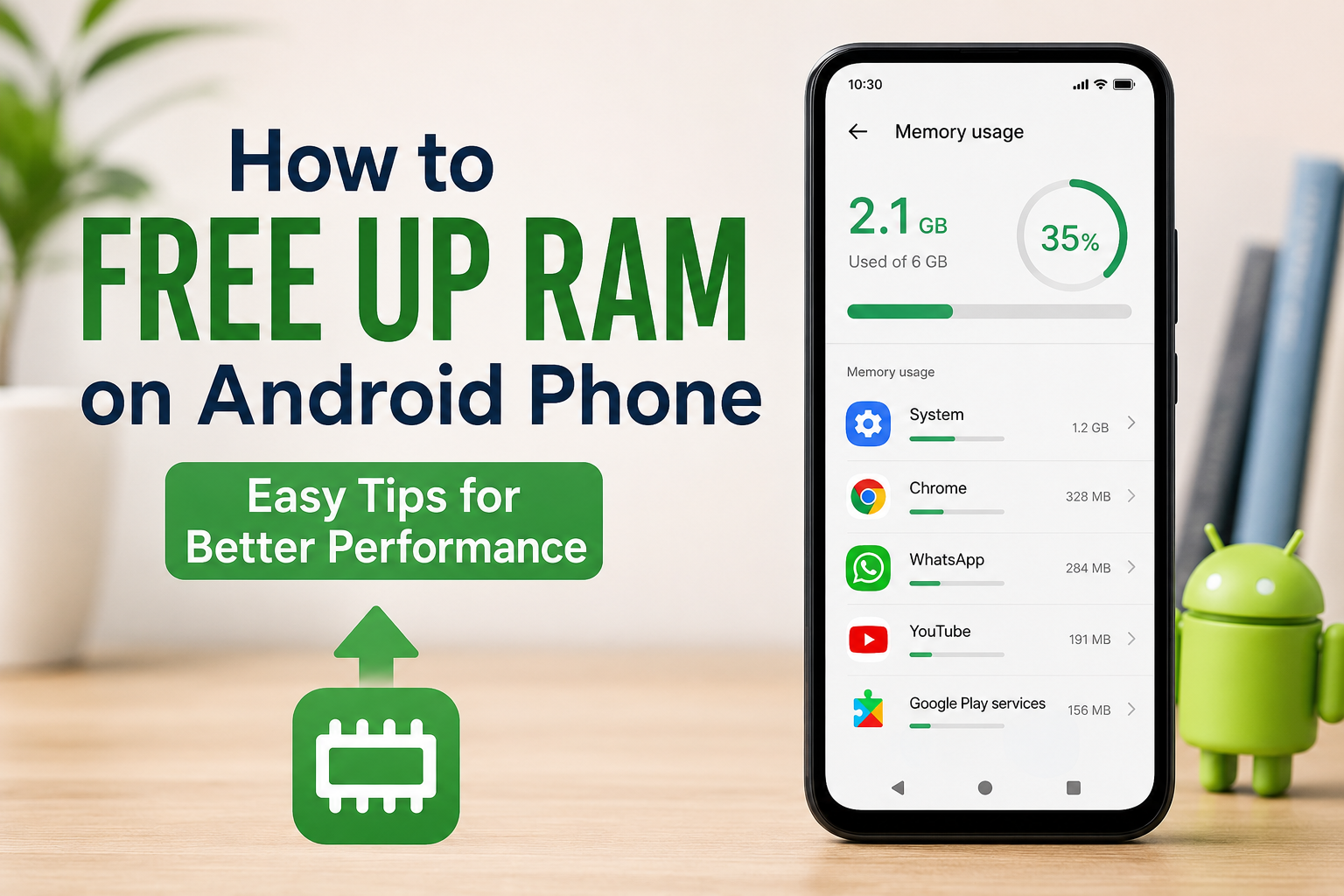
Check Which Apps Are Using the Most RAM
Android provides useful information about application usage on many devices. The exact menu can be different depending on your phone brand and Android version.
You can usually look under Settings and then search for options related to memory, battery, apps, or developer settings.
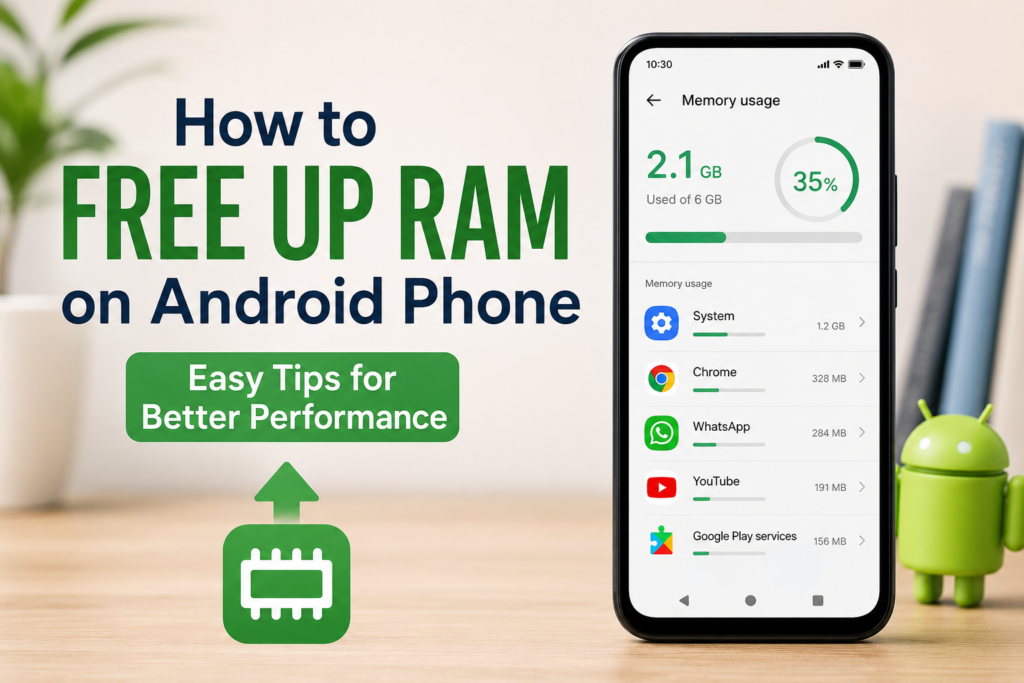
If your phone shows memory usage, check which applications are consuming the most RAM. This can help you identify apps that may be causing performance problems.
For example, if one application constantly consumes a large amount of memory even when you are not actively using it, you may want to check its settings, update it, or consider uninstalling it.
Uninstall Apps You Do Not Use
One of my favorite ways to keep an Android phone running smoothly is removing applications that I no longer use.
Many people install an app for one specific reason and then forget about it. Over time, these unused apps can take up storage and some may run background services.
Go through your installed applications and ask yourself whether you actually use each one.
If I have not used an application for months and do not need it, I usually remove it. This keeps the phone cleaner and can reduce unnecessary background activity.
Disable Unnecessary Background Activity
Some applications continue working in the background even when you are not actively using them. This can be useful for applications that need notifications, synchronization, or other real time features.
However, not every application needs constant background activity.
You can check individual app settings through Settings and Apps. Depending on your Android phone, you may find battery or background usage controls.
I recommend being careful here. Do not restrict important applications that you depend on for messages, calls, alarms, or notifications.
The goal is not to stop everything from running. The goal is to reduce unnecessary activity.
Keep Your Android Phone Updated
Software updates can also improve overall phone performance.
Sometimes an application has a memory problem or a bug that causes it to use more resources than it should. Developers regularly release updates to fix these issues.
I recommend keeping Android and your important applications updated.
Open the Play Store and check for available application updates. You can also check your phone’s system update section for Android updates.
An updated phone is not guaranteed to use less RAM, but updates can improve stability and fix problems that affect performance.
Remove Unnecessary Widgets
Widgets can be useful because they show information directly on the home screen. However, some widgets update regularly and may use system resources.
If you have a home screen filled with widgets that you rarely look at, consider removing some of them.
I personally prefer keeping only the widgets that I actually use. A simpler home screen can make the phone feel cleaner and may reduce unnecessary background activity.
Avoid RAM Cleaner Apps
When people search for ways to free RAM, they often find applications that promise to clean memory with one tap.
I personally would be careful with these apps.
Android already includes its own memory management system. A third party RAM cleaner may close applications only for Android to reopen them later. This does not always improve performance and can sometimes make things worse.
Some cleaner applications also contain advertisements, unnecessary features, or aggressive background services.
Instead of installing another app to manage RAM, I prefer using Android’s built in settings and removing the actual cause of the problem.
Clear App Cache When Necessary
Cached files can sometimes become large or cause an application to behave incorrectly.
If a particular app is constantly crashing, freezing, or acting unusually, clearing its cache may help.
You can usually find this option by going to Settings, Apps, selecting the application, and looking under Storage.
Be careful not to confuse clearing cache with clearing app data. Clearing app data can remove saved settings or log you out of the application.
I usually clear cache only when there is a specific reason to do it, rather than doing it every day.
Reduce the Number of Background Applications
Some applications are designed to remain active because they provide notifications or synchronization. Social media, messaging, email, cloud storage, and other applications can all perform background tasks.
If your phone has limited RAM, having too many demanding applications installed can affect the overall experience.
I recommend checking your applications and removing those that you rarely use. This is often more useful than manually closing everything every few minutes.
Keep Enough Storage Space Available
RAM and storage are different things, but keeping your storage almost completely full can still contribute to poor phone performance.
If your phone is constantly showing a storage warning, start by removing large videos, duplicate photos, downloads, and applications you no longer need.
I usually check the Storage section in Settings when my phone starts feeling slower than normal.
Moving important photos and videos to a computer or trusted cloud service can also help create more free space.
Avoid Overloading Your Phone
Modern Android phones can handle many applications, but every phone has its limits.
If you have an older device with a small amount of RAM, running several heavy applications at the same time can naturally cause performance problems.
For example, running a large game while several demanding apps remain active in the background may not provide the best experience.
I try to use demanding applications one at a time when I am using an older phone. This simple habit can make a noticeable difference.
Use Lite Versions When Available
Some applications offer lighter versions or web based alternatives. These versions may use fewer resources than full applications.
If your Android phone has limited RAM, using a lighter alternative can sometimes improve the overall experience.
I would not recommend choosing a lightweight version simply because it is available. Instead, see whether it provides the features you actually need.
Do Not Worry About Empty RAM
One important thing I learned about Android is that completely empty RAM is not necessarily the goal.
The operating system uses RAM to keep applications ready and make switching between them faster. If Android needs more memory, it can manage background applications automatically.
So, I do not try to keep my RAM usage at a very low percentage all the time.
I focus on real symptoms. If my phone works smoothly, applications open normally, and everything responds quickly, I do not worry too much about the RAM number.
Factory Reset Should Be the Last Option
If your phone remains extremely slow after trying normal solutions, you might eventually consider a factory reset.
A factory reset removes personal data, applications, settings, and other information from the phone. Because of this, I would never recommend doing it without first creating a proper backup.
Before resetting your phone, try simpler solutions such as uninstalling unnecessary apps, updating Android, checking storage, and restarting the device.
A factory reset can help when software problems have accumulated over time, but it should be treated as a last resort rather than a regular RAM cleaning method.
Final Thoughts
Freeing up RAM on an Android phone does not have to be complicated. In my opinion, the best approach is to let Android manage memory while keeping unnecessary applications and background activity under control.
I usually start with a simple restart, check which apps are causing problems, uninstall applications I no longer need, update my software, and make sure there is enough storage space available.
I also avoid relying on RAM cleaner applications because Android already has its own memory management system.
Most importantly, I do not believe that seeing high RAM usage automatically means something is wrong. What matters is how the phone actually performs.
If your Android phone is slow, try these methods one at a time instead of changing everything at once. This makes it easier to understand what is actually improving the performance. With a little regular maintenance, even an older Android phone can continue to provide a smoother and more comfortable experience.