I use my Android phone for almost everything these days. I check emails, browse websites, download apps, make payments, use social media, store personal photos, and sometimes even access important work documents. Because so much personal information is stored on a phone, I believe Android security should never be ignored. Malware can create serious problems if it gets into a device, but the good thing is that there are several simple habits that can reduce the risk.
In my experience, protecting an Android phone from malware is not only about installing an antivirus application. It is more about being careful with apps, websites, links, downloads, and permissions. Android already provides several security features, and when I combine those features with sensible browsing habits, my phone becomes much safer.
Keep Your Android Phone Updated
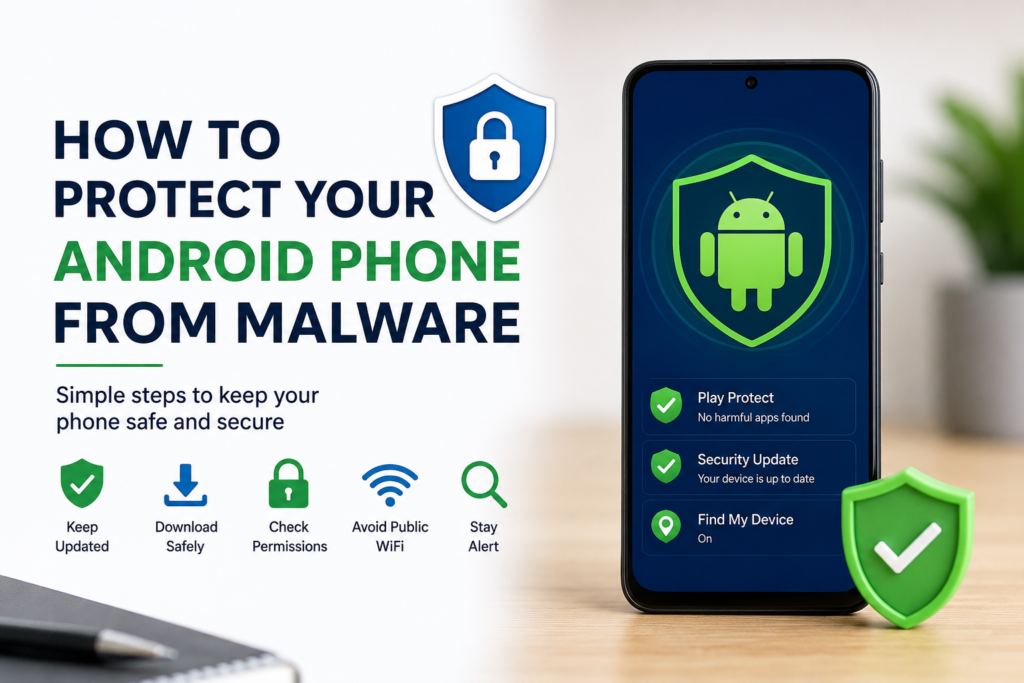
One of the first things I recommend is keeping Android updated. Software updates are not only about getting new features or changing the appearance of the phone. Many updates also fix security weaknesses that attackers could use to infect a device.
I usually check for updates through the phone settings and install them when they are available. I also keep important apps updated because applications can have security problems too.
If my phone keeps showing an update notification, I do not like ignoring it for weeks. Delaying an important security update can leave known weaknesses unprotected. Keeping the operating system and applications current is one of the easiest security habits I can follow.
Download Apps From Trusted Sources
Apps are one of the most common ways malware can reach an Android phone. This is why I try to download applications from trusted sources, especially Google Play.
I avoid downloading random APK files from websites that I do not know or trust. An APK file can sometimes be useful when installing an application manually, but downloading one from an unknown source can be risky. A malicious application may look completely normal while secretly trying to access personal information.
Before installing an app, I also look at its developer name, reviews, download information, and permissions. If an application has very few reviews, looks suspicious, or comes from an unknown developer, I think twice before installing it.
Check App Permissions Carefully
Sometimes an application does not need access to everything on my phone. For example, a simple calculator application should not normally need access to my contacts, microphone, or location.
That is why I pay attention to app permissions. Android allows users to control which permissions applications can access. Depending on the Android version and phone manufacturer, these options can usually be found through Settings and then Apps or Privacy.
If an app requests a permission that does not make sense for its purpose, I consider denying it. I also review permissions occasionally because my needs can change after an application update.
Reducing unnecessary permissions gives potentially harmful applications fewer opportunities to access sensitive information.
Keep Google Play Protect Enabled
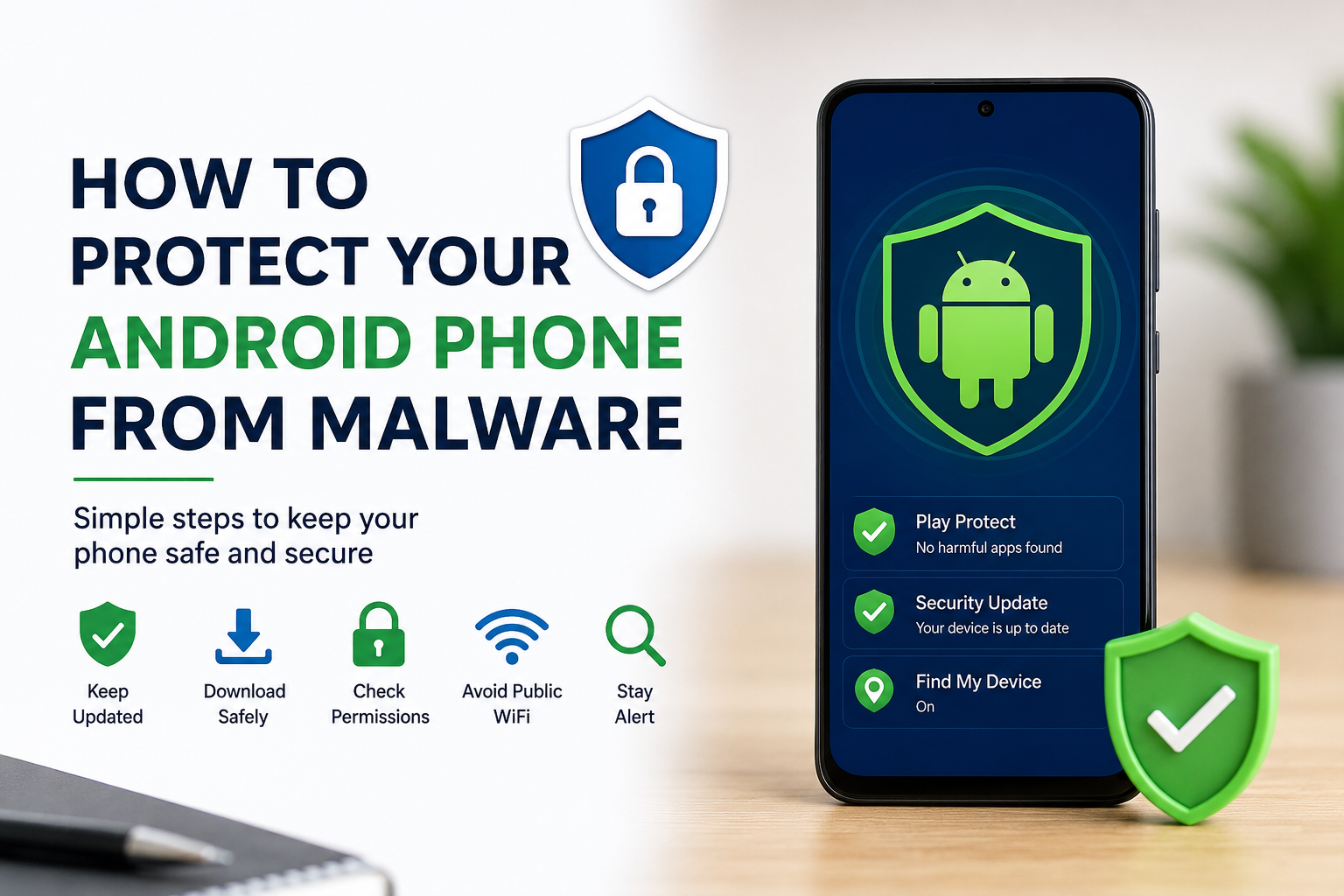
Another feature I always recommend checking is Google Play Protect. It is designed to scan Android applications and help identify potentially harmful apps.
I do not consider Play Protect a replacement for careful behavior, but I think it is a useful extra layer of protection. I make sure it remains enabled and occasionally check its status.
If Android warns me about an application, I take that warning seriously instead of immediately ignoring it. Security warnings are there for a reason, and investigating an app before continuing is usually better than discovering a problem later.
Be Careful With Unknown Links
Malware does not always arrive through an application. Sometimes a dangerous link can lead to a malicious website or a fake download page.
I receive different types of messages from time to time, and I try not to click links simply because they look urgent. Messages claiming that I have won something, that my account is about to close, or that I need to verify personal information immediately can be particularly suspicious.
Before opening a link, I look at who sent it and where it appears to lead. If I am unsure, I prefer opening the official website or application myself rather than using the link in the message.
This simple habit can protect me from many scams and malicious downloads.
Avoid Pirated and Modified Apps
I understand why some people are tempted to download modified or cracked applications. They may promise paid features for free or offer changes that are not available in the official version.
However, I consider these downloads risky because I cannot always know what has been changed inside the application. A modified app could contain unwanted software or request permissions that the original application never needed.
For this reason, I prefer official applications whenever possible. Saving a little money or getting an extra feature is not worth putting my personal information at risk.
Do Not Give Every App Accessibility Access
Accessibility features can be extremely useful, but I believe users should be especially careful when an unfamiliar application asks for accessibility access.
Depending on the Android version and permissions involved, accessibility access can provide an application with powerful capabilities. A malicious app could potentially abuse such access to interact with the device in ways the user did not expect.
I only allow this type of access when I understand why the application needs it and when I trust the application. If an unfamiliar app suddenly asks for powerful access without a clear reason, I treat that as a warning sign.
Use a Strong Screen Lock
A strong screen lock is another basic security measure that I never overlook. If someone gets physical access to my phone, I do not want the device to be completely open.
I prefer using a strong PIN or password rather than an extremely simple combination. Biometric security such as fingerprint or face unlocking can also make everyday access more convenient while still providing protection.
A screen lock cannot stop malware from being installed, but it can help protect personal information if the phone is lost or stolen.
Be Careful With Public WiFi
Public WiFi can be convenient when I am traveling or away from home, but I try not to treat every network as trustworthy.
I avoid entering sensitive information on unfamiliar networks unless I know the connection is secure. I also avoid downloading unknown files or installing applications while connected to questionable WiFi.
When possible, I use trusted networks or mobile data for sensitive activities. I also make sure that my phone does not automatically connect to unknown networks.
Watch for Warning Signs
Sometimes malware or unwanted applications can cause noticeable changes on an Android phone. I pay attention if my phone suddenly becomes unusually slow, shows excessive advertisements, heats up without a clear reason, or experiences unexpected battery drain.
Other warning signs can include applications appearing that I do not remember installing, strange browser redirects, unusual data usage, or repeated security warnings.
One unusual symptom does not automatically mean that malware is present. Phones can slow down for many normal reasons. However, several suspicious changes happening at the same time deserve investigation.
Remove Apps I No Longer Need
I believe keeping unnecessary applications installed is not a good habit. If I stop using an app, I prefer removing it instead of letting it sit on my phone indefinitely.
This keeps my device cleaner and reduces the number of applications that need updates and permissions. I periodically look through my installed apps and remove anything I no longer recognize or use.
If I find an unfamiliar application, I investigate it before deciding what to do. If it appears suspicious, removing it can be an important step toward improving security.
Back Up Important Data
Even with good security habits, I believe it is important to prepare for problems. I regularly think about how I would recover my photos, contacts, documents, and other important information if something went wrong.
A reliable backup can make a big difference if malware causes data loss or if the phone needs to be reset. I prefer keeping important information backed up through a trusted cloud service or another secure location.
A backup does not prevent malware, but it can reduce the damage caused by a serious security problem.
Use Security Software Carefully
Some Android users choose to install security applications from reputable companies. These tools can provide additional features, but I do not believe installing several security apps at once is necessary.
I would rather use a trusted security solution and keep Android’s built in protections active. Installing random applications that claim to clean or protect the phone can actually create another security risk.
Before installing any security application, I check who developed it and what permissions it requests.
Keep Your Phone Physically Secure
Digital security also depends on physical security. I avoid leaving my phone unlocked in public places, and I try not to hand my unlocked device to people I do not trust.
I also keep my operating system protected with a screen lock and use account security features such as two factor authentication where available.
If my phone is ever lost, having these protections already enabled can make it much harder for another person to access my information.
Final Thoughts
Protecting an Android phone from malware does not have to be complicated. From my point of view, the most important thing is developing good habits and not taking unnecessary risks.
I keep my phone and apps updated, download applications from trusted sources, review permissions, keep Google Play Protect enabled, avoid suspicious links, and stay away from questionable modified applications. I also use a strong screen lock, back up important information, and pay attention to unusual behavior.
No security method can guarantee that a phone will never face a threat. However, combining Android’s built in security features with careful everyday decisions can significantly reduce the chances of malware causing problems.
For me, the best approach is simple. I do not wait until something goes wrong before thinking about security. I make phone security part of my normal routine. A few minutes spent checking an app, reviewing a permission, or avoiding a suspicious link can save a lot of trouble later.