Running out of storage on an Android phone can be frustrating. I have faced this problem myself, especially when my phone starts showing the low storage notification at the worst possible time. The first thought is usually to delete photos, videos, apps, or other personal files. However, deleting important files is not always necessary.
There are several simple ways to free up storage on Android while keeping your important data safe. In my experience, the best approach is to first understand what is using the storage and then remove unnecessary data instead of randomly deleting files.
Check What Is Using Your Storage
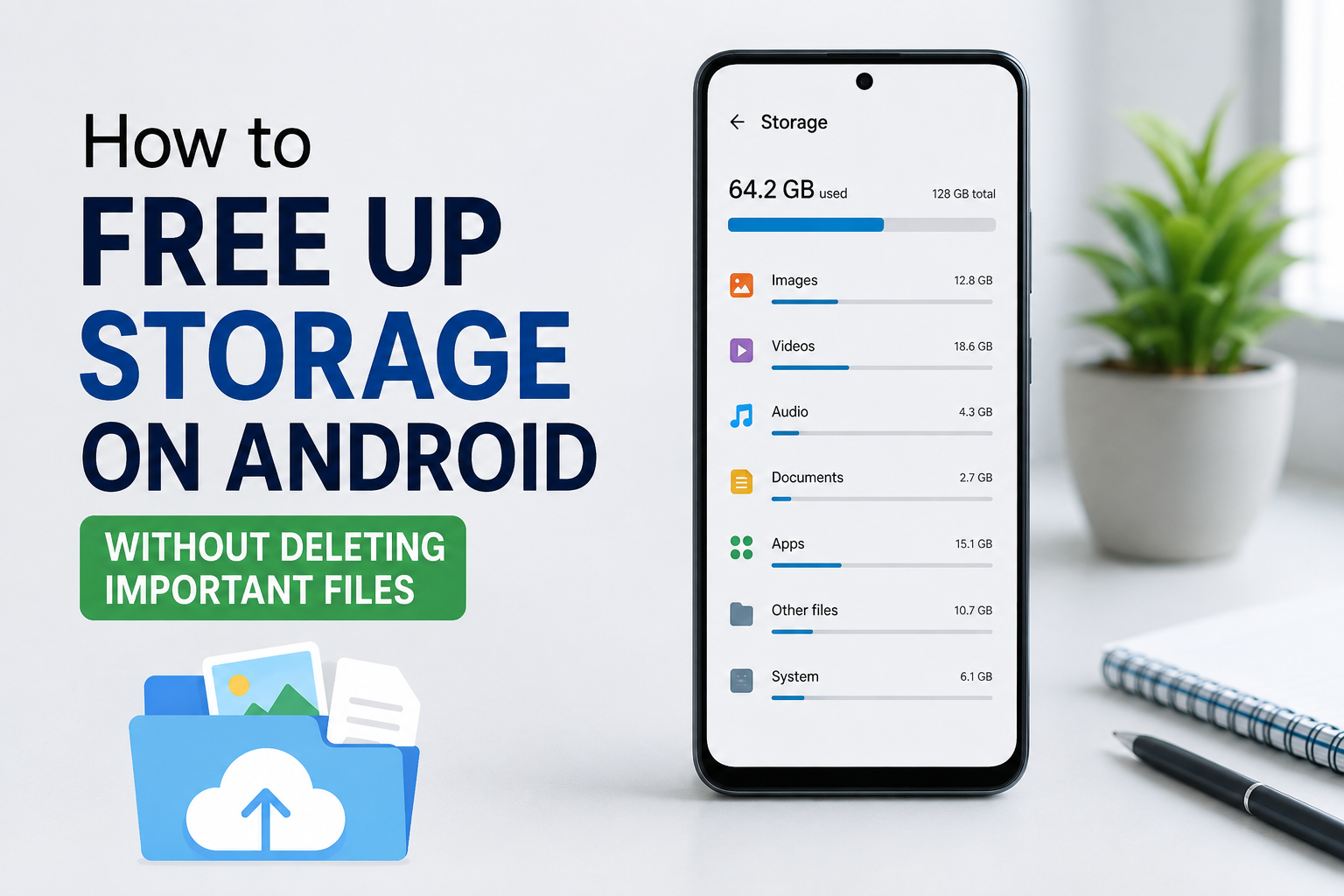
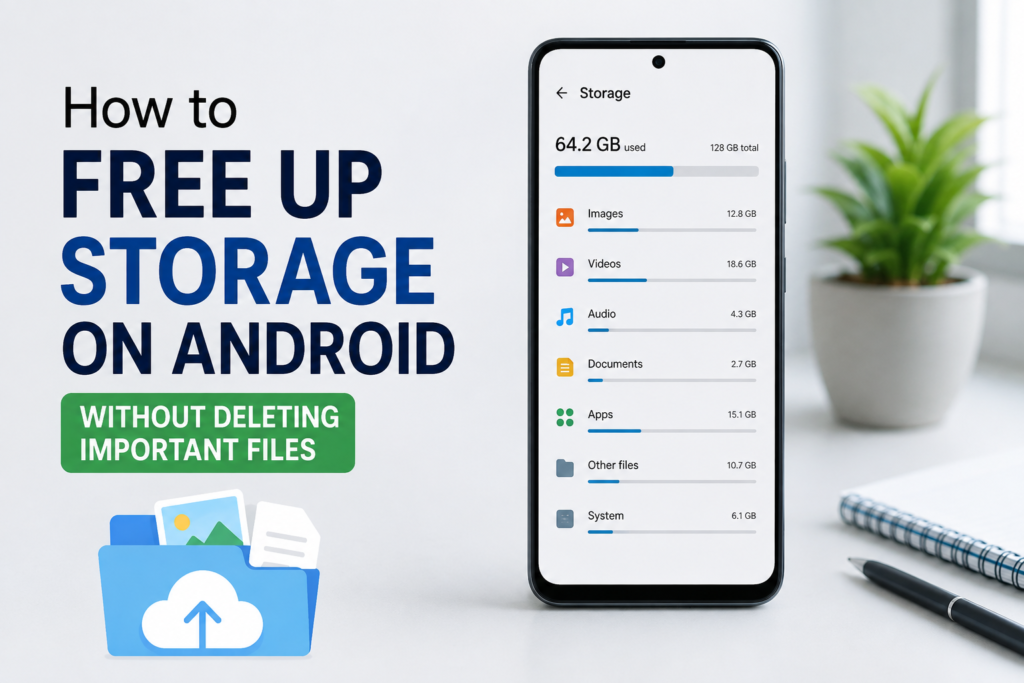
Before deleting anything, I recommend checking your phone’s storage information. Android usually provides a storage section in Settings where you can see how much space is being used by apps, images, videos, documents, audio, and other files.
Open Settings and look for Storage. The exact name and location can be different depending on your Android phone.
This step is important because it tells you where the real problem is. For example, if apps are using most of your storage, deleting photos will not make much difference. If videos are taking up most of the space, you can focus on finding unnecessary videos instead.
I always think it is better to identify the problem first instead of deleting files without knowing what they are.
Clear App Cache
One of the easiest ways to free up some storage is clearing unnecessary app cache. Apps store temporary files to make certain features load faster. Over time, these cached files can become quite large.
You can check individual apps from Settings, then Apps, and select an app to view its storage information. Depending on your Android version, you may see an option to clear the cache.
I suggest clearing cache rather than clearing app data when you simply want to recover temporary storage. Clearing app data can remove saved settings or other locally stored information, so it should not be treated the same way as clearing cache.
You do not need to clear the cache of every app regularly. Focus on apps that are taking up a lot of temporary storage.
Remove Unused Downloads
The Downloads folder is another place I recommend checking. Many files are downloaded once and then completely forgotten.
These can include old PDFs, images, installation files, documents, duplicate files, and other items that you no longer need.
Open your file manager and check the Downloads folder carefully. Instead of deleting everything, look through the files one by one and remove only those you know are unnecessary.
If there are documents that you may need later, move them to cloud storage or another safe location before removing the local copy.
This simple habit can recover a surprising amount of storage without touching your important personal files.
Use Cloud Storage for Large Files
If you have many important photos and videos, cloud storage can be useful. Instead of keeping every large file stored locally, you can back up important files to a trusted cloud service and then remove the local copies when you are sure the backup is complete.
I personally recommend checking the backup carefully before deleting anything from the phone. A file should never be removed just because an app says it has been backed up.
Open the cloud service and confirm that important photos, videos, and documents are actually available there. Once you are confident that your files are safely backed up, you can consider removing the local copies.
This method is particularly useful for people who take many photos and videos.
Find Large Files
Sometimes one or two large files are responsible for most of the storage problem. A long video can take much more space than hundreds of small documents.
Use your phone’s file manager to look for large files. Some Android file management apps provide categories that make this easier.
Check videos, downloaded files, screen recordings, and other folders where large files are commonly stored.
I prefer reviewing large files individually instead of using an option that automatically removes everything. This gives me more control and reduces the chance of accidentally deleting something important.
Remove Old Screen Recordings
Screen recordings are easy to forget about. I often find that people record something temporarily and then never watch it again.
Screen recordings can become especially large when they are several minutes long or recorded at high quality.
Look inside your Gallery or file manager for old screen recordings. Watch them if necessary and remove only the ones you no longer need.
This can free up considerable storage without affecting your personal photos or important documents.
Manage WhatsApp and Messaging Media
Messaging apps can quietly consume a lot of storage because images, videos, voice messages, documents, and other media are often saved automatically.
If you use WhatsApp or another messaging application frequently, check its storage management section. You may find large videos, forwarded files, or repeated images that are no longer useful.
Be careful when deleting media from messaging apps because some files may be important. I recommend reviewing large files and duplicate media before removing anything.
You can also adjust automatic media download settings so that unnecessary files do not keep accumulating.
Delete Duplicate Photos and Videos
Duplicate files are another common storage problem. Sometimes the same image is saved several times through different apps or downloaded repeatedly.
Some Android phones and file management apps can help identify duplicate or similar files. If you use such a feature, review the suggested files before confirming deletion.
I would not recommend automatically deleting every similar photo. Sometimes two photos look almost identical but have different purposes or quality.
Take a few minutes to review them and keep the versions that matter to you.
Uninstall Apps You No Longer Use
Apps can occupy a large amount of storage, especially games and applications that download additional content.
Go through your installed apps and ask yourself whether you actually use each one. If you have not opened an app for months and do not need it, uninstalling it can be a good way to recover storage.
Before uninstalling an app, check whether it contains important locally stored information. Some apps save data online, while others may keep certain information only on the phone.
For apps you use regularly, keep them. The goal is not to remove everything but to eliminate software you genuinely no longer need.
Move Files to a Computer
If you have a large collection of important files, moving them to a computer can be another practical solution.
Connect your Android phone to your computer and copy important photos, videos, documents, and other files to a folder. After transferring them, open the folder on the computer and make sure the files are accessible.
Only after confirming the transfer should you consider removing the local copies from your phone.
I like this method because it gives me another backup location while also reducing the amount of storage being used on the phone.
Check the Trash or Recently Deleted Folder
Many Android gallery and file management apps have a Trash or Recently Deleted section. Files removed from the main folder may continue occupying storage until the trash is emptied.
However, be careful with this section. Once you permanently remove files from the trash, recovering them may be difficult or impossible.
Before emptying it, review the contents carefully. If you accidentally deleted an important file, the trash may actually be the place where you can restore it.
Avoid Random Cleaner Apps
When storage becomes low, it is tempting to install a cleaner app that promises to remove unnecessary files automatically. I prefer being careful with these applications.
Some cleaner tools may provide useful storage information, but you should understand what they are deleting before giving them permission to remove files.
Android already includes several storage management features, so I would start with those. If you use a third party tool, choose one from a trustworthy developer and review its permissions.
More cleaning does not always mean better performance.
Keep Your Storage Organized
Freeing storage is useful, but preventing the problem from returning is even better. I recommend creating a simple habit of checking your phone every few weeks.
Remove old downloads, review large videos, manage messaging media, and uninstall apps that you no longer use.
You can also avoid downloading files that you do not actually need. If someone sends you a large video or document that you only need temporarily, remember to remove it later when it is no longer useful.
Small habits can make a big difference over time.
Final Thoughts
Freeing up Android storage does not mean deleting everything you care about. In my opinion, the safest approach is to understand what is taking up space and then remove unnecessary data carefully.
Start by checking storage usage, clearing app cache, reviewing downloads, finding large files, managing messaging media, removing duplicates, and uninstalling unused apps. For important photos and documents, consider using cloud storage or transferring them to a computer before removing local copies.
Most importantly, never rush when deleting personal files. Take a moment to check what a file is and whether you have another copy of it.
With a little organization, you can recover a good amount of storage while keeping your important files safe. I have found that regular storage management is much easier than waiting until the phone is completely full and then trying to clean everything at once.