I use my Android phone for almost everything these days. I check emails, use social media, save personal photos, make payments, browse websites, and sometimes even store important documents on it. Because so much personal information is connected to my phone, I believe checking Android security settings regularly is just as important as checking the battery or storage.
The good thing is that Android provides many security features that can help protect personal information. However, some of these settings are not always obvious, and their names can be slightly different depending on the phone manufacturer and Android version. In this guide, I will explain how I personally check the most important Android security settings and what I look for when reviewing my phone.
Start With the Security Settings
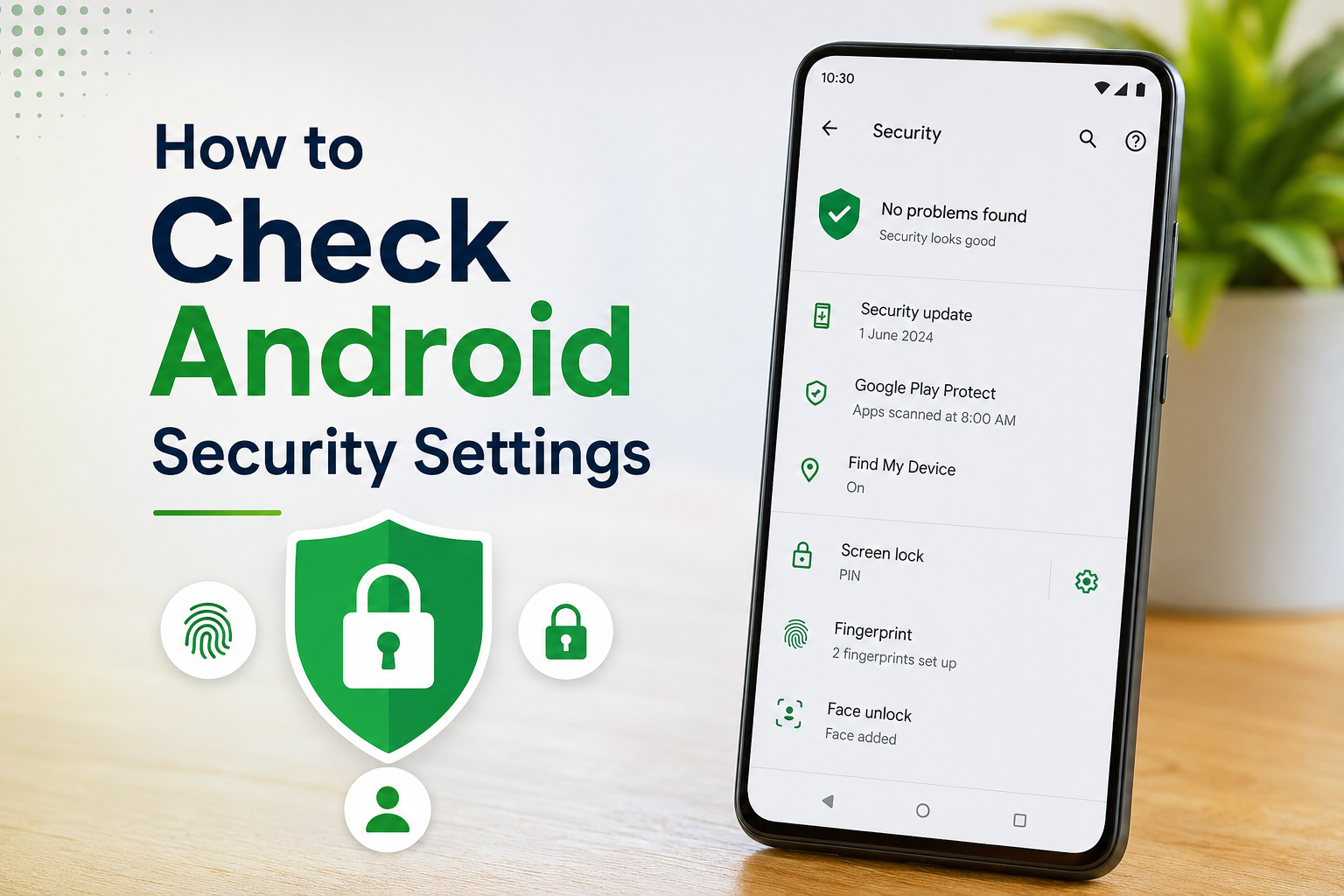
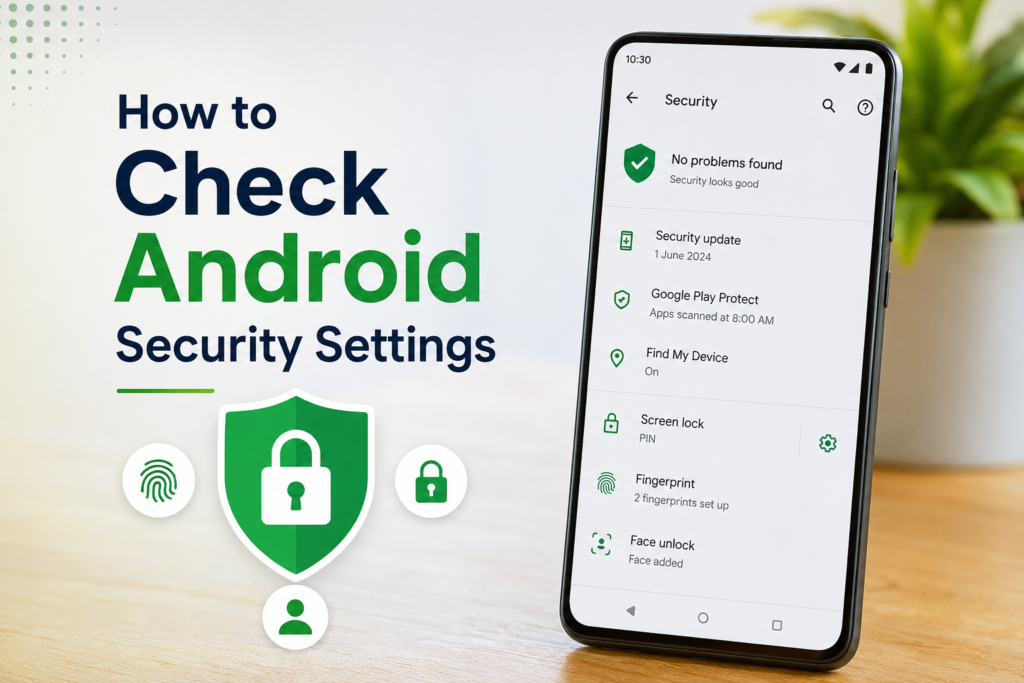
The first place I check is the main Settings app. I open Settings and look for options such as Security, Privacy, or Security and privacy. On some Android phones, these options are combined into one section.
This area gives me a general idea of how secure my phone is. I look for security updates, screen lock settings, app security, device protection, and other available security options.
If I see a security recommendation or warning, I do not ignore it. I open it and check what Android is suggesting. Sometimes the issue is something simple, such as an outdated security update or a weak screen lock.
Android versions and manufacturers can organize these settings differently, so I usually use the Settings search bar if I cannot find a particular option.
Check Your Screen Lock
One of the first security settings I check is my screen lock. I consider this one of the most important protections because it prevents someone from easily accessing my phone if I lose it.
I open Settings and search for Screen lock or Lock screen. Depending on the phone, I may see options such as PIN, password, pattern, fingerprint, or face unlock.
I prefer using a strong PIN or password rather than something that is easy to guess. I also make sure my phone automatically locks after a reasonable period of inactivity.
Biometric security can also be useful. Fingerprint unlock is convenient because I do not have to enter my PIN every time. However, I still keep a secure PIN or password as a backup.
Review Google Play Protect
Another setting I always check is Google Play Protect. It is designed to scan Android apps for potentially harmful behavior.
I normally open the Google Play Store, tap my profile picture, and look for Play Protect. From there, I can see whether the device has been scanned and whether there are any warnings.
I make sure Play Protect is enabled. I also like to run a manual scan when I have installed several new applications or downloaded an app from an unfamiliar source.
This is particularly useful because malicious applications can sometimes look completely normal. Checking Play Protect gives me another layer of protection.
Check Android Security Updates
I also check whether my phone is running the latest available security updates. Security updates are important because they can fix known vulnerabilities and improve device protection.
I open Settings and search for Security update. On some phones, the option can be found under About phone or System.
I check the date of the security update and install an available update when possible. I also check for Google Play system updates because Android devices can receive important system components through these updates.
I prefer keeping automatic updates enabled whenever the option is available. This reduces the chance of forgetting about an important security update.
Review App Permissions
App permissions are another area I regularly review. An application may request access to features such as the camera, microphone, location, contacts, photos, or files.
I open Settings and go to Privacy or Permission manager. From there, I can review which applications have access to different types of information.
For example, if I find a simple calculator application that has access to my microphone or contacts, I would question whether that permission is really necessary.
I do not automatically allow every permission an app requests. I consider what the app actually needs to work properly. If a permission seems unnecessary, I disable it.
I also review permissions for applications that I rarely use. Sometimes an old application still has access to information even though I have not opened it for months.
Check Location Access
Location access deserves special attention because it can reveal where I am and where I have been.
I go to Settings, then Privacy, and look for Location. I review which applications have access to my location.
When possible, I prefer giving an app location access only while I am using it. Some applications may also provide options such as allowing location access all the time or asking every time.
I do not see a reason for every application to know my location continuously. If an application does not need location information for its main purpose, I consider turning the permission off.
I also check whether precise location is enabled. For applications that do not need an exact location, approximate location can sometimes provide enough information while sharing less precise data.
Check Camera and Microphone Access
Android also provides controls for camera and microphone access. I find these useful because the camera and microphone can provide access to sensitive information.
I open Privacy settings and look for Camera access and Microphone access. On supported Android versions, I can review or control these settings directly.
I also pay attention to the privacy indicators that appear when an application is using the camera or microphone. If I notice an unexpected indicator, I investigate which application is using the feature.
For me, these controls are especially useful because I can quickly identify applications that may be accessing sensitive hardware.
Review Unknown App Installations
I am careful about applications installed from outside the Google Play Store. Android can allow installations from unknown sources, but this feature can increase security risks if it is used carelessly.
I search Settings for Install unknown apps and review which applications have permission to install other applications.
If I do not need this permission, I keep it disabled. I am particularly cautious when downloading APK files from websites because I cannot always know whether the file has been modified or contains harmful software.
My general approach is simple. I install applications from trusted sources whenever possible and avoid giving unknown applications permission to install additional software.
Check Accessibility Access
Accessibility settings can provide powerful controls to applications. Because of this, I believe they are worth checking from time to time.
I search Settings for Accessibility and review installed services or downloaded applications that have accessibility access.
I do not automatically assume that an application with accessibility access is dangerous. Some legitimate tools genuinely need accessibility features. However, I want to understand why an application has this level of access.
If I find an application I no longer use or do not recognize, I investigate it and remove its access when appropriate.
Review Device Administrator Apps
Some applications can request special device administrator privileges. These permissions can give an application additional control over certain device functions.
I search Settings for Device admin apps or Device administrators. The exact name can vary between Android devices.
I review the list carefully and make sure I recognize the applications that have these privileges. If something unfamiliar appears, I investigate it before allowing it to remain active.
This is not a setting I need to change every day, but checking it occasionally can help me understand which applications have special control over my phone.
Check Find My Device
I also recommend checking whether Find My Device is enabled. This feature can be helpful if a phone is lost or stolen.
I search Settings for Find My Device and check whether it is active. It can help with locating a device and may provide options for securing it remotely.
For me, this is an important security feature because losing a phone is not only about losing the physical device. A smartphone can contain photos, messages, accounts, documents, and other private information.
Review Your Google Account Security
Android security is also connected to Google account security. I periodically review my Google account and check for unfamiliar devices or security activity.
I look at the devices signed into my account and remove access from devices I no longer use or recognize.
I also make sure two step verification is enabled where possible. This provides an additional layer of protection if someone discovers my password.
I recommend using a unique password for the Google account rather than reusing the same password on multiple websites.
Remove Apps I Do Not Use
Another simple step I take is removing applications that I no longer need. Every additional application can potentially introduce another privacy or security concern.
I review my installed apps and uninstall anything I have not used for a long time, especially applications I do not remember installing.
Before deleting an application, I make sure I do not need its stored information. After removing unnecessary apps, I also review my permissions again.
Keep Android Updated
Finally, I make sure my Android phone itself stays updated. Updates are not only about getting new features or changing the appearance of the interface. They can also contain security improvements and fixes.
I check for system updates regularly and install them when they are available. I also keep important applications updated through the Google Play Store.
I understand that some people avoid updates because they are worried about changes or storage usage. However, from my point of view, keeping the phone updated is one of the simplest security habits I can maintain.
Final Thoughts
Checking Android security settings does not have to be complicated. I personally think it is better to spend a few minutes reviewing important settings than to wait until there is a security problem.
I start with the screen lock, security updates, and Google Play Protect. Then I review app permissions, location access, camera and microphone access, unknown app installations, accessibility access, and device administrator privileges. I also check Find My Device and the security of my Google account.
The exact menu names may be different depending on the Android version and phone manufacturer, but the basic security principles remain similar.
My biggest advice is to avoid giving every application unlimited access to my personal information. I only allow permissions that make sense for the application’s purpose, keep my phone updated, use a strong screen lock, and remove applications that I no longer trust or need.
Android already provides many useful security tools. The important part is actually using them. By reviewing these settings regularly, I can better understand what my phone is doing, what information my applications can access, and where I may need to improve my privacy and security.