I use my Android phone for many different things every day. I install apps for messaging, shopping, entertainment, banking, photos, productivity, and many other purposes. Most apps ask for permissions when I install or open them, and I used to accept these requests without thinking too much about them. Over time, I realized that some apps do not necessarily need access to everything they request.
Checking app permissions on Android is one of the simplest ways I can improve my privacy and security. It lets me see what information an app can access and gives me the option to remove permissions that are not necessary.
In this guide, I will explain how I check app permissions on Android, what different permissions mean, and which permissions I personally pay the most attention to.
What Are App Permissions on Android?
App permissions are controls that allow an application to access certain features or information on my phone. For example, a camera app may need permission to use my camera, while a navigation app may need access to my location.
Android does not give every app unlimited access automatically. Depending on the permission, Android may ask me before allowing an app to use a sensitive feature.
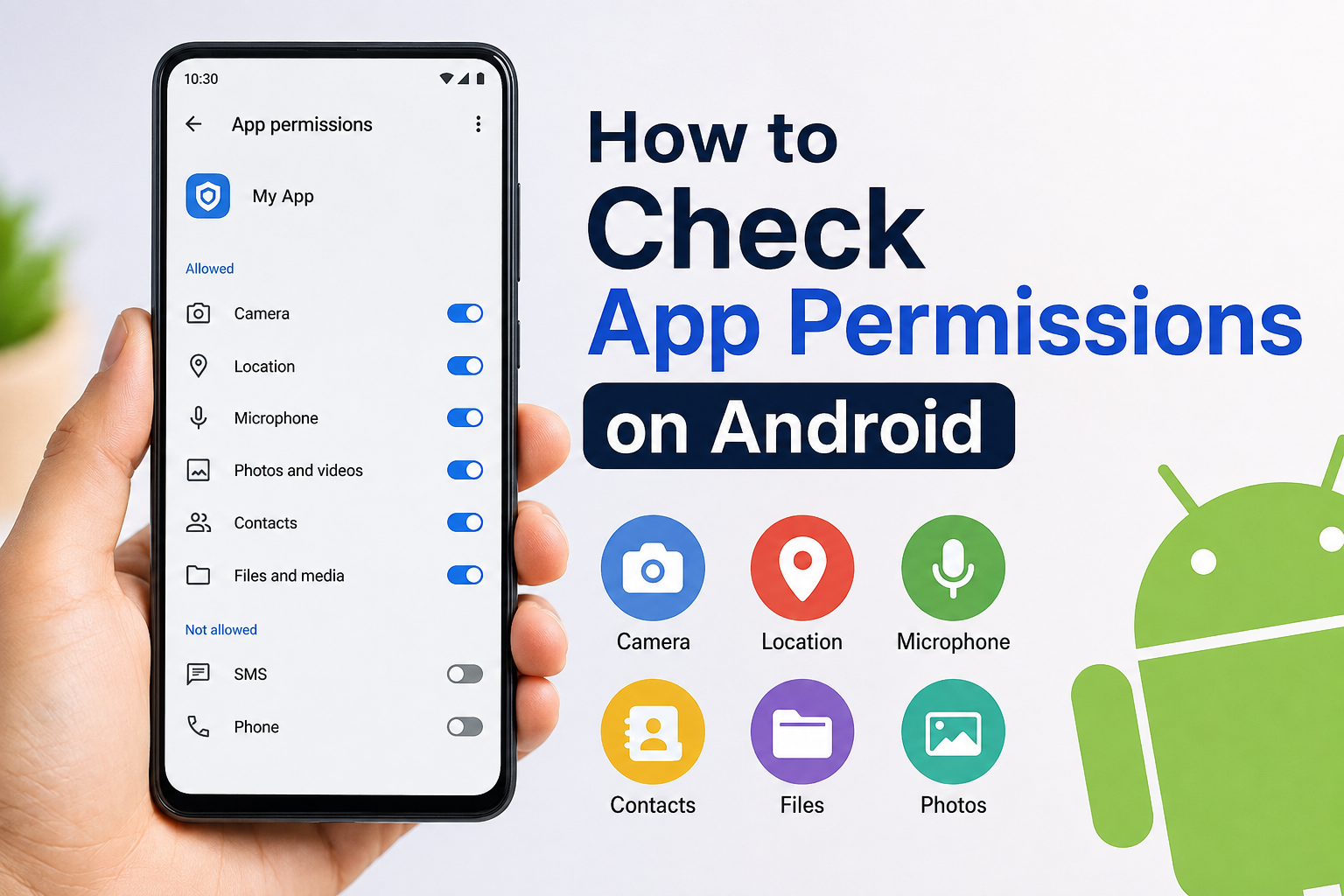
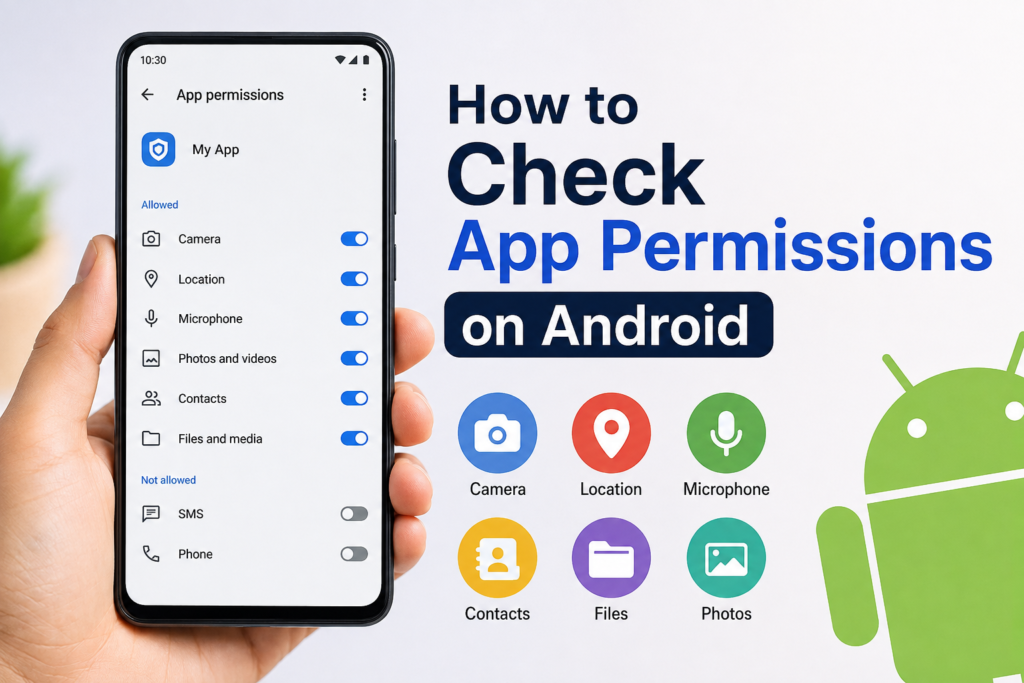
Common permissions include camera, microphone, location, contacts, phone, SMS, photos and videos, files, notifications, and nearby devices.
The important thing is that I do not have to approve every permission an app requests. If I think an app does not need a particular permission, I can usually deny it.
How I Check App Permissions
The easiest way I check permissions is through the Android Settings app. The exact names can be slightly different depending on my phone manufacturer and Android version, but the basic process is similar.
First, I open Settings on my Android phone.
Then I select Apps or Apps & notifications, depending on the Android version.
After that, I choose the app I want to inspect.
Inside the app information page, I look for Permissions.
When I open Permissions, Android shows me the permissions that the app currently has or has requested. I can tap individual permissions to see whether they are allowed or denied.
If I find a permission that I do not think the app needs, I can change it.
For example, if I installed a simple calculator app and it has access to my contacts, I would question why that access is necessary. I would normally remove that permission unless there is a clear reason for the app to need it.
Check Permissions Before Installing Apps
I personally think permission checking should start before an app is installed.
When I find a new app in the Google Play Store, I look at the app details and consider what information the app might reasonably need. I also pay attention to the developer and the purpose of the application.
A flashlight app, for example, should not normally need access to my contacts. A photo editing app may reasonably need access to selected photos. A navigation application may need location access because its main function depends on my location.
The purpose of the app gives me a useful way to judge whether a permission makes sense.
Understanding Location Permission
Location is one of the permissions I pay close attention to because it can reveal where I am.
Android can provide different levels of location access depending on the app and Android version. An app may be allowed to access my location only while I am using it, or it may have permission to access location in the background.
When I check an app, I ask myself whether it really needs my location.
For a navigation app, location access makes sense. For a weather app, it can also be useful if I want local weather information.
However, if a basic game or simple utility wants constant location access, I would think carefully before allowing it.
Whenever possible, I prefer giving location access only while I am using the app instead of allowing unnecessary background access.
Check Camera Permission
Camera permission allows an app to use the camera on my phone.
Apps such as video calling applications, camera apps, social media apps, and scanning tools may need this permission.
I still check which apps have camera access because I do not want unnecessary applications to use this feature.
If I find an app with camera permission that does not have an obvious reason to use the camera, I can open its permission settings and deny access.
Android may ask the app for permission again if it later needs the camera. That gives me another opportunity to decide whether I want to allow it.
Check Microphone Permission
The microphone is another permission I regularly review.
Messaging apps, video conferencing apps, voice recording tools, and some accessibility features may need microphone access.
When I see an unfamiliar app with microphone permission, I consider whether its main purpose actually requires audio input.
If I do not use the microphone feature in an app, I may choose to deny the permission. This is especially useful for applications that I rarely use.
Review Contacts Permission
Contacts contain information about people I know, so I do not give this permission automatically.
Some messaging and communication apps may need contacts to help me find people who are already using the service.
However, many other applications can work perfectly well without seeing my contact list.
When I check contacts permissions, I look at each application and ask whether access is genuinely useful for its main purpose.
If I cannot find a good reason, I normally remove the permission.
Check Photos and Videos Access
Modern versions of Android provide more control over photos and videos. Depending on the Android version and app, I may be able to give an app access to selected photos instead of my entire media library.
I prefer limited access whenever it is available and practical.
For example, if I only want to upload one photo to an app, I do not necessarily need to give that app permanent access to every picture stored on my phone.
This is a simple privacy habit that I find useful.
Review SMS and Phone Permissions
SMS and phone permissions deserve extra attention because they can involve sensitive information.
Some apps may legitimately need these permissions for specific functions. However, I do not think every application needs access to my messages or phone functions.
When I see an app requesting SMS or phone access, I look carefully at what the app does and why that permission might be necessary.
If the reason is unclear, I prefer denying the permission.
Check Permissions for Apps I Rarely Use
One thing I often forget is that an app can remain installed for months even though I barely use it.
That is why I like reviewing permissions for old and unused apps.
Android versions with unused app management features may automatically remove certain permissions from apps that have not been used for a while. Still, I prefer manually reviewing important permissions from time to time.
If I have not used an application for several months, I also consider uninstalling it completely.
Removing apps I no longer need reduces clutter and can also reduce unnecessary access to my information.
Use Android Privacy Controls
Newer Android versions provide additional privacy features that make permission management easier.
I can open the Privacy section in Settings to review different privacy controls. Depending on my Android version, I may find options related to the privacy dashboard, permission manager, camera, microphone, location, and other sensitive features.
The Privacy Dashboard is particularly useful because it can show me which apps have recently accessed certain permissions.
This helps me understand not only what an app is allowed to access but also how those permissions are being used.
Review Permissions Regularly
I do not think permission checking needs to become a daily task. I usually recommend doing it occasionally, especially after installing several new apps.
A quick review every few weeks or months can help me notice applications that have more access than necessary.
I also check permissions after major Android updates because the available privacy controls can change with newer versions.
Another good time to review permissions is when an app starts behaving differently or asks for a new permission that it did not previously require.
What Should I Do If an App Stops Working?
Sometimes I deny a permission and the app stops performing a particular function.
This does not always mean something is wrong with my phone. The application may genuinely need that permission for a feature.
For example, if I deny camera access to a video calling app, I should expect its camera feature not to work.
In that situation, I can return to the app’s permission settings and decide whether I am comfortable granting access.
The important point is that I make the decision based on the feature I want to use instead of automatically approving everything.
Final Thoughts
Checking app permissions on Android is a simple habit that gives me more control over my phone. I do not have to let every application access my camera, microphone, location, contacts, photos, or other information just because it asks.
I start by opening Settings, selecting Apps, choosing an application, and opening its Permissions section. From there, I review each permission and decide whether it makes sense for that particular app.
I pay special attention to location, camera, microphone, contacts, photos, SMS, and phone permissions because these can provide access to information or features I consider private.
For me, the best approach is not to deny every permission automatically. Instead, I look at what an app actually does and decide what access it needs to perform that job.
Android gives me useful tools for making these decisions, so I try to use them rather than ignoring permission requests. A few minutes of checking can make my phone feel more private, organized, and under my control.
If I make permission checking a regular habit, I can enjoy my Android apps while being more careful about what information and device features I share with them.