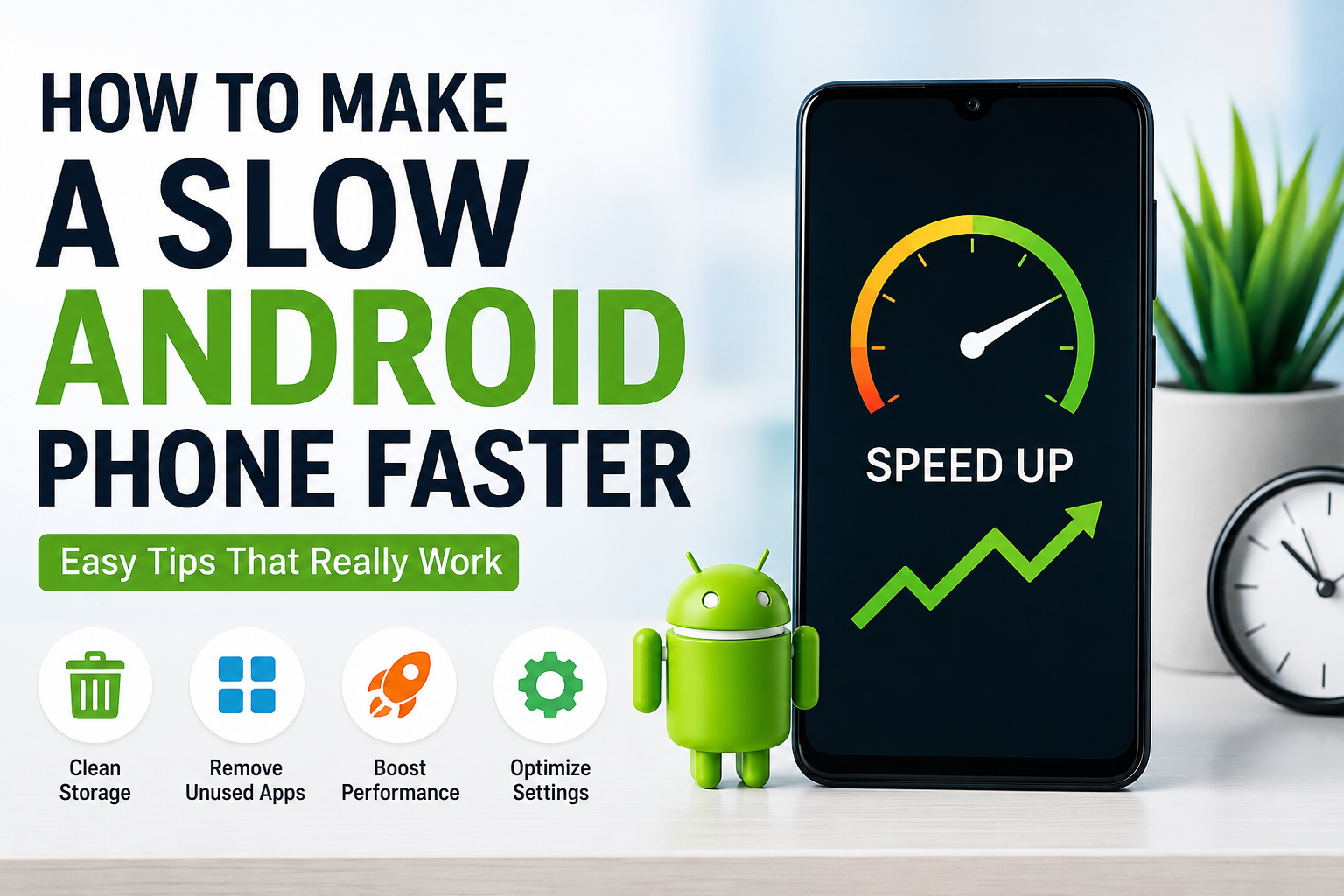
A slow Android phone can be really frustrating, especially when it was working perfectly a few months ago. I have noticed that Android phones often become slower over time because of too many apps, limited storage, background processes, outdated software, and unnecessary files. The good thing is that you do not always need to buy a new phone to fix the problem.
In my experience, a few simple changes can make an old or slow Android phone feel much faster. Some solutions take only a few minutes, while others may require a little more effort. In this article, I will share the methods I personally find useful when an Android phone starts becoming slow.
Restart Your Android Phone
The first thing I recommend is restarting the phone. It sounds very simple, but it can make a noticeable difference.
When you use your phone for several days without restarting it, different apps and services may continue running in the background. Temporary processes can also use memory and system resources. Restarting the phone closes many of these processes and gives the system a fresh start.
I usually restart my phone when apps begin opening slowly, the keyboard starts responding late, or the phone feels unusually sluggish. It is one of the easiest things to try before changing any settings.
Check Your Phone Storage
Low storage is one of the common reasons an Android phone becomes slow. When your internal storage is almost full, the phone may have difficulty managing temporary files and app data.
Go to your phone’s Settings and look for Storage. Check how much free space is available. If the storage is nearly full, start removing things you no longer need.
I normally begin with large videos, duplicate photos, old downloads, unused documents, and applications that I have not opened for months.
Try to keep a reasonable amount of free storage. You do not need to fill every available gigabyte just because it is there.
Remove Apps You Do Not Use
Many people install an app for a specific purpose and then forget about it. Over time, these unused apps can take up storage and some may continue running background services.
Open your installed apps and look carefully at what you actually use. If you have not used an application for a long time and do not need it, uninstall it.
I prefer having fewer useful apps instead of keeping dozens of applications that I rarely open. A cleaner phone usually feels easier to manage as well.
Be careful when removing system applications because some are necessary for Android to work properly. Focus mainly on apps that you personally installed.
Clear App Cache
Android apps store temporary information called cache. Cache can help applications load certain content faster, but it can also become large over time.
If one particular app is behaving strangely or taking a long time to open, clearing its cache may help.
You can usually find this option by opening Settings, selecting Apps, choosing the application, and looking under Storage. The exact menu names can be different depending on your Android phone.
I recommend clearing cache when an app is having problems rather than constantly clearing the cache of every application. Cache itself is not automatically bad, and Android uses it for performance.
Update Android and Your Apps
Keeping your phone software updated can also help with performance. Manufacturers regularly release updates that include bug fixes, security improvements, and performance changes.
Check Settings for available system updates. You should also open the Google Play Store and check for updates to your installed applications.
I personally prefer keeping important apps updated because an outdated application can sometimes become unstable after the Android system itself has changed.
However, if your phone is very old, a major software update may not always make it feel faster. Older hardware can struggle with newer versions of software, so it is worth checking how your particular device performs after an update.
Reduce Background Activity
Some applications continue doing work even when you are not actively using them. Social media, shopping, email, messaging, and other apps may frequently synchronize information.
Too much background activity can affect battery life and performance.
Android provides different options for managing battery and background activity depending on the phone manufacturer. You can review which apps are consuming the most battery and restrict background activity for apps that do not need constant access.
I usually focus on apps that I rarely use but that consume noticeable resources. There is no reason for every application on my phone to stay active all the time.
Reduce Animations
Android includes animations that make the interface look smoother. On older phones, however, reducing these animations can make the device feel more responsive.
You may find animation settings inside Developer Options. Developer Options are hidden by default on many Android devices, and the steps for enabling them can vary.
If you already know how to use Developer Options, you can reduce animation scales such as window animation, transition animation, and animator duration.
I would not recommend changing random Developer Options settings without understanding them. If you only want a faster feeling interface, focus on animation settings and leave everything else alone.
Use a Simple Wallpaper
Live wallpapers and animated backgrounds can consume additional system resources. They may look attractive, but an older phone can sometimes feel better with a simple static wallpaper.
I personally prefer a normal wallpaper on phones that are already struggling with performance. It is a small change, but every little improvement can help when the hardware is limited.
Remove Unnecessary Widgets
Widgets can be useful because they display information directly on your home screen. However, having too many of them can increase background activity.
Take a look at your home screen and remove widgets that you rarely use. You probably do not need several weather, news, clock, stock, or social media widgets running at the same time.
I like keeping my home screen simple. I normally keep only the widgets that provide information I actually check during the day.
Clean Up Your Downloads Folder
The Downloads folder is easy to forget. Over time, it can become filled with PDFs, images, videos, installation files, and other documents.
Open your file manager and check the Downloads folder. Delete files that you no longer need and move important documents somewhere safe.
This will not magically increase processing power, but it can free storage and make your phone easier to manage.
Avoid Unnecessary Cleaner Apps
One thing I would avoid is installing random phone cleaner applications just because they promise to make Android faster.
Many cleaner apps run continuously in the background and may display advertisements or notifications. Some can actually consume resources that you are trying to save.
Modern Android already provides several tools for managing storage, applications, and battery usage. I prefer using the built in settings whenever possible.
If you need to clean storage, use your phone’s own storage management tools or a trusted file manager instead of installing several different cleaning applications.
Check Which Apps Are Consuming Resources
If your phone is still slow, try to identify the actual cause instead of guessing.
Look at battery usage and storage information in Settings. You may discover that one particular app is consuming an unusually large amount of battery or storage.
If an application is constantly causing problems, update it first. If that does not help, consider uninstalling and reinstalling it.
Sometimes a single poorly behaving app can make the entire phone feel slower.
Keep Your Phone Cool
Heat can also affect smartphone performance. When a phone becomes very hot, it may reduce performance to protect its internal components.
Avoid using your phone under direct sunlight for long periods, especially while charging or playing demanding games.
I have found that phones generally perform better when they are kept at a comfortable temperature. If your phone regularly becomes extremely hot during normal use, it may be worth investigating the cause.
Use Lite Versions When Available
If your phone has limited hardware, consider using lighter versions of applications when they are officially available.
Some apps offer lightweight versions that use fewer resources and less storage. Another option is to use a mobile website instead of installing an application for a service you rarely use.
This approach can be particularly useful on older phones with limited RAM.
Consider a Factory Reset
If you have tried everything and the phone is still extremely slow, a factory reset may help.
A factory reset removes your installed applications, accounts, settings, and personal data from the device. Before doing this, make sure your important photos, contacts, documents, and other files are backed up.
I consider a factory reset a last resort rather than the first solution. After resetting the phone, install only the applications you actually need. Installing everything again immediately can bring the same performance problems back.
When It Is Time for a New Phone
Sometimes the hardware itself is the problem. If your phone has very limited RAM, an old processor, poor battery health, or storage that is constantly full, software changes can only do so much.
If you have cleaned the storage, removed unnecessary apps, updated the system, and performed other basic improvements but the phone remains slow, the hardware may simply be reaching its limits.
In my opinion, you should not replace a phone just because it feels slightly slower than when it was new. Try the simple solutions first. But if everyday tasks such as calling, messaging, browsing, and opening basic apps have become frustratingly slow, upgrading may eventually make more sense.
Final Thoughts
Making a slow Android phone faster does not always require expensive software or a new device. In many cases, the problem comes from simple things such as low storage, too many applications, excessive background activity, outdated software, or unnecessary files.
I would start with the easiest solutions first. Restart the phone, free up storage, uninstall unused apps, update your software, reduce unnecessary background activity, and keep the home screen simple. If the phone is still slow, investigate which apps are using the most resources.
For older Android phones, expectations are also important. You cannot turn old hardware into a modern flagship with a few settings. However, with regular maintenance and sensible app usage, you can often make an aging phone feel noticeably smoother and more comfortable to use.
The main lesson I have learned is that keeping an Android phone clean and organized is much easier than trying to fix it after it becomes extremely slow. A few minutes of maintenance every now and then can go a long way toward keeping your phone running better.