I have noticed that one of the most frustrating things about using an Android phone is seeing the battery percentage drop much faster than expected. Sometimes I charge my phone to 100 percent, use it normally for a few hours, and suddenly the battery is already close to 50 percent. When this happens, many people immediately think that the battery itself has become weak. However, in my experience, the real problem can often be an app running in the background.
Android gives us useful tools to check which apps are consuming the most battery. Once you know where to look, finding a battery draining app is not very difficult. In this article, I will explain how I check battery usage on Android, what the battery statistics mean, and what I do when I find an app using more power than expected.
Why Some Apps Drain Battery
Before checking the battery settings, it is useful to understand why an app may consume a lot of power. Some applications constantly use the internet, location services, the camera, microphone, notifications, or other phone features. Social media apps, video apps, navigation apps, games, and some messaging applications can use considerable battery power.
An app can also continue working when I am not actively using it. For example, an app may refresh content, check for notifications, synchronize information, or use location services in the background.
Sometimes a poorly optimized app or an app with a bug can behave differently and use much more battery than normal. This is why checking battery usage is one of the first things I recommend when the battery suddenly starts draining.
Open Battery Settings
The easiest way to find battery draining apps is through the Android battery settings.
On most Android phones, I open the Settings app and look for an option called Battery. The exact menu names can be slightly different depending on the phone manufacturer and Android version.
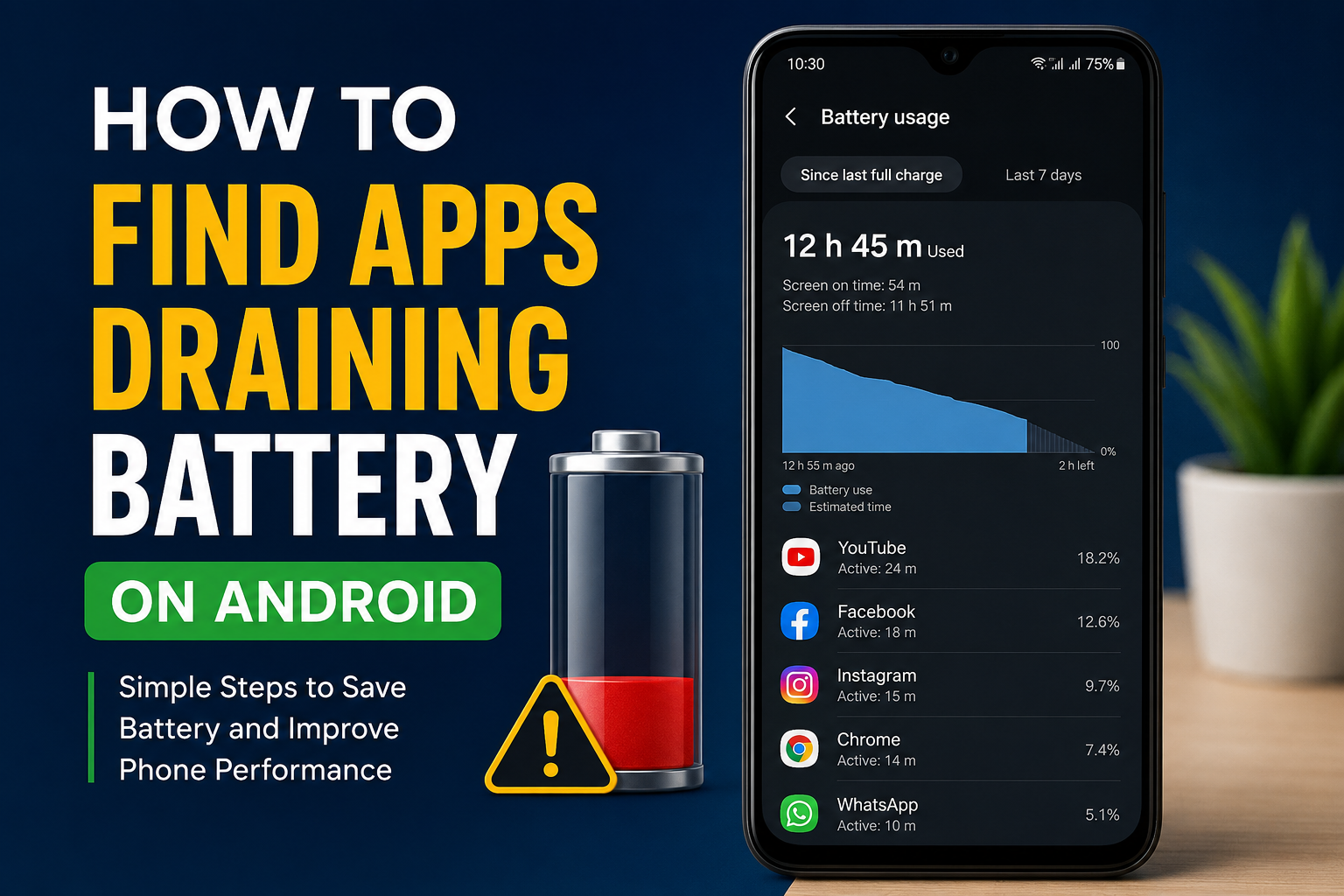
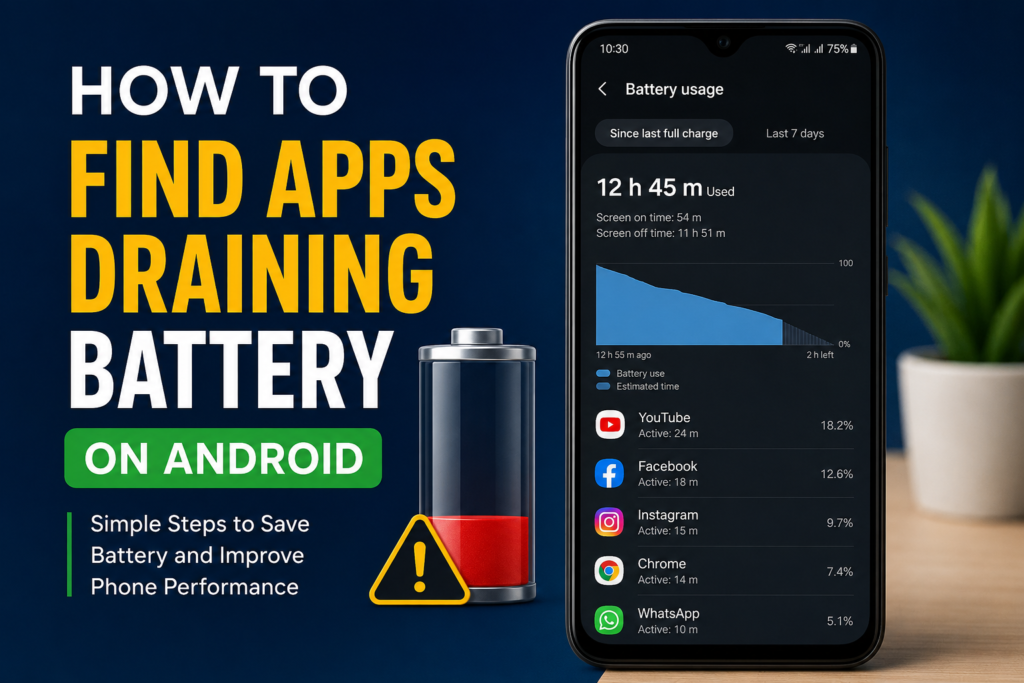
After opening Battery, I look for an option such as Battery Usage, Battery Usage by App, or App Battery Usage. This section shows which apps have consumed battery during a selected period.
The screen may display a percentage beside each application. This percentage helps me understand which apps are responsible for a larger portion of the battery consumption.
For example, if I see a social media application using 18 percent of my battery while I barely used it, I know that I should investigate that app further.
Check Battery Usage by App
The battery usage list is probably the most useful feature for finding battery draining applications.
I normally look at the apps near the top of the list first. The app with the highest percentage is not automatically a problem because some apps naturally require more power. A game that I played for two hours can use a lot of battery, and that may be completely normal.
What I pay more attention to is an app that has high battery usage despite limited use.
For example, if I played a game for two hours and it used 25 percent of the battery, that makes sense. But if I opened another app for only a few minutes and it still used a surprisingly large amount of battery, I would investigate it.
This is why battery percentages should always be considered together with actual usage time.
Look at Screen and Background Usage
Some Android phones provide additional information about how an app used the battery. This can include foreground usage and background usage.
Foreground usage usually means I was actively using the application. Background usage means the app was working while I was doing something else or even when I was not actively using it.
Background battery consumption is particularly important when troubleshooting battery drain.
If an application has very high background usage, I check whether I actually need that app to work continuously. Some applications need background activity for notifications or synchronization, while others may not need it.
When I find an app using excessive power in the background, I consider limiting its background activity.
Check Which Apps Were Recently Used
Another simple method I use is comparing battery consumption with my actual phone usage.
Think about which apps you used during the day. If you spent most of your time watching videos, browsing websites, and playing games, those applications will naturally appear high in the battery list.
However, if an application appears high on the list even though you rarely opened it, that is worth investigating.
I find this comparison more useful than simply looking for the application with the highest percentage. Battery usage depends heavily on how long an app was actively used.
Restrict Background Battery Usage
When I find an application that is consuming too much battery in the background, Android may give me options to control its battery activity.
Depending on the phone, I may see settings such as Unrestricted, Optimized, or Restricted.
The optimized option is usually a good choice for normal apps because Android can manage their background activity automatically.
If an app is using too much battery and I do not need instant updates from it, I may consider restricting its background activity.
However, I do not recommend restricting every application. Some apps need background access to provide notifications, synchronization, or other important features.
Check Location Permissions
Location access can also contribute to battery consumption.
Some applications use GPS or other location services to provide features. Navigation applications obviously need location access, but other apps may not need it all the time.
I open the app permissions settings and check which applications have access to my location. If an app does not really need continuous location access, I consider changing its permission to a more limited option when available.
This can help reduce unnecessary activity and also gives me better control over privacy.
Check Apps Running in the Background
Sometimes the problem is not an application I use frequently but an app that keeps running after I leave it.
Android is designed to manage background processes automatically, so I do not usually need to force close every app. In fact, constantly closing apps is not always helpful because Android already manages memory and background activity.
Instead, if I notice unusual battery drain, I focus on identifying the specific application responsible.
If the battery settings show that a particular app is consuming excessive power in the background, I investigate that app rather than closing everything.
Update Problematic Apps
If I find an app using an unusual amount of battery, I check whether an update is available.
Developers regularly release updates that fix bugs, improve performance, and reduce battery consumption. An application that drains the battery because of a software problem may start behaving normally after an update.
I open the Google Play Store, check my available updates, and update the problematic application.
I also keep Android updated when a suitable system update is available. System updates can sometimes include performance and battery improvements.
Restart the Phone
A simple restart can sometimes solve temporary software problems.
If an application becomes stuck or a background process behaves incorrectly, restarting the phone can stop that activity.
Whenever I notice sudden and unexplained battery drain, I usually restart my phone before making major changes. It is a simple step, but it can sometimes make a noticeable difference.
If the problem returns after restarting, I then continue checking the battery statistics.
Uninstall Apps You Do Not Need
One of the easiest solutions is removing applications that I no longer use.
Every installed application can potentially perform background tasks, send notifications, synchronize information, or receive updates. While one unused application may not make a huge difference, several unnecessary applications can add up.
I regularly review my installed apps and remove those that I have not used for a long time.
If I suspect a particular application is causing battery drain and I do not really need it, uninstalling it can also help confirm whether it was responsible.
Be Careful With Battery Monitoring Apps
There are many third party applications that claim to identify battery problems. Some can provide useful information, but I do not think installing several battery monitoring apps is a good solution.
A monitoring application itself can consume battery and add another background process.
For basic troubleshooting, I prefer using the battery tools already included with Android. They are usually enough to identify applications that are consuming an unusual amount of power.
Check After a Full Charge
For a better understanding of battery behavior, I sometimes monitor the phone after charging it.
After charging, I use the phone normally and check the battery usage later in the day. I look for applications that consumed a significant amount of power compared with how much I actually used them.
Doing this for several days can provide a clearer picture. A single day may not tell the whole story because battery usage changes depending on screen time, games, mobile data, WiFi, brightness, calls, and other activities.
What If No App Looks Suspicious?
Sometimes the battery drain is not caused by a single application.
If no app appears unusually high in the battery settings, I look at other possible causes. A weak mobile signal can make the phone work harder to maintain a connection. High screen brightness can also consume significant power.
Frequent gaming, video streaming, GPS navigation, Bluetooth use, and mobile hotspot usage can also reduce battery life.
Battery health itself can be another factor, especially on an older phone. As a battery ages, its capacity can gradually decrease.
My Simple Method for Finding Battery Draining Apps
When I want to find the cause of battery drain, I follow a simple process.
First, I open Settings and go to Battery.
Next, I open the battery usage section and review the applications.
Then I compare the battery percentages with the amount of time I actually spent using each app.
After that, I check whether suspicious applications are consuming power in the background.
If necessary, I restrict background activity, update the application, remove unnecessary permissions, or uninstall the app.
Finally, I monitor the battery for another day or two to see whether the situation improves.
Final Thoughts
Finding apps draining battery on Android is much easier when I use the built in battery statistics instead of guessing. The most important thing is to look beyond the app with the highest percentage and consider how much I actually used it.
An application that consumes a lot of battery during active use may be perfectly normal. The bigger warning sign is an app that consumes significant power while I hardly use it, especially when its background activity is high.
By checking battery usage regularly, controlling unnecessary background activity, updating apps, removing applications I no longer need, and paying attention to location and other permissions, I can usually improve my phone’s battery life.
In my opinion, the best approach is not to disable everything. Android already provides useful controls for managing battery consumption. I simply need to identify the apps that are behaving unusually and adjust them when necessary. This small habit can make a noticeable difference in everyday Android battery life.