I think one of the most annoying phone problems is going to bed with a good amount of battery and waking up to find that the battery has dropped much more than expected. Sometimes the phone can lose only a few percent during the night, which is normal. But when an Android phone loses twenty, thirty, or even more percent overnight, something is usually using power in the background.
The good thing is that overnight battery drain can often be fixed without replacing the phone. In my experience, the problem is usually connected to background apps, poor network signals, unnecessary features, battery settings, or an app that keeps running when the screen is turned off.
In this article, I will explain the practical ways I would use to reduce Android battery drain overnight.
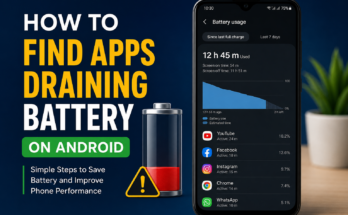
Check Battery Usage First
Before changing many settings, I recommend checking which apps are consuming the battery. This can save a lot of time because sometimes one particular app is responsible for most of the drain.
Open your Android phone settings and look for the Battery section. Depending on your phone brand, you may see an option called Battery Usage or Battery Activity.
Look at the apps that have used the most battery recently. If you notice an app consuming a surprisingly large amount of power while you are sleeping, that app deserves attention.
You can try updating it, restricting its background activity, or uninstalling it if you do not really need it.
I personally prefer checking battery usage before making major changes because it helps identify the actual problem instead of randomly changing settings.
Restart Your Android Phone
This sounds like a very simple solution, but restarting your phone can sometimes fix temporary background processes that are consuming too much power.
Apps and system services can occasionally get stuck or behave incorrectly. When this happens, they may continue working in the background even when you are not using the phone.
A simple restart closes many temporary processes and gives the system a fresh start.
If your phone has started draining unusually fast recently, I would restart it before trying more complicated solutions.
Turn Off Unnecessary Connections
Your phone constantly communicates with nearby networks and devices. WiFi, Bluetooth, mobile data, location services, and other connections can contribute to battery consumption.
If you do not need Bluetooth overnight, you can turn it off. The same applies to WiFi if you are not using an internet connection while sleeping.
However, I would not recommend turning everything off automatically. For example, if you use your phone for important notifications, alarms, calls, or emergency communication, keeping the necessary connections active may be more useful.
The goal is not to disable every feature. The goal is to stop services that you do not actually need during the night.
Check Your Mobile Network Signal
One thing many people overlook is weak mobile network coverage.
When your phone has a poor signal, it may work harder to maintain communication with the cellular network. If you sleep in an area where the signal is weak, your phone can sometimes lose more battery than expected.
If possible, keep the phone in a location with a stronger signal.
If you normally use WiFi at home and have good WiFi coverage, connecting to it can also make the phone’s internet connection more stable.
If you are in an area with extremely poor cellular coverage, airplane mode can reduce overnight battery usage, but I would only use it when you are comfortable being disconnected from calls and mobile networks.
Restrict Background Activity
Many Android apps continue performing tasks even when you are not actively using them.
Some apps check for new messages, synchronize information, update content, track activity, or perform other background tasks.
You can review the battery settings for apps that are using too much power and restrict their background activity when appropriate.
I would avoid restricting every application because some apps need background access for notifications and other important functions.
Instead, focus on apps that you rarely use or apps that appear unusually high in your battery usage report.
Turn Off Always On Display
If your phone has an Always On Display feature, it can use some battery throughout the day and night.
The amount of battery used depends on the phone and display technology, but if you are trying to reduce every unnecessary source of battery drain, turning this feature off overnight may help.
Some phones also provide scheduling options. If your device supports a schedule, you may be able to keep Always On Display active during the day and disable it while you sleep.
I prefer scheduled settings because they give me convenience without keeping unnecessary features active all night.
Use Battery Saver Mode
Battery Saver is one of the easiest tools available on many Android phones.
When enabled, Battery Saver can reduce background activity, limit certain features, and make other changes designed to extend battery life.
If your battery normally drops significantly overnight, you can consider enabling Battery Saver before going to sleep.
Some Android phones also allow automatic Battery Saver activation when the battery reaches a specific percentage.
I think this is especially useful when you know you will not be charging your phone overnight.
Reduce Screen Brightness Before Sleeping
Screen brightness is usually more important during active phone use than when the phone is sitting untouched overnight. Still, reducing brightness can help your overall battery performance.
If you use your phone shortly before sleeping, avoid keeping the display at maximum brightness.
You can also enable adaptive brightness if your phone supports it. This allows the device to adjust brightness according to surrounding lighting conditions.
Lower brightness is also easier on the eyes in a dark room, so it can be useful for more than just battery savings.
Check Location Services
Location services can be useful for maps, weather, fitness apps, and other features. However, not every application needs constant access to your location.
Open your location permissions and review which apps have access.
If an app does not need location access all the time, consider changing its permission to a more limited option when available.
I would not recommend completely disabling location services if you depend on them for important features. Instead, manage permissions carefully and allow only the access that makes sense.
Update Android and Your Apps
Software updates can sometimes fix battery related problems.
If an Android system component or application has a bug that causes excessive background activity, an update may solve the issue.
Check for available Android system updates and update apps through the official app store.
At the same time, remember that a new update can occasionally introduce temporary battery changes while the phone adjusts and optimizes files. So I would not judge battery performance immediately after every update.
Give the phone some time and then check the battery usage again.
Remove Apps You Do Not Use
I believe unused apps are one of the easiest things to overlook.
You may have installed an application months ago and completely forgotten about it. Even if you rarely open it, it may still perform background tasks.
Go through your installed applications and remove anything you genuinely no longer need.
This can also free storage space and make your phone easier to manage.
For apps you use occasionally but do not want to remove, check whether Android provides options to restrict their background activity.
Avoid Unnecessary Widgets
Widgets can be useful because they display information directly on your home screen. However, some widgets may refresh information regularly.
If you have many widgets that you rarely use, removing some of them can simplify your home screen and potentially reduce background activity.
I would keep the widgets that genuinely help me and remove the ones that I only keep because they look nice.
A simpler home screen can also make the phone feel cleaner and easier to use.
Check Battery Health
If your phone is several years old and the battery drains very quickly even after changing settings, battery health may be part of the problem.
Lithium ion batteries naturally lose capacity over time. A battery that once lasted all day may eventually provide noticeably less usage.
If your phone becomes hot, shuts down unexpectedly, or loses battery unusually quickly, consider checking the battery condition through your phone’s available diagnostic features or an authorized service center.
Sometimes software settings can improve battery life, but an aging battery cannot always be fixed through settings.
Avoid Extreme Temperatures
Temperature can also affect battery performance.
Try not to leave your phone in very hot places overnight, such as near a heater, inside a closed vehicle, or under heavy bedding where heat cannot escape.
Extreme heat can negatively affect battery health over time.
I prefer keeping my phone on a hard, open surface where it can stay at a reasonable temperature.
Do Not Obsess Over Small Battery Drops
Finally, I think it is important to remember that some overnight battery usage is completely normal.
Your phone may still receive notifications, maintain network connections, check for updates, synchronize accounts, and perform system tasks.
If your phone loses only a small percentage overnight, there may be nothing wrong with it.
The real concern is a sudden or unusually large battery drop that happens regularly.
Final Thoughts
For me, the best way to stop Android battery drain overnight is to find the actual reason instead of turning off every phone feature.
I would start by checking battery usage, restarting the phone, reviewing background apps, checking network signal strength, and managing unnecessary connections. After that, I would look at features such as Always On Display, location access, widgets, and Battery Saver.
If the battery is still draining heavily after these steps, I would consider whether an application is causing the problem or whether the battery itself has become worn out.
Android phones offer many useful features, but not every feature needs to run all night. A little cleanup and a few sensible settings can often make a noticeable difference.
The most important thing is to make changes gradually and check your battery usage after each change. That way, you can discover what is actually affecting your phone and create a setup that gives you better battery life without sacrificing the features you use every day.