Using an Android phone should feel comfortable, but sometimes the text on the screen can be too small or too large. I have found that changing the font size is one of the easiest ways to make an Android phone more comfortable to use. Whether you have difficulty reading small text, want to fit more information on your screen, or simply prefer larger letters, Android gives you several options to adjust the appearance of text.
In this guide, I will explain how to change the font size on Android in simple steps. I will also explain the difference between font size and display size, what to do if the option is difficult to find, and some additional settings that can make text easier to read.
Why Change the Font Size on Android?
The default font size on an Android phone may not be comfortable for everyone. Some people prefer larger text because it is easier to read. Others prefer smaller text because they want to see more information on the screen.
In my experience, increasing the font size can make messages, settings, menus, and other parts of the phone easier to read. It can also be useful for older family members who find small text difficult to see.
The good thing is that changing the font size does not normally require installing another application. Android includes this feature in the phone settings.
How to Change the Font Size on Android
The exact steps can be slightly different depending on your phone manufacturer and Android version. However, the general process is very similar on most Android devices.
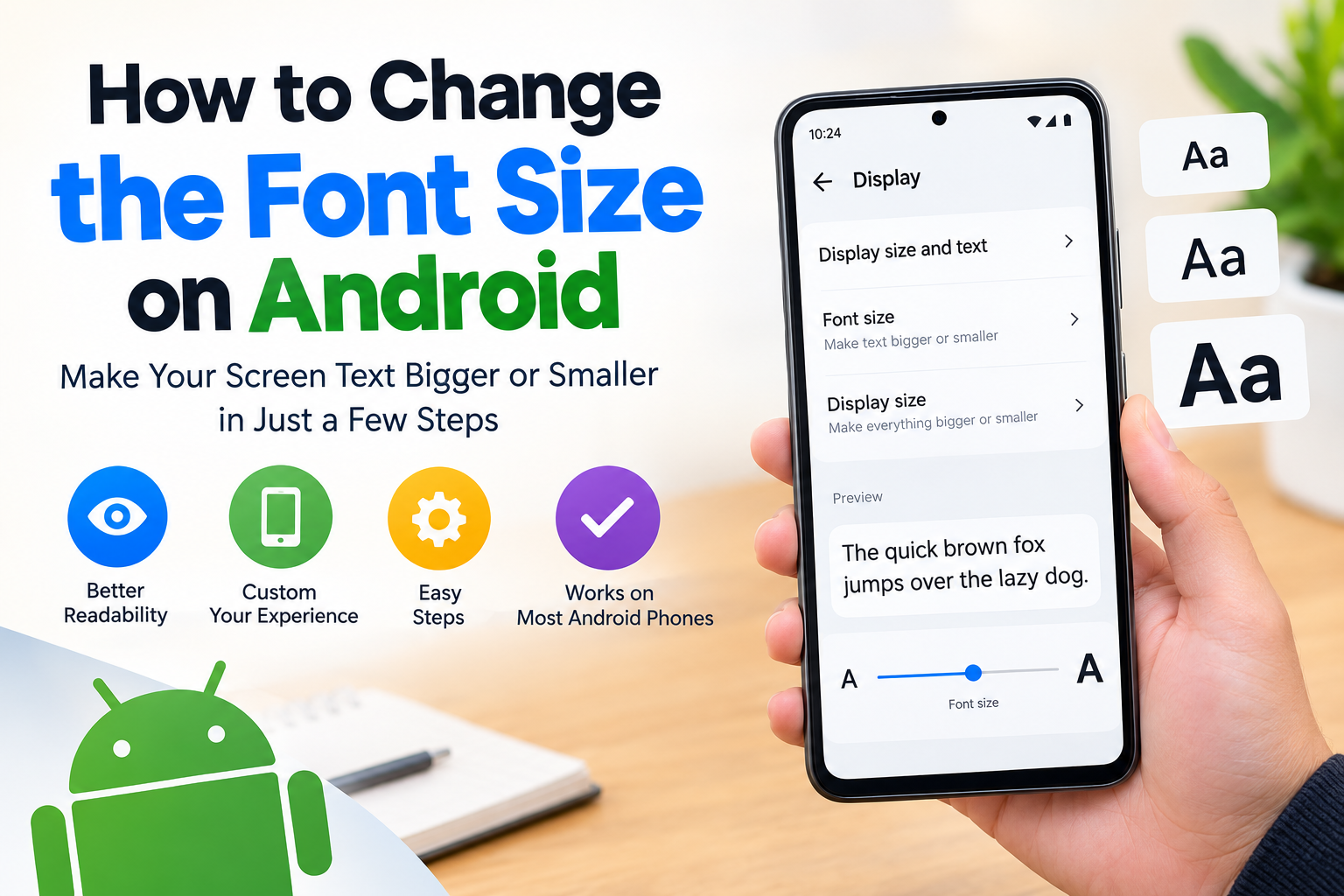
First, open the Settings app on your Android phone.
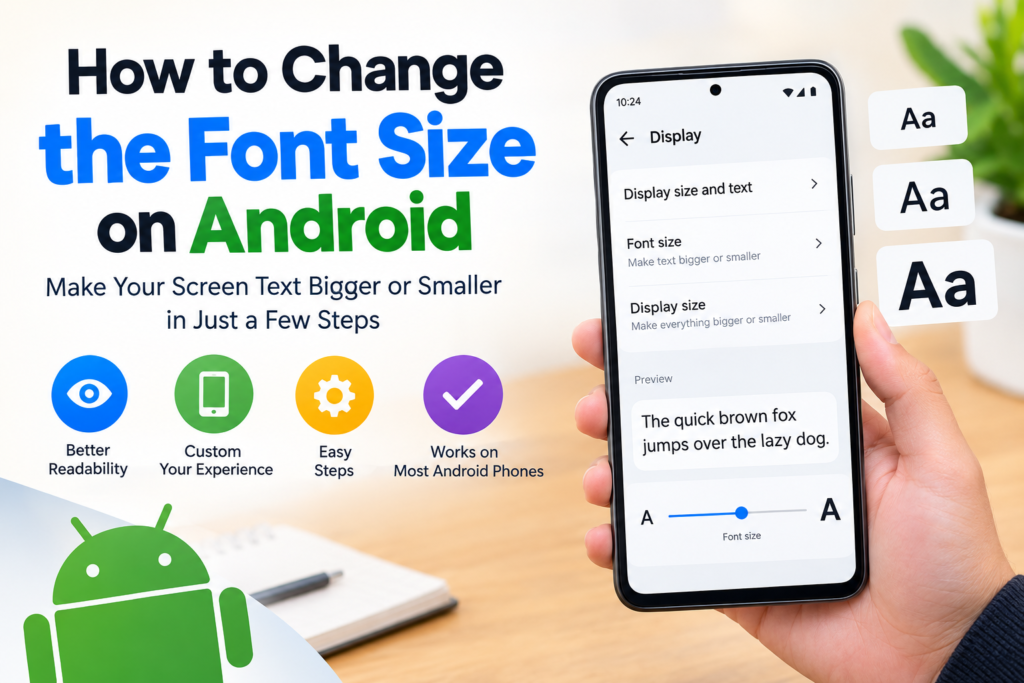
Next, look for an option called Display. On some phones, you may need to scroll down before you find it.
After opening Display, look for Font size, Font size and style, or Display size and text.
Tap the appropriate option.
You should see a slider that allows you to make the text smaller or larger. Move the slider toward the larger side if you want bigger text. Move it toward the smaller side if you want smaller text.
Most phones show a preview while you adjust the slider. I recommend moving the slider slowly and checking the preview before deciding on the final size.
Once you are happy with the result, simply leave the setting at your preferred level. The change should take effect automatically.
How to Increase Font Size on Android
If you find the text on your phone difficult to read, increasing the font size can make a noticeable difference.
Open Settings and go to Display. Find the font size option and move the slider toward the larger setting.
I personally recommend increasing the font size gradually instead of immediately choosing the largest option. Very large text can sometimes make buttons and menus harder to navigate because less information fits on the screen.
A medium or slightly larger setting is often enough for comfortable reading.
After changing the font size, check different parts of your phone. Open a text message, Settings, your web browser, and another commonly used application. This will help you see whether the new font size works well throughout your daily use.
How to Make the Font Smaller on Android
If the text looks too large, you can reduce the font size using the same setting.
Go to Settings, open Display, and find the font size option. Move the slider toward the smaller setting until the text looks comfortable.
Smaller text can be useful if you want to see more information at once. For example, you may be able to see more lines in an email or more content on a webpage.
However, I would not recommend making the text extremely small simply to fit more information on the screen. If you have to constantly look closely at your phone, the smaller setting may not be worth it.
Font Size vs Display Size on Android
One thing that sometimes confuses Android users is the difference between font size and display size.
Font size mainly changes the size of text displayed on the phone.
Display size changes the overall size of items on the screen. This can include icons, buttons, menus, and other interface elements.
For example, you might increase the font size if you only want letters and words to become easier to read. If everything on your screen appears too small, changing the display size may be more useful.
Some Android phones place both options under Display size and text. If your phone provides both settings, I recommend adjusting them separately so you can find a comfortable combination.
How to Change Font Style on Android
Some Android phones also allow you to change the font style.
To check whether your phone supports this feature, open Settings and search for Font style or Font size and style.
If the option is available, you may see several font styles to choose from. Select the style you like and apply it.
Not every Android phone provides custom font styles. Some manufacturers include more options than others.
For most users, I think font size is more important than font style because readability should come first.
How to Make Text Easier to Read
Changing the font size is only one way to improve readability on Android. Depending on your phone, you may find additional accessibility settings.
One useful feature is Bold text. If your Android phone supports it, enabling bold text can make letters more noticeable.
You may also find settings related to High contrast text, Magnification, or other accessibility features.
These options can be helpful if simply increasing the font size does not provide enough improvement.
I suggest trying one setting at a time. Changing several display settings at once can make it difficult to understand which setting is actually helping you.
What If You Cannot Find Font Size?
If you cannot find the font size setting, do not worry. Different Android manufacturers organize their Settings menus differently.
The easiest solution is to open Settings and use the search box. Type Font size into the search field.
Your phone should show the relevant setting if it is available.
You can also try searching for Display size, Font, or Text size.
On some phones, the setting may be located under an accessibility menu rather than directly under Display.
The names can also change after a major Android software update, so using the Settings search function can save time.
Why Your Font Size May Look Different in Some Apps
One important thing to understand is that changing the Android system font size does not guarantee that every application will display text in exactly the same way.
Some applications follow the Android system settings closely. Others use their own text controls and design.
This means you might notice that the text becomes larger in some apps but changes less in others.
If an application has its own text size setting, you may need to adjust it separately.
This is especially common with reading applications, browsers, messaging applications, and social media platforms.
How to Reset the Font Size
If you change the font size and later decide that you do not like it, you can easily return to a more standard setting.
Go back to Settings, then Display, and open the font size option. Move the slider back toward the middle or choose the default setting if your phone provides one.
If you are not sure what the original setting was, the middle position is often a good starting point.
After resetting the font size, check your commonly used applications again.
Tips for Choosing the Right Font Size
I think the best font size is not necessarily the biggest or smallest one. It is the size that lets you read comfortably without making the rest of the screen difficult to use.
Here are some simple tips I recommend.
Choose a size that you can read without moving the phone unusually close to your face.
Check both short text and long paragraphs.
Open your messaging application and read a few messages.
Check websites in your browser because webpage text can look different from system text.
Make sure buttons and menus are still easy to use.
If you use your phone for reading for long periods, choose a comfortable size rather than trying to fit the maximum amount of information on one screen.
Can You Change Font Size Without Installing an App?
Yes, on most Android phones you can change the system font size without installing an additional application.
The built in Android settings are usually enough for basic font size adjustments.
I recommend using the built in settings before downloading an application that claims to change your system font. Third party applications may require additional permissions or may not work properly with your particular phone.
For a simple task like changing font size, the built in Android option is usually the easiest place to start.
Final Thoughts
Learning how to change the font size on Android is a simple but useful phone adjustment. A small change can make your device much more comfortable for everyday use.
If the text feels too small, open Settings, go to Display, find the font size option, and move the slider toward a larger size. If the text is too large, move the slider toward the smaller side.
Remember that the exact menu names can vary depending on your Android version and phone manufacturer. If you cannot find the setting, use the search option inside Settings and type Font size.
I personally recommend choosing a font size that feels comfortable rather than simply selecting the largest available option. Take a few minutes to test the new size in messages, websites, Settings, and other applications that you use regularly.
Once you find the right balance, your Android phone can become much easier and more enjoyable to use every day.