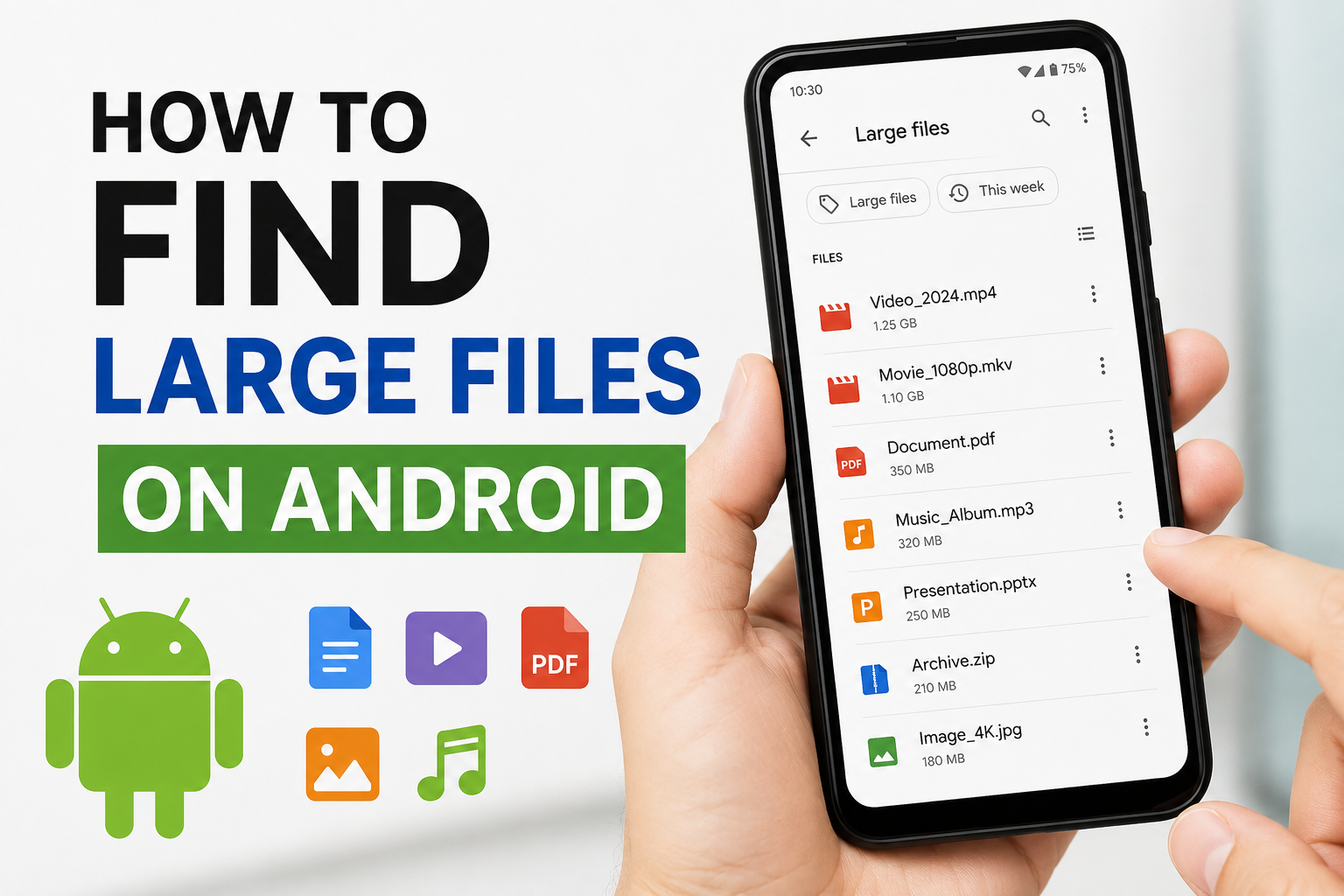
If your Android phone keeps showing a low storage warning, one of the first things I recommend doing is finding out which files are taking up the most space. In my experience, storage problems often happen because large videos, downloaded files, old documents, and app data quietly build up over time. Sometimes we do not even realize how much space these files are using until the phone becomes slow or we can no longer install a new app.
The good thing is that finding large files on Android is not difficult. You do not always need to delete important photos or uninstall useful apps. With a little checking, you can identify the files that are taking the most space and decide what is actually worth keeping.
In this article, I will explain the simple ways I use to find large files on an Android phone and manage storage without accidentally removing something important.
Check Storage Settings First
The easiest place to start is the Storage section in your Android settings. Most Android phones have a storage management area that gives you a general idea of how your space is being used.
I usually open Settings and search for Storage if I cannot immediately find the option. Depending on the phone brand and Android version, it may appear under Device Care, Battery and Device Care, Storage, or a similar section.
Once you open it, you should see categories such as apps, images, videos, documents, audio, and system files. This overview is useful because it quickly tells you where most of your storage is going.
For example, if videos are using a large portion of your storage, I know I should check my video folders first. If apps are taking most of the space, I can look through the apps I rarely use.
This simple check can save a lot of time because you do not have to search through every folder manually.
Use the Files App
Another method I personally find very useful is using the Files app. Many Android phones already have a file manager installed. Google devices commonly include Files by Google, while other brands may have their own file management app.
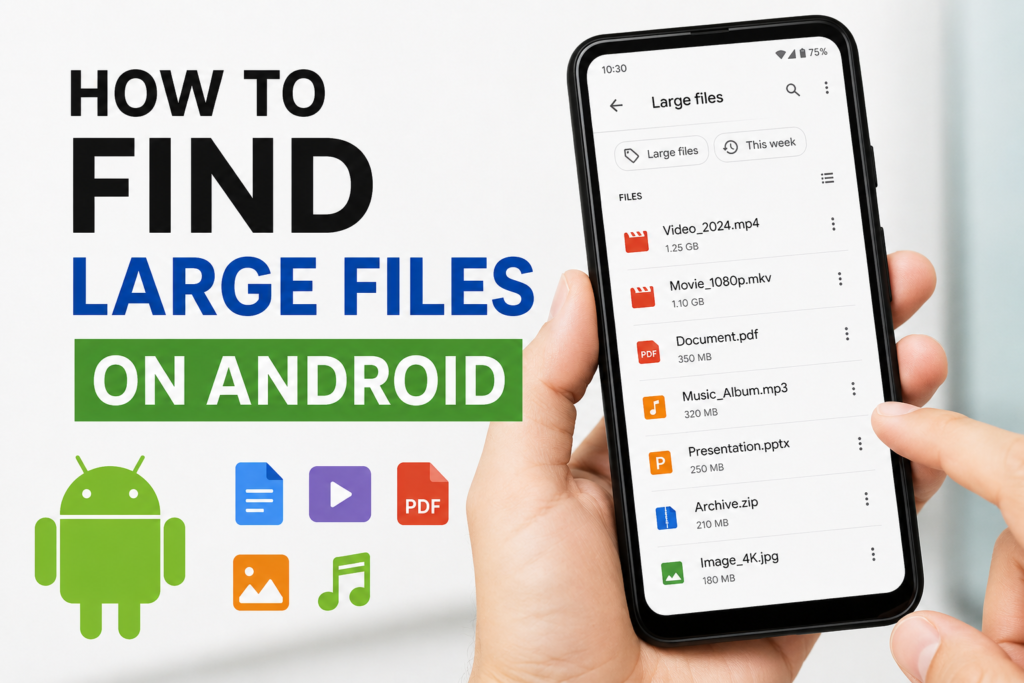
Open the file manager and look through categories such as Downloads, Videos, Images, Documents, and Audio. Some file managers also provide a storage cleaning feature that highlights large files.
When I want to find large files quickly, I look for an option such as Large Files, Clean, or Storage. The exact name can be different depending on the phone.
This is one of the safest methods because you can normally see the file name, location, and size before deciding what to do with it.
Look Inside the Downloads Folder
The Downloads folder is one place I always recommend checking. Over time, it can become a storage dump for files that we downloaded once and completely forgot about.
You might find old PDFs, videos, images, ZIP files, installation files, documents, or duplicate downloads. Some of these files can be surprisingly large.
I prefer to open each large file before deleting it. A file that looks unnecessary may actually be something I still need.
If you find an old file that you no longer need, you can remove it. If it is important, consider moving it to cloud storage or another safe location instead.
Check Videos Carefully
Videos can take up much more space than normal photos. A few high quality videos can easily consume a large amount of storage.
I usually check my video folders when my phone storage is getting full. This includes videos recorded with the camera, downloaded videos, screen recordings, and videos received through messaging apps.
Screen recordings are especially easy to forget. I sometimes record something for a temporary purpose and then never remember to remove it later.
Before deleting a video, I recommend watching it or checking its details. If it is something you want to keep, back it up first.
You do not have to delete every large video. The goal is simply to understand what is using your storage.
Check WhatsApp and Other Messaging Apps
Messaging apps can quietly consume a lot of storage because people constantly send and receive photos, videos, documents, voice messages, and other media.
If you use WhatsApp or another messaging app frequently, check its storage management section. WhatsApp, for example, provides tools that can help you identify conversations and media that are using significant storage.
I think this is especially useful because sometimes the files are not obvious when you simply browse the phone’s main folders.
You may discover that an old group chat contains hundreds of videos or images. If those files are no longer useful, removing unnecessary media can free a noticeable amount of space.
However, I always recommend checking the files carefully before deleting anything because some conversations may contain important documents or personal memories.
Find Large Apps
Large files are not always separate documents or videos. Apps themselves can use a significant amount of storage.
Go to your Android settings and open the Apps section. Many phones allow you to sort apps by storage usage.
This makes it easier to identify applications that are consuming a lot of space. Games are often among the largest apps because they may include additional downloadable content.
I personally check whether I still use a large app before removing it. If I have not opened it for months, uninstalling it may be a better choice than deleting personal files.
Remember that uninstalling an app can remove locally stored app data, so make sure you understand what will happen before removing an app you may need later.
Check Offline Downloads
Streaming services and other apps often allow users to download content for offline use. These downloads can become large without being obvious.
Music, movies, podcasts, maps, and other offline content can occupy significant storage.
If your phone has limited storage, check the download sections inside the apps you use. You may find old content that you downloaded for a trip or temporary use.
I usually remove offline content after I know I will not need it anymore. This can be an easy way to recover space without touching personal photos or important documents.
Use Google Photos Carefully
Photos and videos are often among the biggest storage users on Android phones. Google Photos can help you back up your media and manage local copies, but I recommend understanding the options before removing anything.
If your photos and videos are safely backed up, you may have an option to remove copies from the device while keeping the backed up versions available through your account.
I would still check that important files have successfully finished backing up before using any storage freeing feature.
The main point is to avoid deleting something simply because it appears online. Make sure you know whether the file is stored locally, backed up, or both.
Search for ZIP and Large Document Files
Large files are not always media. ZIP archives, software packages, presentations, and PDF documents can also take up a lot of storage.
Your file manager may allow you to search by file type or sort files by size. If it supports sorting by size, I recommend using that feature.
Start with the biggest files and work your way down. There is no need to spend an hour checking tiny files when a single large archive could be using more space than hundreds of small documents.
I also recommend being careful with files you do not recognize. If you are unsure what a file does, it is better to leave it alone until you understand its purpose.
Clear Cache When Appropriate
App cache can sometimes become quite large. Cache consists of temporary files that apps create to improve performance and load content more quickly.
Android allows you to clear the cache for individual apps through their storage settings on many devices.
However, I do not recommend constantly clearing cache just because you see a large number. Some apps will simply create the cache again after you use them.
Instead, I look at cache as an occasional storage management option when a particular app has accumulated an unusually large amount of temporary data.
Also, be careful not to confuse Clear Cache with Clear Storage or Clear Data. Clearing storage or data can remove locally stored app information and may require you to sign in again.
Move Important Files Instead of Deleting Them
Finding large files does not mean you have to delete everything.
If you discover an important video, document, or collection of photos, consider moving it to another safe location. You could use cloud storage, an external storage device, or a computer.
This approach is useful when your phone has limited internal storage but you still want to keep your files.
I personally prefer making a backup before deleting anything important. A few extra minutes of checking can prevent the frustration of losing something that cannot easily be recovered.
Check Your Storage Regularly
One thing I have learned is that storage management works better when it becomes a regular habit.
You do not have to check your phone every day. Once every few weeks or once a month can be enough for many people.
I usually pay attention to large downloads, videos, unused apps, screen recordings, and messaging media. These categories can grow quickly without us noticing.
Keeping an eye on storage also makes it easier to identify problems before the phone reaches its limit.
Final Thoughts
Finding large files on Android is much easier when you know where to look. I recommend starting with the Storage section in Settings and then using the built in file manager to inspect large files.
The Downloads folder, videos, messaging apps, offline content, large apps, and old documents are some of the first places I would check. You can also use cloud backups or another storage location when you want to keep important files without filling your phone.
Most importantly, do not rush when deleting files. Always check what a file is before removing it, especially when it contains personal photos, documents, or other information you may need later.
In my opinion, good storage management is not about deleting everything you can find. It is about understanding what is taking up space and making sensible decisions about what you actually need. Once you make this a regular habit, keeping your Android phone organized and running comfortably becomes much easier.