I use my Android phone for almost everything these days, from checking emails and watching videos to browsing websites and using different apps. Because of that, I also notice advertisements appearing based on things I have searched for, viewed, or interacted with. Sometimes personalized ads can be useful, but personally, I prefer having more control over what information is used to influence the advertisements I see.
Android provides several privacy settings that can help reduce personalized advertising. Turning these settings off does not mean that every advertisement will disappear from your phone. Instead, it generally means that ads are less likely to be personalized based on certain information connected with your device or account.
In this guide, I will explain how I turn off ad personalization on Android and what other privacy settings I check to reduce unwanted tracking.
What Is Ad Personalization?
Before changing anything, I think it is helpful to understand what ad personalization actually means.
When ad personalization is enabled, advertising systems can use information associated with your activity to make advertisements more relevant to you. Depending on the services you use, this can include things such as searches, app activity, websites you visit, and interactions with advertisements.
For example, if I spend some time searching for headphones online, I may start seeing advertisements for headphones in different apps or websites. This can happen because advertising systems recognize patterns in my activity.
Personalized advertising is designed to make advertisements more relevant, but some people may not be comfortable with this type of tracking. That is why I prefer checking my Android privacy settings and disabling personalization when I want more privacy.
How to Turn Off Ad Personalization on Android
The exact names of Android settings can vary depending on your phone manufacturer, Android version, and Google account settings. However, the general process is quite similar.
First, I open the Settings app on my Android phone.
Then I look for Google settings. On many Android phones, I can simply open Settings and tap Google.
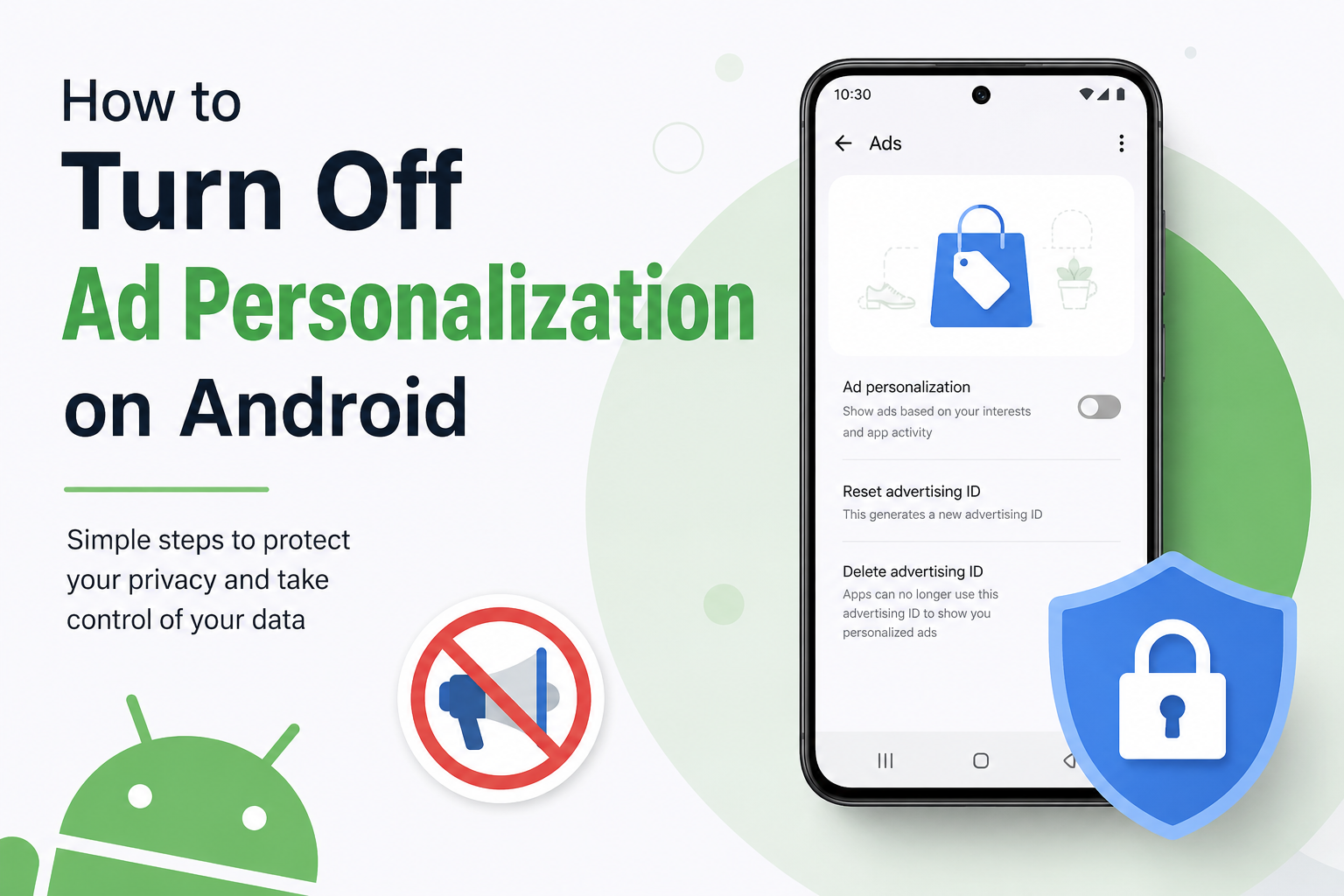
Inside the Google settings, I look for options related to Ads, All services, or privacy. The exact location can change between Android versions.
If I see an option related to advertising privacy or ad personalization, I open it and review the available controls.
On newer versions of Android, Google also provides advertising privacy controls that can limit how advertising information is used. I review these settings carefully and turn off options that I do not want enabled.
The important thing is not to assume that every Android phone has exactly the same menu. If you cannot find an option in the same location, using the Settings search bar and typing Ads or Advertising can make it much easier.
Turn Off Personalized Ads in Your Google Account
Another place I check is my Google Account because advertising preferences can be connected to the account I use on my Android phone.
I open the Google app or visit my Google Account settings. Then I look for the section related to data, privacy, or advertising.
In the advertising settings, I can review whether personalized advertising is enabled. If I do not want advertisements to be personalized based on my Google activity, I can switch the relevant setting off.
This is useful because changing only one setting on the phone may not completely change all advertising preferences connected to my Google Account.
After changing the setting, I usually take a moment to review the other privacy options available there. I find this helpful because advertising preferences are only one part of my overall Google privacy settings.
Reset Your Advertising ID
Another setting worth checking is the advertising ID.
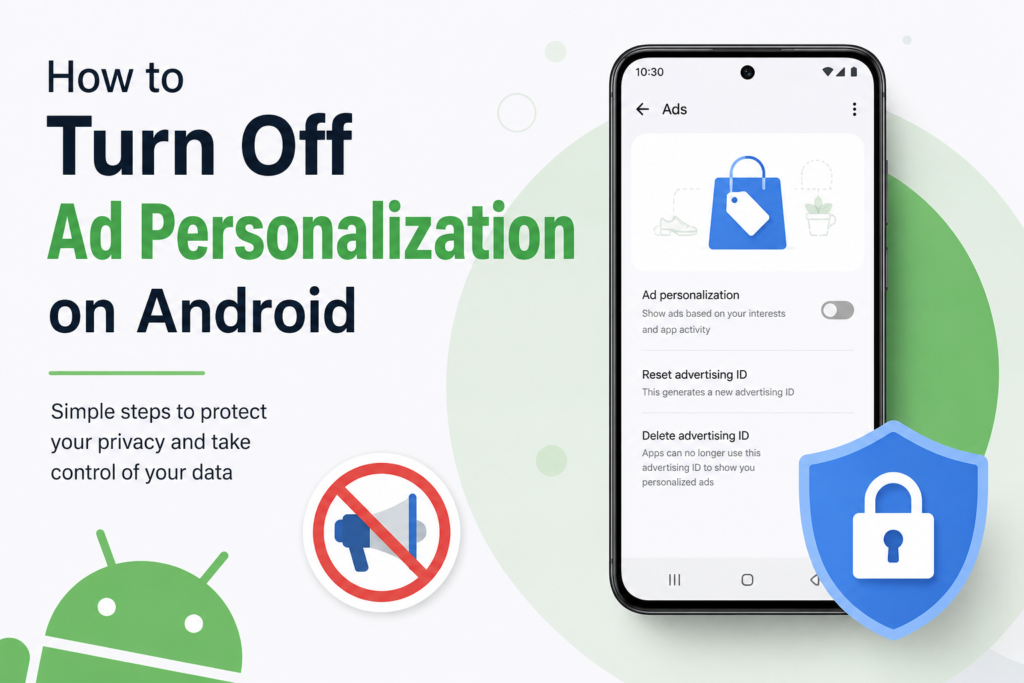
Android devices can have an advertising identifier that advertising systems may use for recognizing a device for advertising purposes. On supported Android versions, users can reset this identifier or manage advertising related controls.
To find these options, I open Settings and use the search function. I search for Advertising ID or Ads.
If my phone provides the option to delete or reset the advertising ID, I can choose the option that matches my privacy preference.
I consider this a useful extra step, but I also keep in mind that resetting an advertising ID does not make me completely anonymous. Other information and account settings can still be used by different services.
Check Android Privacy Settings
I do not stop at advertising settings. When I am trying to improve privacy on my phone, I also check the main Privacy section in Android Settings.
Here I can review which apps have access to different types of information. Depending on the phone, this can include location, microphone, camera, contacts, photos, and other permissions.
I personally believe that reviewing app permissions is one of the easiest ways to improve Android privacy.
For example, if a simple calculator app has access to my contacts or location, I would question whether that access is actually necessary. If I do not think the permission is needed, I can remove it.
This does not directly turn off personalized ads, but it can reduce the amount of unnecessary information apps have access to.
Review Your App Permissions
Apps can collect different types of information depending on the permissions I give them. That is why I regularly review permissions instead of automatically accepting everything.
I open Settings and go to Privacy or Permission Manager. From there, I can select categories such as Location, Camera, Microphone, and Contacts.
I then look through the apps that have access to each category.
If an app does not need a particular permission, I remove it whenever possible.
For example, a flashlight app generally does not need access to my contacts. Removing unnecessary permissions gives me better control over my personal information.
It is worth remembering that privacy settings can differ between Android phones, so the names and locations of these menus may not be identical.
Manage Privacy in Google Play
I also recommend checking Google Play settings from time to time.
Google Play is where many Android users download their applications, so it is important to understand the privacy information provided for each app.
Before installing a new application, I look at its data safety information and consider what type of information the developer says the app may collect.
I do not install an app simply because it has a large number of downloads. I also consider whether the app actually needs the information it requests.
This habit has helped me become more selective about the applications I keep on my phone.
Limit Personalized Content in Individual Apps
Turning off Android advertising personalization does not automatically stop every app from showing personalized content.
Many apps have their own privacy and advertising settings.
For example, social media applications, shopping apps, streaming services, and news applications may have separate controls for recommendations and advertising.
Whenever I install an app that I use frequently, I usually open its privacy settings and see what controls are available.
If there is an option to disable personalized advertising, I turn it off if I prefer a less personalized experience.
This is important because an app can have its own advertising system that operates separately from the general Android settings.
Clear Your Advertising or Activity Data When Available
Depending on the service and account settings, I may also have options to review or delete activity information.
I think this is useful because changing personalization settings and deleting existing activity are not necessarily the same thing.
Turning off personalization generally affects how information is used for future advertising personalization. It does not automatically mean that every piece of previously stored activity is immediately deleted.
That is why I check the privacy dashboard and account activity controls when I want to clean up old information.
I only delete information when I am comfortable with the consequences because activity history can sometimes make certain services more convenient.
Does Turning Off Ad Personalization Remove Ads?
This is one of the most common misunderstandings.
Turning off personalized advertising does not normally remove advertisements from your Android phone.
I will still see ads when using free applications, websites, games, and other services that depend on advertising.
The main difference is that the advertisements may be less specifically tailored to my interests.
For example, instead of seeing advertisements related to something I recently searched for, I might see more general advertisements.
So I think of this setting as a privacy and personalization control rather than an ad blocker.
Why I Prefer Turning Off Ad Personalization
For me, the biggest benefit is having more control over my digital activity.
I do not mind seeing advertisements because I understand that many free apps and websites depend on them. What I do not always like is the feeling that my activity is being used to create a detailed advertising profile.
Disabling personalization gives me a little more control over how advertisements are selected.
It also encourages me to review other privacy settings instead of ignoring them.
I think privacy is not about completely avoiding technology. It is about understanding what information is being collected and deciding what I am comfortable sharing.
Things to Remember After Changing the Settings
After turning off ad personalization, I do not expect my phone to become completely private.
Apps and websites can have their own tracking technologies and privacy policies. Some services may still collect information for purposes such as security, analytics, functionality, or advertising.
Android settings can also change after system updates. A menu that appears in one location today may be moved somewhere else in a future Android version.
Because of this, I occasionally review my privacy settings instead of changing them once and forgetting about them.
I also keep Android and my apps updated because security updates can be important for protecting my device.
Final Thoughts
Turning off ad personalization on Android is a simple step that can give me more control over my advertising experience. It does not eliminate advertisements, but it can reduce the level of personalization associated with them.
I recommend starting with the advertising settings available through Android and your Google Account. After that, I would review the advertising ID options, app permissions, privacy controls, and settings inside individual applications.
For me, the biggest lesson is that Android gives users more privacy controls than many people realize. The important part is taking a few minutes to find them and understand what each option actually does.
If I want a cleaner and more private Android experience, I do not rely on just one setting. I review the different privacy controls together and only allow apps and services to access information that I believe they genuinely need.
That approach gives me a better balance between convenience and privacy while still allowing me to use my Android phone normally.