I use my Android phone for almost everything these days. I order food, check maps, shop online, use social media, browse websites, and install different apps for work and entertainment. All of these things make life easier, but there is one thing I have become more careful about, and that is location access.
Many Android apps ask for permission to access your location. Some apps genuinely need it to work properly, while others may not need it at all. For example, a navigation app needs your location to give you directions, but a simple calculator app usually has no reason to know where you are.
If you are concerned about privacy, checking location permissions is one of the easiest things you can do. In this guide, I will explain how I stop apps from accessing my location on Android and how you can manage these settings yourself.
Why Location Permission Matters
Your location can reveal more information than you might realize. It can show where you live, where you work, where you shop, which places you visit, and even parts of your daily routine.
I personally believe that location permission should only be given when an app actually needs it. Android gives users several options for managing this access, so there is no reason to allow every application to know your location automatically.
Some apps need location for useful features. Maps need it for navigation, weather apps may use it to provide local forecasts, and ride sharing apps need it to find your pickup location. However, other applications may still ask for location even when it is not essential to their main purpose.
That is why I recommend checking your permissions regularly instead of simply tapping Allow whenever an app asks.
How to Check Which Apps Have Location Access
The first thing I do is check which apps already have access to my location.
Open the Settings app on your Android phone. Depending on the phone manufacturer and Android version, the names of some options may be slightly different.
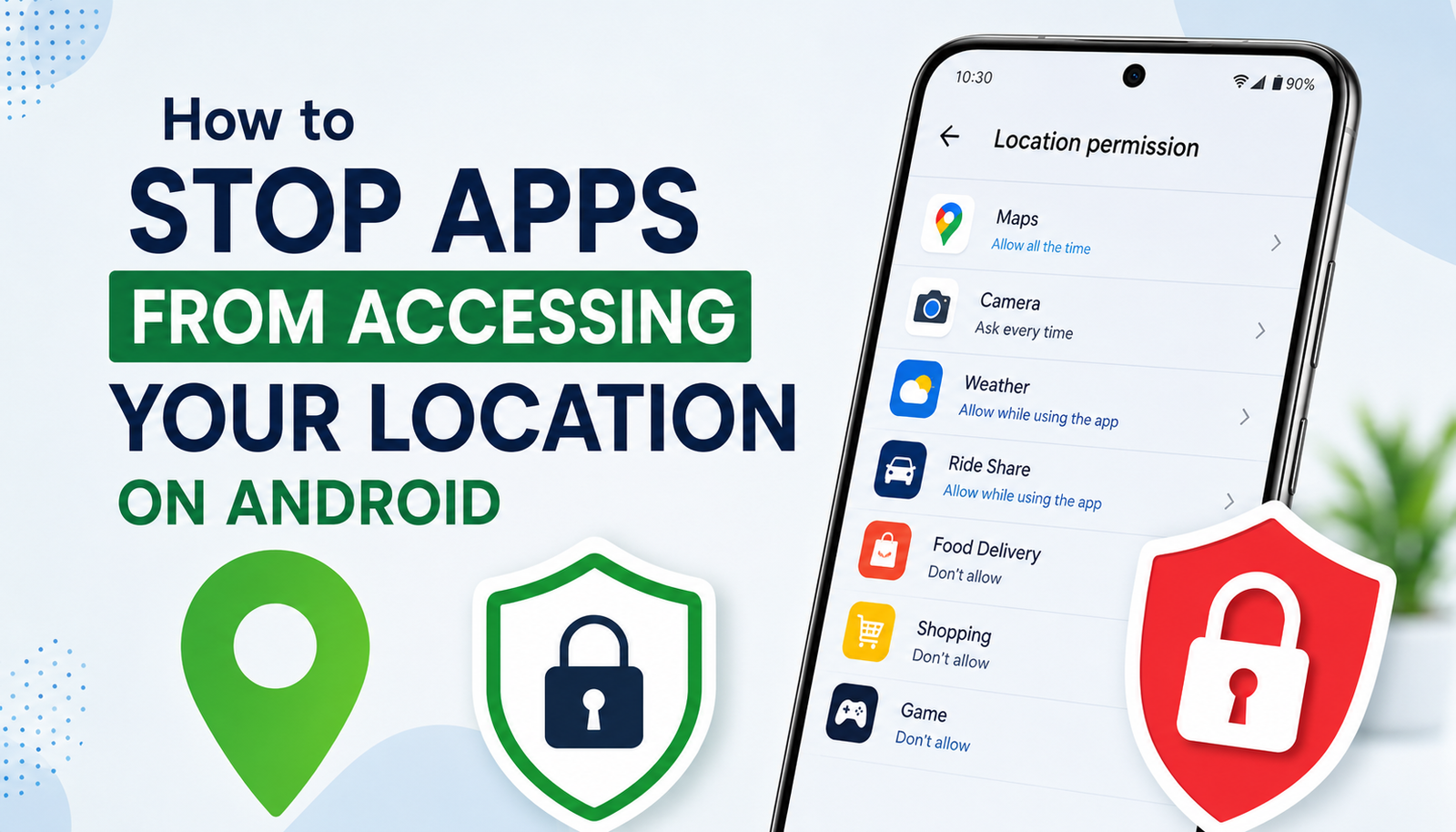
Look for Privacy or Security and Privacy. Then find Permission Manager. From there, select Location.
You should now see a list of applications that have requested location permission.
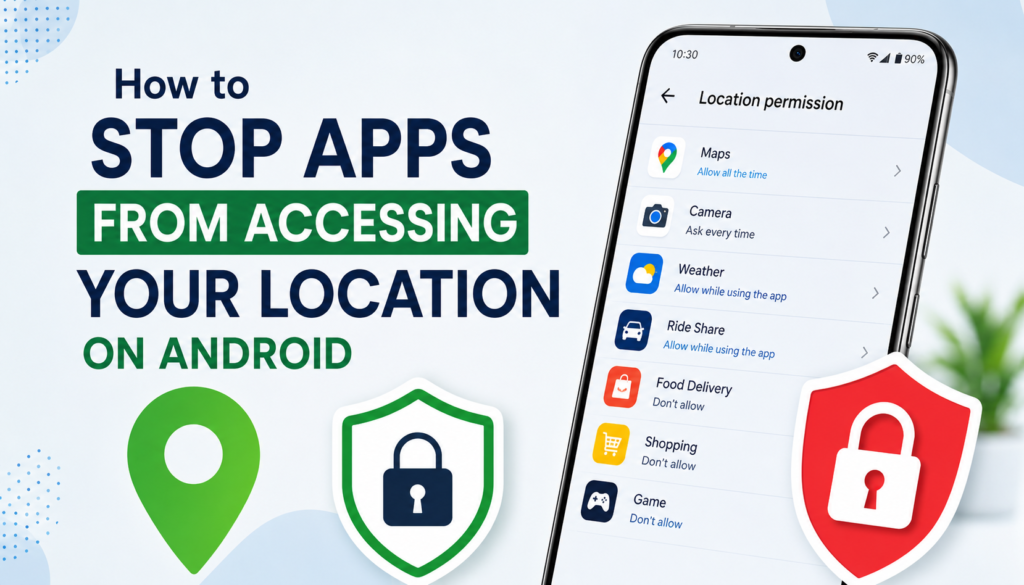
Android may separate these apps into different groups. You might see options such as allowed all the time, allowed only while using the app, asked every time, or not allowed.
This list is useful because it lets you see exactly which apps have access to your location.
I recommend going through the list slowly. If you find an app that does not need your location, you can change its permission immediately.
How to Stop an App From Using Your Location
If you want to completely stop a specific app from accessing your location, open its location permission settings.
Choose the app you want to change. You should see several permission options.
Select Don’t allow if you do not want that application to access your location.
Once you do this, the app will no longer be able to use your Android location information through the standard location permission.
I usually recommend this option for apps that have no obvious reason to know where I am. If the application stops working correctly afterward, you can always return to the same settings and choose another permission level.
Use Location Only While Using the App
Sometimes I do not want to completely block an application from using my location. Instead, I only want it to access my location when I am actually using it.
This is where the While using the app option becomes useful.
For example, suppose I have an application that needs my location to provide a local service. I may allow it to access my location while I am actively using the app but prevent it from accessing my location when the app is running in the background.
This gives me a better balance between convenience and privacy.
If you see an app with permission to access your location all the time, ask yourself whether it really needs that level of access. In many situations, changing it to While using the app is a sensible choice.
Turn Off Precise Location When You Do Not Need It
Another setting I pay attention to is precise location.
On supported Android versions, some apps can receive your approximate location instead of your exact location. This can be useful when an app only needs to know your general area.
For example, a weather application may not need to know your exact position down to a few meters. Knowing the general area may be enough to provide a local forecast.
When Android gives you the option to turn off precise location for an app, you can consider using approximate location instead.
I think this is one of the most useful privacy settings because it allows an app to provide location related features without necessarily giving it your most accurate position.
Check Location Permission After Installing New Apps
One habit I have developed is checking permissions after installing new applications.
When you install a new app, it may ask for several permissions. These can include location, camera, microphone, contacts, photos, and notifications.
I try not to approve everything automatically. Instead, I consider what the application actually needs.
If I install a navigation app, location access makes sense. If I install a simple game, I question why it would need my location.
The important thing is not to assume that every permission request is necessary.
Taking a few seconds to think before pressing Allow can make a big difference to your privacy.
Turn Off Location Completely When Appropriate
Android also allows you to turn off the device location feature completely.
You can usually find the Location option in your phone’s Settings. There may also be a Location button in the Quick Settings panel.
When location is turned off, apps generally cannot use the device location through Android’s location services.
I do not recommend keeping location disabled all the time if you regularly use services that depend on it. Maps, emergency features, transportation apps, and other useful services may need location.
However, if you are not using location based services and want to reduce location access temporarily, turning it off can be an option.
Review Background Location Access
Background location access deserves special attention.
An application with background location permission may be able to access your location even when you are not actively using it. That can be useful for certain applications, but it can also provide more location access than you actually want.
I recommend reviewing apps that have permission to use location in the background.
Ask yourself whether the feature is important enough to justify that access. If not, change the permission to While using the app or Don’t allow.
This simple review can reduce unnecessary location access without affecting the rest of your phone.
Check Your Google Location Settings
Android location privacy is not limited to individual app permissions. Your Google account can also have location related settings.
You can review your Google account’s location related options and decide whether you want certain location features enabled.
One setting you may come across is Location History or Timeline. The exact name and available features can change over time and may differ depending on your account and region.
I recommend reviewing these settings rather than assuming everything is configured exactly how you want.
If you are serious about privacy, it is worth understanding what information is being stored and why.
Be Careful With Location Based Social Apps
Social media applications are another area where I pay attention to location permissions.
Some social apps can use location for recommendations, nearby content, advertisements, or other features. While these features may be convenient, they are not always necessary.
If I do not use a location based feature, I prefer not to provide the permission.
I also avoid sharing my exact location publicly through posts or photos. Even when an application has good privacy controls, I believe it is better to share less personal information whenever possible.
Check Permissions Regularly
Changing location permissions once is useful, but checking them occasionally is even better.
You may install dozens of applications over several months. Some apps may later change how they use permissions, while others may no longer be needed.
I recommend reviewing your Android permissions every few months.
Remove applications you no longer use and check whether the remaining apps still need location access.
This takes only a few minutes, but it gives you a much better understanding of what your phone is sharing.
What Should You Do If an App Stops Working?
Sometimes you may block location access and discover that an app no longer works properly.
This does not necessarily mean you made a mistake. Some applications genuinely require location for their main functions.
For example, navigation, transportation, delivery, and some fitness applications may depend heavily on location.
If you trust the application and need its location feature, you can return to its permission settings and select an appropriate option.
I usually prefer giving the minimum permission necessary rather than completely blocking an app that I actually need.
Final Thoughts
Location access is a useful Android feature, but I do not think every app should automatically have access to it. My approach is simple. I check which apps can access my location, remove permission when it is unnecessary, and use While using the app whenever continuous access is not needed.
I also pay attention to precise location and review my Google location settings from time to time. These small steps can make Android feel much more private without making the phone difficult to use.
The most important thing is to remember that you are in control of your app permissions. You do not have to accept every request an application makes.
Take a few minutes today to open your Android privacy settings and review your location permissions. You may be surprised by how many apps have requested access. Removing unnecessary permissions is a simple habit, and in my opinion, it is one of the easiest ways to improve your privacy while using an Android phone.