Our smartphones contain many personal things, and photos are often some of the most private files we keep on them. Whether you have family pictures, personal memories, important screenshots, or photos that you simply do not want other people to see, keeping them private is important. I personally believe that everyone should know how to protect their photos because we often hand our phones to friends, family members, or coworkers without thinking about what they might see.
The good thing is that Android phones offer several ways to hide personal photos. Depending on the phone model and Android version you use, you may have a built in private folder, locked gallery, secure folder, or another privacy feature.
In this guide, I will explain how to hide personal photos on Android using simple methods. I will also discuss some additional privacy tips that can help you keep your private pictures safer.
Why Should You Hide Personal Photos on Android?
Before discussing the different methods, it is worth understanding why photo privacy matters. Most people have photos that they consider personal. These may include family memories, private documents, travel pictures, screenshots, or other images that they do not want everyone to access.
Sometimes someone may ask to use your phone for a few minutes. They might want to make a call, check something online, or look at a particular picture. If your gallery is open, they could accidentally see other photos while scrolling.
Hiding personal photos gives you an additional layer of privacy. It does not mean that you are hiding something wrong. It simply means you want control over who can access your personal information.
Use the Built In Private Folder
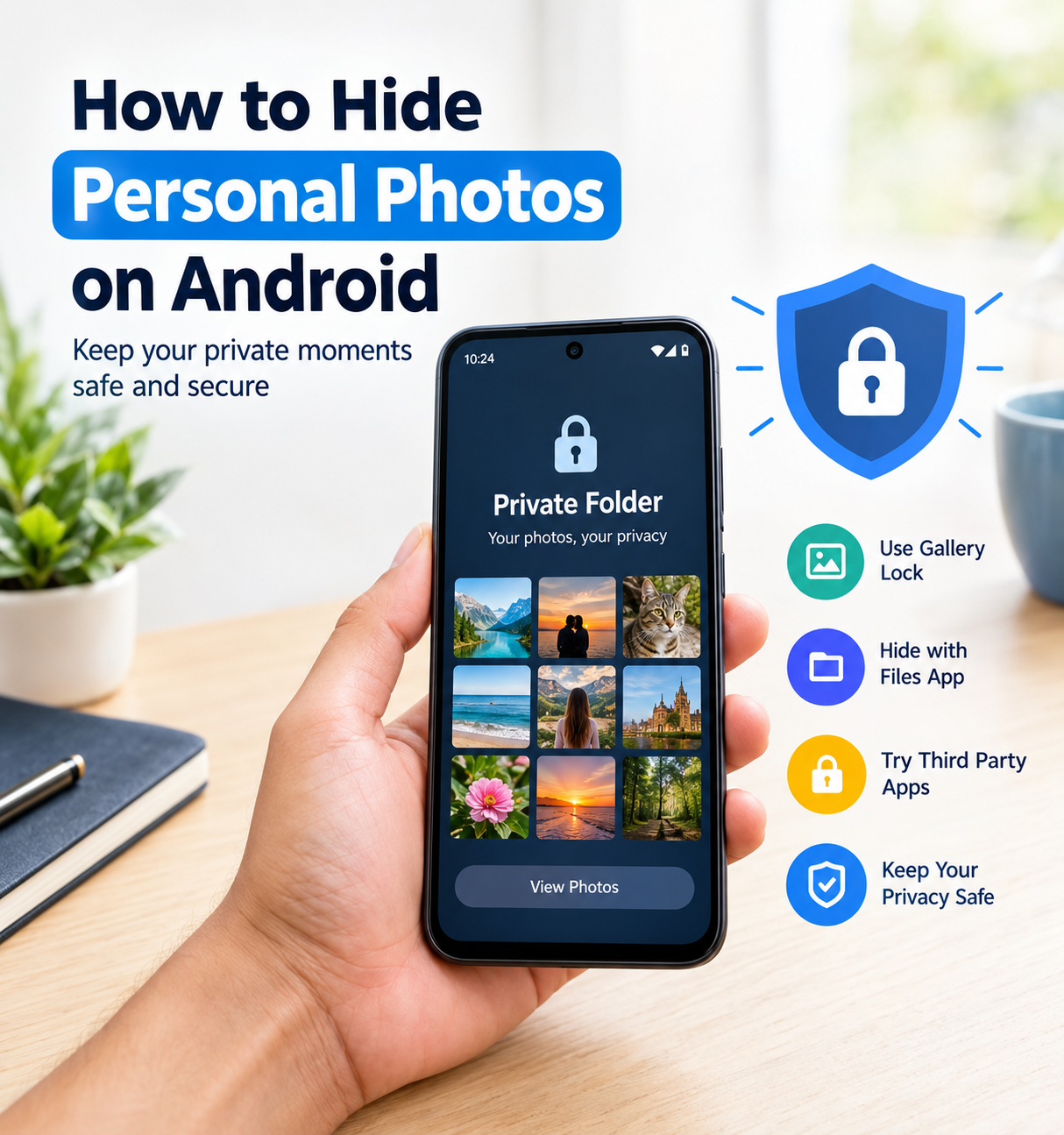
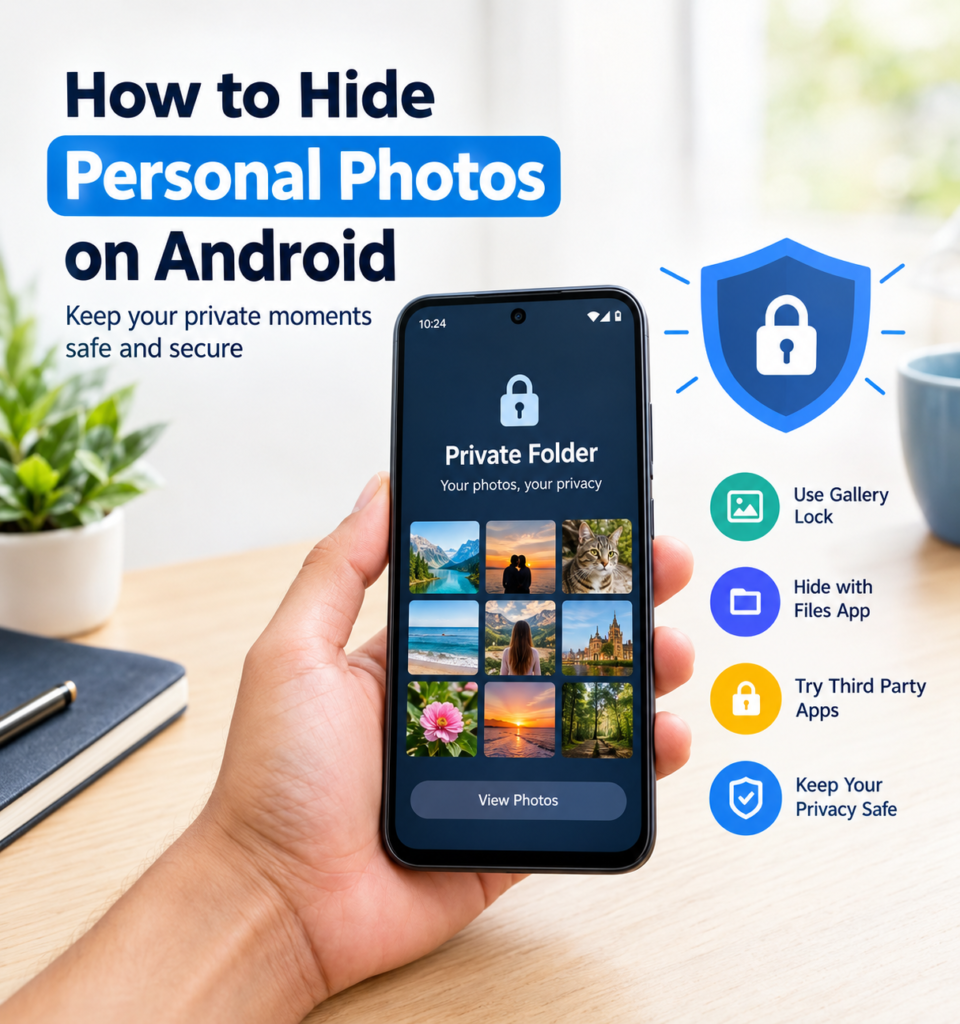
One of the easiest ways to hide photos on Android is to use a built in private or secure folder. Many modern Android phones provide some type of privacy feature for storing personal files.
The exact name and location of this feature can be different depending on the manufacturer. Some phones may have a secure folder, while others may offer a private space or locked album.
Open your phone’s Settings and search for terms such as Private Folder, Secure Folder, Private Space, or Locked Folder. If your phone supports the feature, follow the instructions shown on the screen.
You may be asked to create a PIN, password, pattern, or biometric security method. After setting it up, you can move selected photos into the protected area.
This is one of my preferred methods because it uses a security feature provided directly by the phone manufacturer or Android system.
Hide Photos in Google Photos
Google Photos can also provide useful privacy features on supported devices. One of the features available on some Android phones is a Locked Folder.
To check whether you have this option, open Google Photos and look through the Library or Collections area. Depending on your version of the app, you may find an option called Locked Folder.
The Locked Folder is designed for photos and videos that you do not want to appear normally in your photo browsing experience.
When you move a photo into a protected folder, it will not appear in the regular photo grid in the same way as your other pictures. Access may require your device screen lock or another authentication method.
I recommend checking the exact options available on your phone because Google Photos features can change between Android versions and device configurations.
Use Samsung Secure Folder
If you use a Samsung Galaxy phone, you may have access to Samsung Secure Folder. This is a useful feature for people who want to keep private files and applications separated from their normal phone content.
You can find Secure Folder through your phone’s Settings. Once activated, you can protect it using a PIN, password, pattern, or biometric authentication, depending on your device.
After setting it up, you can move selected photos into the secure environment. This makes it much harder for someone casually browsing your normal gallery to see those pictures.
One thing I like about this approach is that it provides more than simple photo hiding. It can also be used for other private content, making it useful if you want a dedicated private area on your phone.
Move Photos to a Private Album
Some Android gallery applications include an option to hide selected albums or photos. The exact feature depends on your phone and gallery application.
Open your Gallery app and select the photos you want to hide. Look for options such as Hide, Move to Private Album, Lock Album, or Hide Album.
If your phone provides this option, follow the instructions to complete the process.
However, I recommend checking how the feature works before relying on it for highly sensitive photos. Some gallery apps simply remove pictures from the normal gallery view without providing strong encryption or password protection.
For ordinary privacy, this can be convenient. For more sensitive information, a properly protected private folder is usually a better choice.
Use a File Manager Carefully
Another method is to manage your photos through a file manager. Android stores photos in folders within internal storage or other storage locations.
Some experienced Android users may use hidden folders or special file naming methods to prevent pictures from appearing in certain gallery applications. However, I would not recommend this as the first choice for beginners.
A hidden file is not necessarily a secure file. Someone who knows where to look may still be able to find it.
For this reason, I prefer using an official privacy feature whenever one is available on the phone.
Use a Trusted Photo Vault App
Another option is a reputable photo vault application. These apps are designed specifically to protect private photos and videos.
Before installing any third party privacy application, I recommend checking its developer, reviews, permissions, privacy policy, and reputation. Avoid installing random applications simply because they promise to hide photos.
A photo vault app may request access to your photos, files, notifications, or other information. You should understand why those permissions are required before allowing them.
If you decide to use a third party app, download it from a trusted source and keep it updated.
Protect Your Android Phone With a Screen Lock
Hiding personal photos is useful, but your overall phone security is equally important. If your Android phone does not have a strong screen lock, someone who gets physical access to the device may be able to access your information.
I recommend using a strong PIN or password. Biometric security such as fingerprint or face authentication can also make accessing your phone more convenient.
Your screen lock is essentially the first security layer protecting your photos, messages, documents, and applications.
Be Careful With Cloud Photo Backups
There is another important point that many people overlook. Hiding a photo on your phone does not necessarily mean that copies of the photo do not exist elsewhere.
If you use automatic cloud backup, your photos may also be stored in your online account. Therefore, you should understand how your backup service handles hidden or private photos.
Check your cloud photo settings and account security regularly. Make sure your account uses a strong password and, where available, two step verification.
This is especially important if you have photos that you consider highly private.
Keep Your Android Software Updated
Android updates often include security improvements. For this reason, I recommend keeping your phone and important applications updated.
Go to your phone’s Settings and check for available system updates. You should also update applications through the official app store when updates are available.
Keeping software updated does not guarantee complete privacy, but it can help protect your device against known security problems.
Do Not Install Unknown Applications
One of the simplest privacy rules is to avoid downloading applications from unknown sources unless you completely understand what you are doing.
Some applications may request excessive permissions. If an unknown app has access to your photos, files, or storage, it could create a privacy risk.
Before installing an application, look at the permissions it requests and consider whether those permissions make sense for its purpose.
If a simple flashlight application wants access to your private photos, for example, that should make you think twice.
Check Your Hidden Photos Regularly
After hiding your personal photos, I recommend checking your privacy settings from time to time. Android updates and application updates can change how certain features work.
You should know where your hidden photos are stored and how to access them when needed.
It is also a good idea to remove photos that you no longer need. Keeping fewer personal files on your phone can make your digital life easier to manage.
What Is the Best Way to Hide Personal Photos on Android?
In my view, the best method depends on the Android phone you use and the level of privacy you need.
If your phone has a built in secure folder or private space, I would start there. It is convenient and usually integrates well with the operating system.
If you use Google Photos, check whether the Locked Folder feature is available on your device. Samsung users can also consider Secure Folder.
For additional protection, make sure your phone has a strong screen lock and your online accounts have good security.
I would avoid relying only on simple gallery hiding if the photos are extremely sensitive. Hiding a photo from the main gallery is not always the same as securely protecting it.
Final Thoughts
Learning how to hide personal photos on Android is a simple but useful privacy step. Our phones contain a large amount of personal information, and photos can sometimes reveal more than we realize.
The easiest solution is usually to use a built in feature such as a private folder, secure folder, private space, or locked photo folder. These tools can keep selected pictures away from the normal gallery and add an authentication step.
I also recommend using a strong screen lock, keeping Android updated, securing your cloud account, and being careful when installing third party applications.
Most importantly, remember that hiding photos and securing photos are not always exactly the same thing. If you want stronger privacy, choose a feature that provides actual access protection rather than simply removing an image from the normal gallery.
With a few simple settings, you can make your Android phone more private and have greater control over your personal photos.