The keyboard is one of the most important parts of an Android phone because we use it almost every day for sending messages, searching on Google, writing emails, posting on social media, and many other tasks. Most Android phones come with a keyboard already installed, but that does not mean you have to use the same keyboard forever.
If you are not comfortable with your current keyboard, you can easily change it. Android allows users to install different keyboard apps and select the one they prefer. You can also change the keyboard language, layout, theme, typing settings, and other options depending on the keyboard you use.
In this guide, I will explain how to change the keyboard on Android step by step. I will also cover how to install a new keyboard, switch between keyboards, change keyboard settings, and solve some common problems.
Why Change the Keyboard on Android?
In my experience, the default keyboard is good enough for basic typing, but some users may want more features. A different keyboard can provide better customization, additional languages, improved autocorrect, voice typing, emoji options, themes, and other useful features.
Some people also change their keyboard because they want larger keys or a different keyboard layout. If you frequently type in more than one language, choosing a keyboard that supports your preferred languages can make typing much easier.
Another reason is personal comfort. Everyone types differently, so the keyboard that works well for one person may not feel comfortable to another person.
How to Check Your Current Android Keyboard
Before changing your keyboard, it can be useful to check which keyboard is currently active.
The exact steps can be slightly different depending on your Android phone brand and software version. On many Android phones, open the Settings app and look for an option related to System, General Management, or Keyboard.
On many devices, you can find the keyboard settings by going to Settings, then System, then Keyboard, and finally On screen keyboard.
On Samsung phones, the settings may be located under General Management and then Keyboard list and default.
You should see the keyboard currently selected as your default keyboard.
How to Change the Keyboard on Android
Changing your Android keyboard is usually a simple process.
First, open the Settings app on your phone.
Next, search for Keyboard in the Settings search box. This is one of the easiest methods because Android phone manufacturers sometimes place keyboard settings in different locations.
Open the keyboard settings and look for an option such as Default keyboard, Current keyboard, or On screen keyboard.
Tap the option that allows you to select your default keyboard.
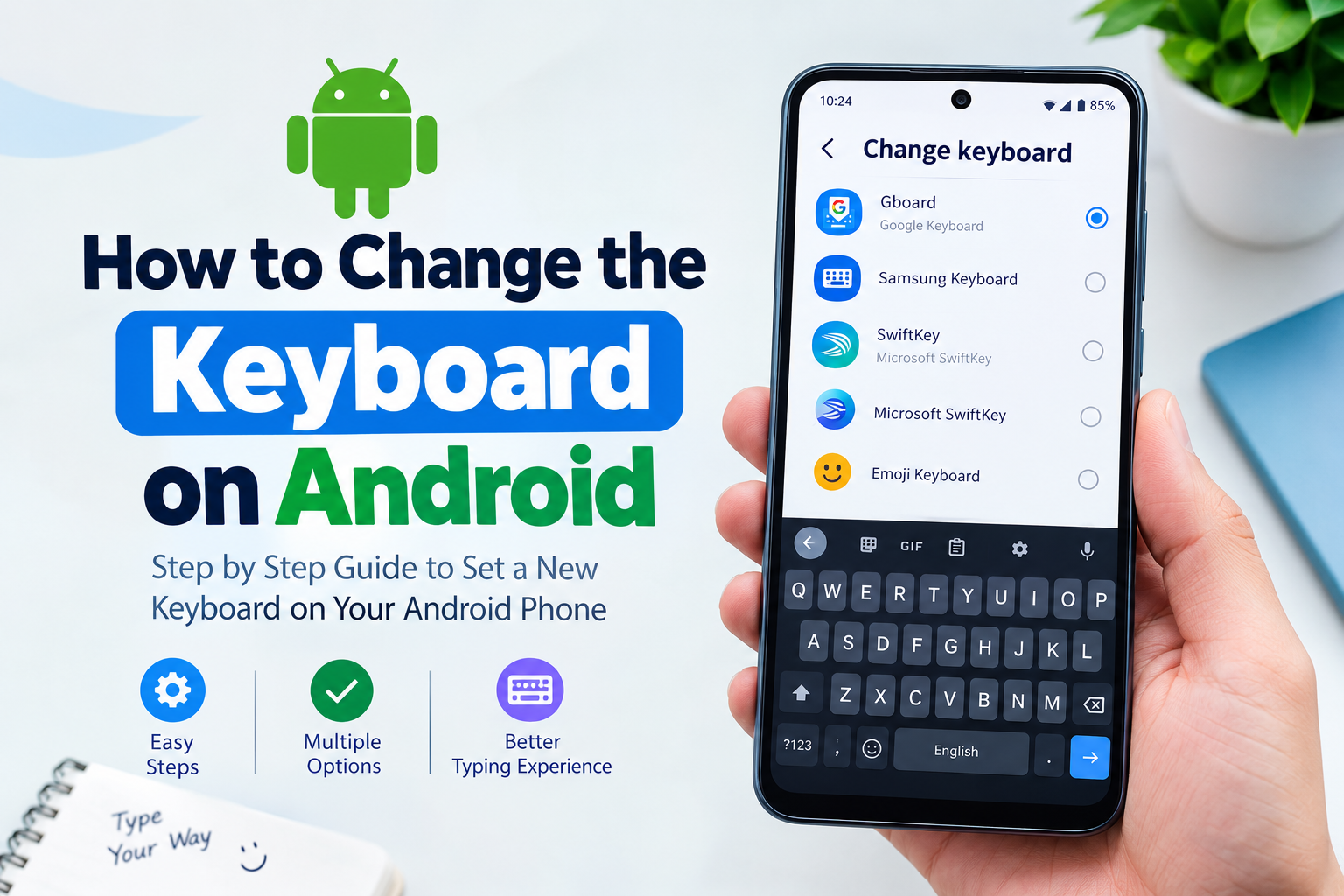
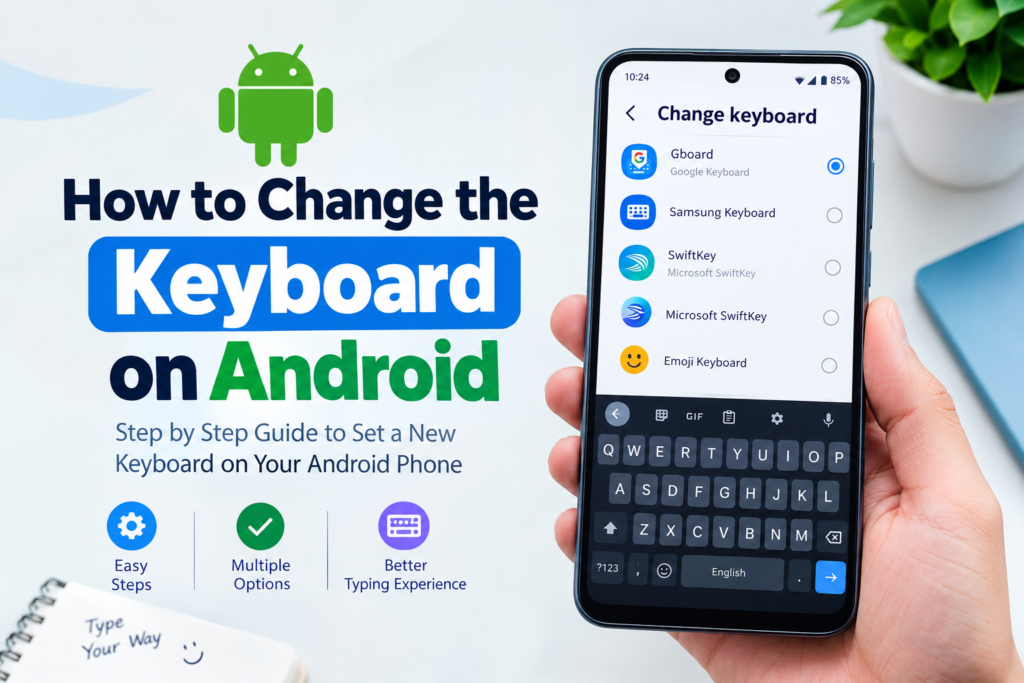
You will then see the keyboards installed on your phone. Select the keyboard you want to use.
Once you select it, your new keyboard should become the default keyboard.
Now open an app where you can type, such as Messages or Notes. Tap inside a text box and the new keyboard should appear.
If it does not appear immediately, close and reopen the app and try typing again.
How to Install a New Keyboard
If you do not see another keyboard in your settings, you may need to install one first.
Open the Google Play Store and search for a keyboard app. You will find several keyboard applications with different features.
Before installing any keyboard, I recommend checking the developer name, ratings, reviews, number of downloads, and requested permissions. A keyboard can potentially process everything you type, so choosing a reputable keyboard is especially important.
After selecting a keyboard, install it from the Play Store.
Once the installation is complete, open the keyboard app. Many keyboard applications will guide you through the setup process.
You may need to enable the keyboard in your Android settings and then select it as your default keyboard.
Follow the instructions displayed by the keyboard application and make sure you understand the permissions it requests.
How to Switch Between Keyboards
Sometimes you may want to use more than one keyboard.
For example, you might normally use one keyboard but occasionally need another keyboard for a different language or typing style.
Android provides a convenient way to switch between available keyboards on many devices.
Open an app where you can type and tap the text field.
When the keyboard appears, look for a keyboard icon in the navigation area or near the bottom of the screen. On some phones, you may need to tap the input method button.
A list of available keyboards may appear.
Select the keyboard you want to use.
The keyboard should change immediately.
The exact appearance of the keyboard switcher can vary depending on your Android version and phone manufacturer.
How to Change the Keyboard on a Samsung Phone
Samsung phones use their own interface, so the menu names can be different from standard Android.
Open Settings.
Tap General Management.
Select Keyboard list and default.
Tap Default keyboard.
You should see the keyboards installed on your phone.
Choose the keyboard you want to use.
After selecting it, open any application that requires typing and check whether the new keyboard appears.
Samsung also provides additional keyboard settings under the General Management section. You can use these settings to adjust typing preferences and other keyboard options.
How to Change the Keyboard on Google Pixel and Stock Android
On Google Pixel phones and devices that use a relatively standard version of Android, the process is usually straightforward.
Open Settings.
Tap System.
Select Keyboard.
Tap On screen keyboard.
You should see the installed keyboards.
Select the keyboard you want to use and enable it if necessary.
You can then select the preferred keyboard when typing.
Because Android interfaces can change with software updates, the names and locations of these options may be slightly different on your phone.
How to Change the Keyboard Language
You do not always need to install a completely new keyboard just because you want to type in another language.
Many popular Android keyboards support multiple languages.
Open your keyboard settings and look for Languages.
Tap Add keyboard or Add language.
Select the language you want.
Choose your preferred layout if more than one option is available.
Save the settings.
After adding another language, you can usually switch languages by tapping the language button or swiping across the space bar, depending on the keyboard.
This is especially useful for people who communicate in multiple languages.
How to Change the Keyboard Theme
Another reason people change their keyboard is appearance.
Many keyboard applications allow you to select different themes. You may be able to choose a light theme, dark theme, colorful theme, or custom background.
Open your keyboard settings.
Look for an option called Theme or Keyboard theme.
Choose the design you like.
Some keyboards also allow you to use your own photo as a keyboard background.
I recommend choosing a theme that keeps the letters easy to read. A beautiful keyboard is not very useful if the keys are difficult to see.
How to Make the Keyboard Bigger
If you have difficulty pressing small keys, changing the keyboard size can help.
Open the keyboard settings and look for Preferences, Layout, or Keyboard height.
Depending on the keyboard, you may be able to increase the keyboard height.
A larger keyboard can make typing easier, especially on phones with smaller screens.
However, making the keyboard too large can reduce the amount of content visible on the screen. I suggest trying different sizes until you find a comfortable option.
How to Turn on or Turn Off Keyboard Suggestions
Most modern Android keyboards provide word suggestions while you type.
These suggestions can save time because the keyboard predicts what you are trying to write.
Open your keyboard settings and find the Text correction or Suggestions section.
You can usually turn features such as predictive text, spell checking, auto correction, and suggestions on or off.
Personally, I find word suggestions useful for quick messages, but some people prefer typing without automatic corrections. You can adjust these settings according to your typing habits.
How to Use Voice Typing
Many Android keyboards also support voice typing.
Instead of typing everything manually, you can tap the microphone icon on the keyboard and speak.
Your phone will convert your speech into text.
Voice typing can be useful when you are writing a long message or when typing on a small phone feels uncomfortable.
The accuracy can depend on your language, pronunciation, microphone quality, and internet connection.
Common Problems When Changing an Android Keyboard
Sometimes the new keyboard may not appear after installation.
If this happens, open Settings and search for Keyboard. Check whether the keyboard is enabled.
If it is enabled but still does not appear, check whether it has been selected as the default keyboard.
You can also restart your phone. A simple restart can sometimes fix temporary software problems.
If the keyboard keeps disappearing or crashing, check the Play Store for updates. You can also clear the keyboard application’s cache through your phone’s app settings.
If the problem continues, uninstalling and reinstalling the keyboard may help.
Is It Safe to Install a New Android Keyboard?
This is something I recommend taking seriously.
A keyboard application can potentially handle sensitive information because you use it to type messages, passwords, searches, emails, and other information.
For this reason, I recommend installing keyboards from trusted developers and official app stores. Read the privacy information and permissions before enabling a keyboard.
Avoid installing unknown keyboard applications from random websites simply because they offer attractive themes or unusual features.
A keyboard should improve your typing experience without creating unnecessary privacy concerns.
Final Thoughts
Changing the keyboard on Android is easier than many people think. You do not have to keep using the keyboard that came with your phone. Android gives you the flexibility to install another keyboard, make it your default option, switch between different keyboards, and customize the way you type.
The basic process is to install a trusted keyboard, enable it through your Android keyboard settings, and select it as your default keyboard. From there, you can customize languages, themes, keyboard size, suggestions, autocorrect, and other available features.
The exact steps can vary between Samsung, Google Pixel, Xiaomi, OnePlus, Motorola, and other Android phones. However, the basic idea remains almost the same.
If you are unhappy with your current keyboard, I think it is worth exploring the available settings before buying a new phone or making any major changes. A simple keyboard change can make everyday typing feel much more comfortable and convenient.
Whether you want a different design, better language support, larger keys, improved suggestions, or simply a new typing experience, learning how to change the keyboard on Android gives you more control over your phone.