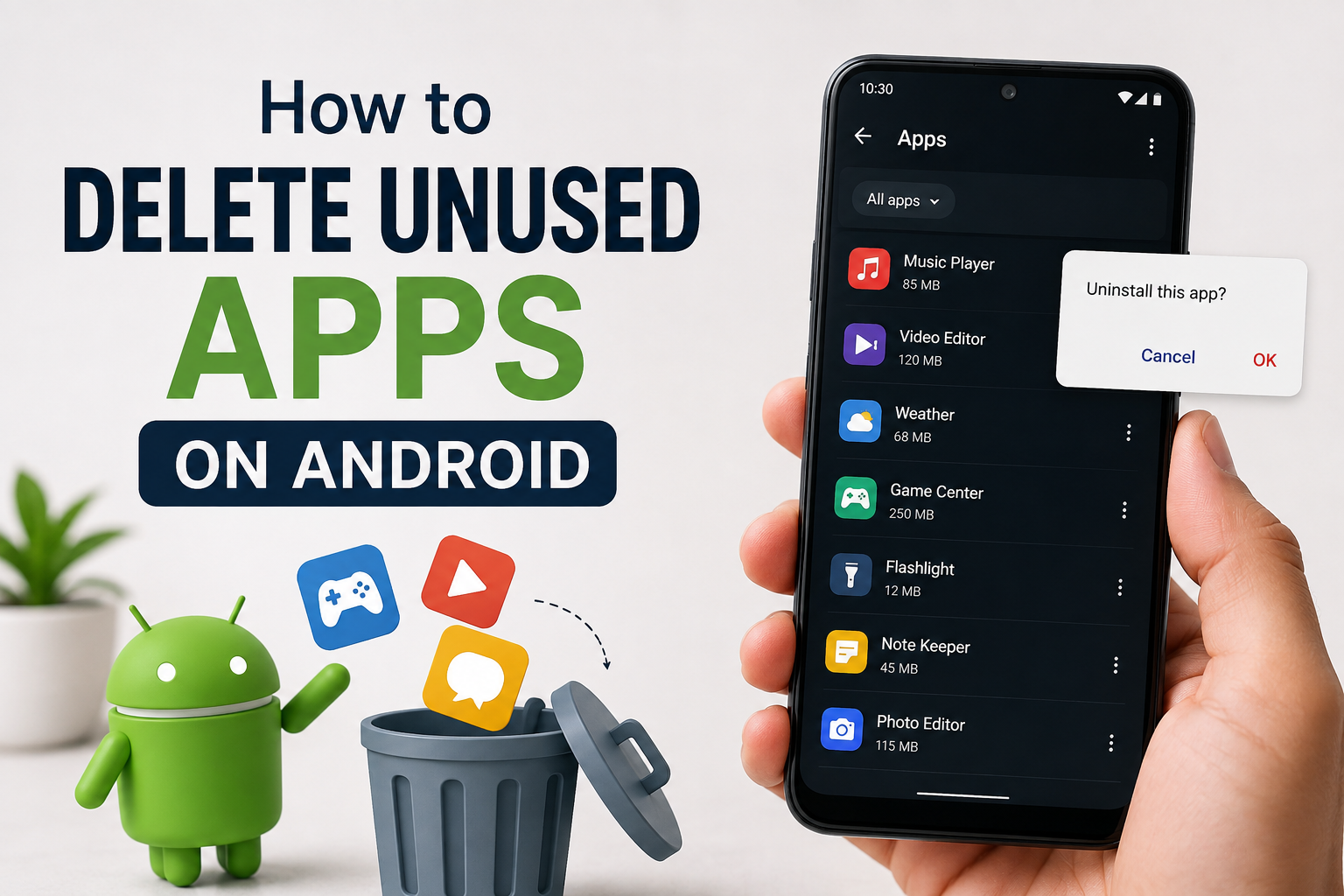
I have used Android phones for years, and one thing I have noticed is how quickly unused apps can build up. We often install an app because we need it for one particular task, try a game for a few days, or download something just because it looks interesting. After some time, those apps stay on the phone even though we rarely or never open them.
Keeping too many unused apps can make your phone feel messy. They can also take up storage space, receive notifications, use background resources, and make it harder to find the apps you actually use. That is why I think deleting unused apps is one of the simplest ways to keep an Android phone organized.
The good thing is that removing an app from Android is usually very easy. You do not need special software, and in most cases, you can uninstall an app in just a few seconds. In this article, I will explain the different ways I personally recommend for deleting unused apps on Android and some important things to check before removing them.
Why Should You Delete Unused Apps?
Before deleting apps, it is useful to understand why this simple habit matters. The biggest reason is storage. Apps can take up a surprising amount of space, especially games and apps that download additional files after installation.
I have also found that having fewer apps makes a phone easier to manage. When I need a particular app, I can find it quickly instead of scrolling through dozens of applications that I never use.
Some apps may also run background processes or send notifications. Not every unused app will noticeably affect performance, but removing applications that you no longer need can reduce unnecessary activity.
Another reason is privacy. Every app you install may request certain permissions. If I no longer use an app, I prefer removing it instead of leaving it on my phone without a reason.
Check Which Apps You Actually Use
I recommend looking through your installed apps before deleting anything. Sometimes an app looks unnecessary, but you may still need it occasionally.
Start by opening the Settings app on your Android phone. Depending on your phone brand and Android version, look for an option such as Apps, Applications, or App Management.
Here you can see the applications installed on your phone. Some Android phones also show how much storage each app is using.
I usually begin with apps I have not opened for several months. If I cannot remember the last time I used an application and I do not have a specific reason to keep it, it is usually a good candidate for removal.
Delete an App From the Home Screen
One of the easiest methods is to uninstall an app directly from the home screen or app drawer.
Find the app you want to remove and press and hold its icon. A small menu should appear. Look for an option such as Uninstall or App Info.
If you see Uninstall, tap it and confirm your choice. Android will then remove the application from your phone.
On some phones, dragging the app icon toward an Uninstall option may also work.
I personally like this method because it is quick. If I know that I no longer need an app, I can remove it immediately without searching through the Settings menu.
However, the exact options can vary depending on the phone manufacturer and Android version.
Delete Apps Through Settings
Another method I find useful is uninstalling applications through Settings. This is especially helpful when I want to see more information before removing an app.
Open Settings and go to Apps. You may need to select See All Apps or Manage Apps, depending on your phone.
Select the application you want to delete. On the app information page, you should see an Uninstall option if the app can be removed.
Tap Uninstall and confirm.
This method is useful because the app information page can show details such as storage usage, permissions, notifications, and other information. If I am unsure about an application, I prefer checking this information before making a decision.
Delete Apps From Google Play Store
You can also uninstall many apps through the Google Play Store.
Open the Play Store and tap your profile picture. Look for the option related to managing apps and the device. From there, you can view installed applications and select the ones you want to remove.
After selecting an app, choose the uninstall option if it is available.
I find this method convenient when I am already checking my installed apps in the Play Store. It can also help me review applications that I downloaded in the past.
The exact wording and layout can change between Play Store versions, but the basic process remains similar.
Be Careful With Important Apps
I always recommend being careful before uninstalling an application. Not every app that you rarely open is useless.
Some applications are connected to banking, school, work, security, file storage, or other important services. You may only use them once in a while, but they can still be important.
I also avoid removing system applications unless I know exactly what they do. Some Android phones include built in apps that cannot normally be uninstalled. Others may allow certain system apps to be disabled, but I would not recommend changing them without understanding their purpose.
If you do not recognize an app, take a moment to learn what it does before deleting it.
Check Your Important Data First
Before uninstalling an app, I recommend checking whether it contains information you might want later.
For example, a note taking app could contain saved notes. A photo editing application might have projects stored inside it. Some games may keep progress locally.
Many modern apps synchronize information with an online account, but I would not assume that every app does this.
If the app contains important files or information, back them up first. Once you are sure that you do not need the data, you can uninstall the application.
This small step can save you from losing something important.
Uninstall Games You No Longer Play
Games are often some of the largest applications on an Android phone. I have noticed that a few large games can consume more storage than many ordinary apps combined.
If you have games that you have not played for months, consider removing them.
You can always reinstall a game later if you decide to play it again, although you should check whether your progress is saved to an account before uninstalling it.
Deleting old games can sometimes free up a significant amount of storage, especially on phones with limited internal space.
Remove Apps You Downloaded Once
Another category I like to check is apps that were downloaded for a single purpose.
Maybe you installed a document scanner to scan one file, a photo editor to make one change, or a travel app for a previous trip. After the task was finished, the application simply remained on the phone.
These apps are easy to forget because they are not causing an obvious problem. However, when you collect many of them, they can take up unnecessary space.
I usually ask myself one simple question: “Would I install this app again today if I did not already have it?”
If the answer is no and I have no important data stored inside it, I consider uninstalling it.
What Happens After You Uninstall an App?
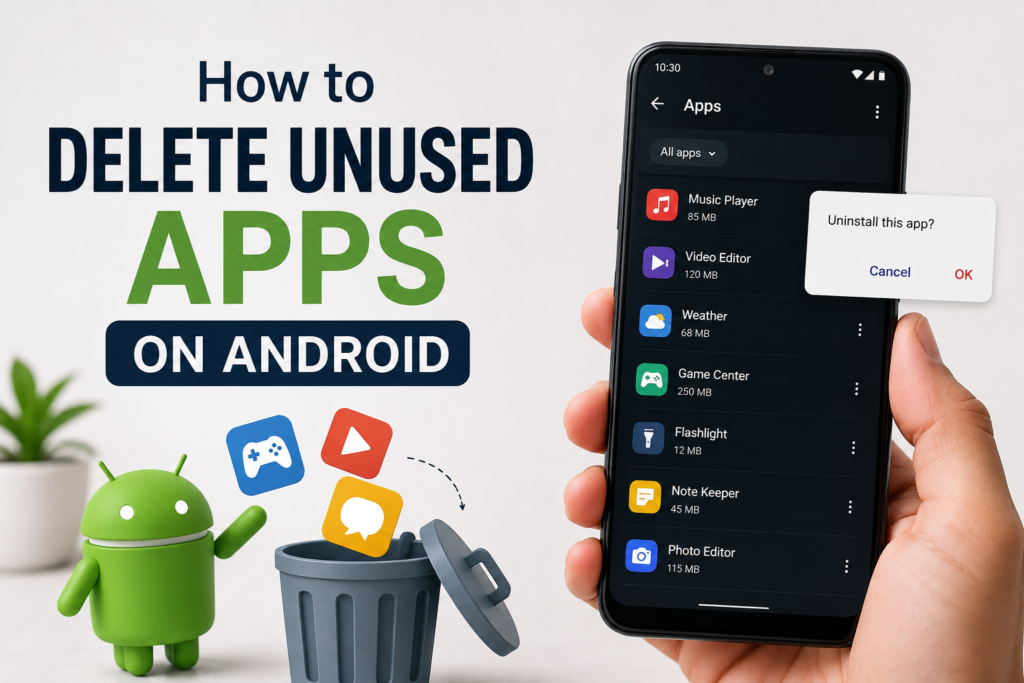
When you uninstall an app, Android removes the application from your device. The app itself will no longer be available unless you install it again.
Depending on the application, its locally stored data may also be removed. This is why checking important files before uninstalling is a good habit.
If the app uses an online account, information stored on the service may still exist. However, this depends on the particular application and its backup system.
Uninstalling an app does not usually delete your entire Google account or other online account connected to it.
What If There Is No Uninstall Option?
Sometimes you will not see an Uninstall option. This can happen with certain system applications or apps installed by a phone manufacturer.
In some cases, you may see a Disable option instead. Disabling an application is different from uninstalling it. It can prevent the app from running or appearing normally, but the application may remain on the device.
I recommend leaving important system applications alone unless you understand exactly what you are changing.
If an app came from your workplace, school, or another organization, it may also have restrictions that prevent normal removal.
Make App Cleanup a Regular Habit
I think the best approach is not waiting until your phone is completely full. Instead, spend a few minutes every month checking your installed apps.
You do not need to delete everything you have not opened recently. Just review the applications and remove the ones you clearly no longer need.
This simple habit can keep your phone more organized and help prevent unnecessary apps from accumulating.
I also recommend reviewing large apps occasionally. A game or streaming app that was small when installed may have collected additional downloads and become much larger over time.
Final Thoughts
Deleting unused apps on Android is one of the easiest ways to clean up your phone. I personally prefer doing a quick review every now and then rather than waiting until I run out of storage.
You can uninstall apps directly from the home screen, through Settings, or in many cases through the Google Play Store. Before deleting anything, I always recommend checking whether the app contains important files, saved projects, or data that you may need later.
The main idea is simple. Keep the apps you actually use and remove the ones that no longer serve a purpose. A cleaner app list makes your phone easier to use, while removing large unused applications can also give you valuable storage space.
You do not need a special cleaning application to do this. Android already provides the basic tools you need. With a few minutes of regular maintenance, you can keep your phone organized and make sure your available storage is being used for things that actually matter to you.