Recording your Android screen is one of those features that I think every smartphone user should know. I often find myself needing to record something on my phone, whether it is showing someone how to use an app, saving an important part of a video, creating a tutorial, or simply keeping a record of something happening on the screen. Thankfully, most modern Android phones have a built in screen recording feature, so there is usually no need to install another application.
In this guide, I will explain how to record your screen on Android in a simple way. I will also cover where the screen recordings are saved, how to record audio, how to stop a recording, and what to do if your phone does not have a built in screen recorder.
What Is Screen Recording on Android?
Screen recording is a feature that allows you to capture everything happening on your phone display as a video. Instead of taking a single screenshot, you can record a complete process from beginning to end.
For example, if I wanted to show someone how to change a setting on my phone, I could record the process instead of explaining every step through messages. The person can simply watch the video and follow along.
Screen recording can also be useful for creating educational content, troubleshooting problems, demonstrating applications, recording gameplay, or saving information that is difficult to explain with a screenshot.
Most recent Android phones offer this feature directly through the Quick Settings panel.
How to Record Screen on Android
The exact steps can be slightly different depending on the phone brand and Android version. However, the general process is very similar on most devices.
First, unlock your Android phone and open the screen that you want to record.
Now swipe down from the top of your screen. You may need to swipe down twice to see the complete Quick Settings panel.
Look for an option called Screen Record, Screen Recorder, or something similar.
Tap the screen recording option.
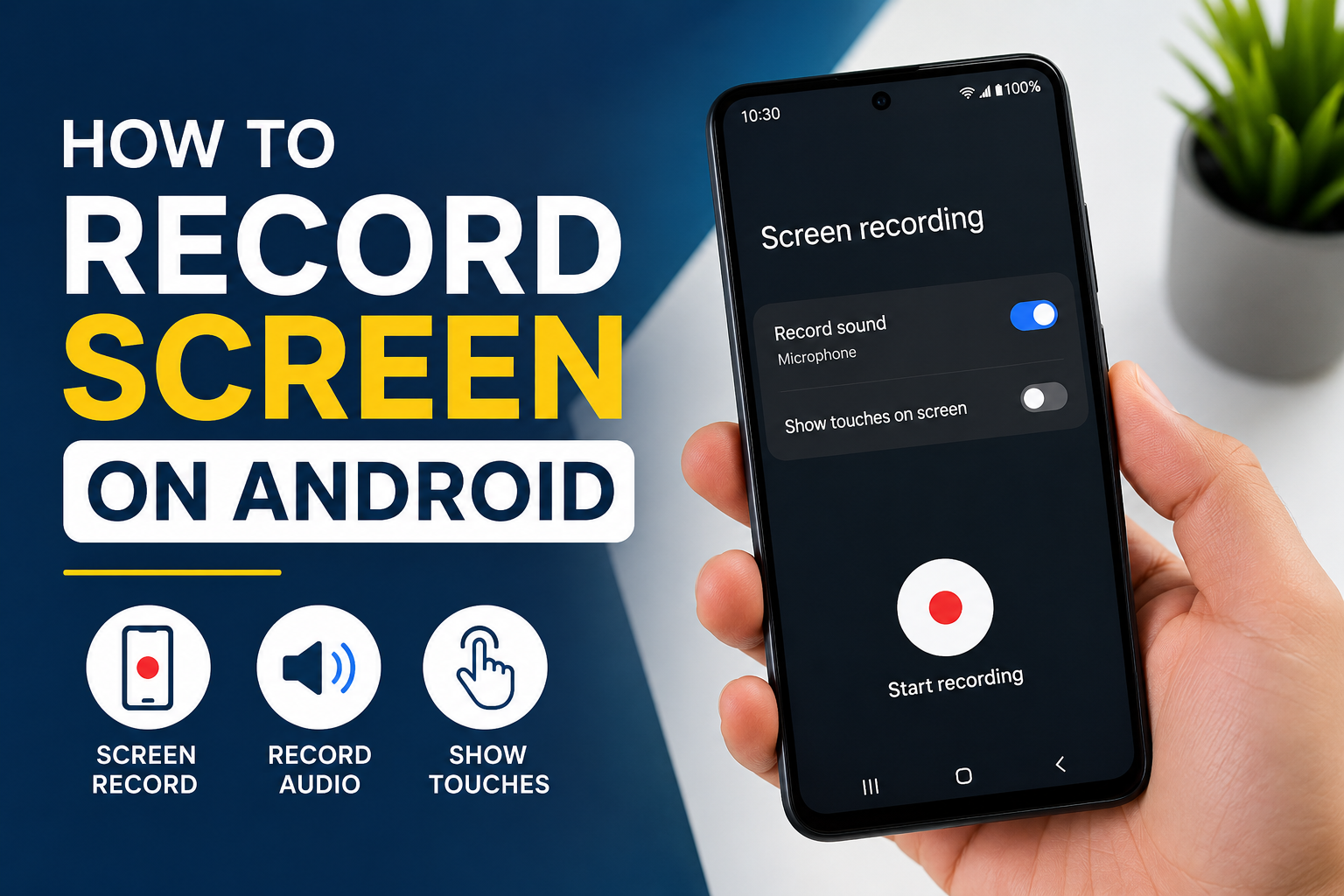
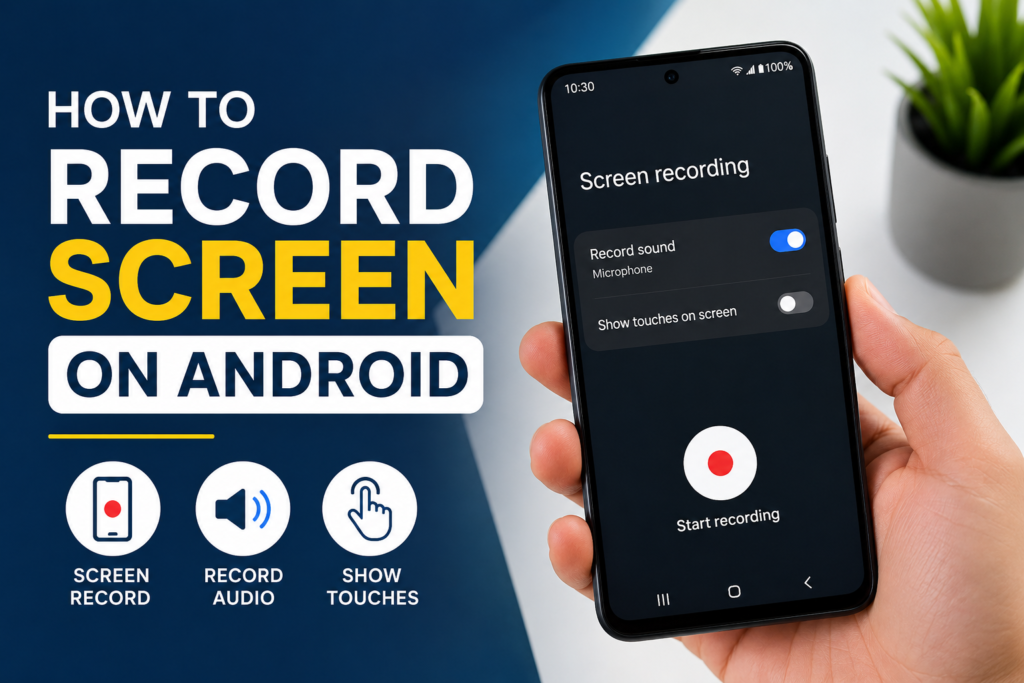
Before the recording begins, your phone may show a few options. You might be able to choose whether you want to record audio, show touches on the screen, or record media sounds.
Select the settings you prefer and tap Start or Start recording.
Your phone will usually display a short countdown before the recording begins. Once the countdown finishes, everything happening on your screen will be recorded.
When you are finished, swipe down from the top of the screen again and tap the notification or control that allows you to stop recording.
Your recording should then be saved automatically.
How to Find the Screen Recording
After stopping a screen recording, many Android phones automatically save the video in the Gallery or Photos application.
I usually recommend opening your Gallery app first and checking the recent videos. Depending on your phone, the recording may appear inside a folder called Screen Recordings.
On some devices, you can also find the file through the Files application.
If you cannot find your recording immediately, open your photo application and check the Videos section. You can also use the search feature if your phone provides one.
The exact storage location can vary between manufacturers, so do not worry if your folders look different from someone else’s Android phone.
How to Record Your Voice While Recording the Screen
Sometimes recording the screen alone is not enough. If I am making a tutorial, for example, I may want to explain what I am doing while the video is being recorded.
Many Android phones allow you to record audio along with the screen.
When you select Screen Record, look for an audio option. Depending on your phone, you may see choices such as device audio, microphone, or both.
If you want to explain something using your voice, select the microphone option.
If you want to capture sounds coming from the phone, select the device audio option when available.
Some phones also allow you to record both microphone audio and device sounds at the same time.
I recommend checking these settings before starting an important recording because otherwise you may finish the video and discover that your voice was not recorded.
How to Show Touches on the Screen
Another useful option is showing touches while recording.
When this feature is enabled, viewers can see where you tap on the screen. This can make tutorials much easier to understand.
For example, if I am recording a guide about changing an Android setting, showing my touches makes it obvious which button I am selecting.
Look for an option such as Show touches or Show taps when you start the screen recorder. Turn it on if you want your taps to appear in the recording.
This feature is particularly useful for educational videos and technical tutorials.
How to Stop a Screen Recording
Stopping a screen recording is normally very simple.
Once you start recording, Android may show a recording notification or a small control on the screen.
When you are finished, swipe down from the top of your display and find the screen recording notification. Tap Stop.
On some phones, there may also be a floating button that you can tap to stop recording.
After stopping, the phone will process the video and save it automatically.
I recommend waiting a few seconds before closing everything, especially if you have recorded a long video. This gives the phone enough time to finish saving the file.
What If Your Android Phone Does Not Have Screen Recording?
Not every Android phone has exactly the same features. Older phones may not include a built in screen recorder.
If you cannot find Screen Record in your Quick Settings panel, first check whether the button is hidden.
Open the Quick Settings panel and look for an edit button, usually represented by a pencil icon. Tap it and check the available buttons.
You may find Screen Record among the unused options. If you do, press and hold it and move it into your active Quick Settings area.
If the feature is still missing, your phone may not support native screen recording.
In that situation, you can use a reputable screen recording application from the official Google Play Store. Before installing an application, I recommend checking its reviews, permissions, developer information, and privacy policy.
There is usually no reason to give a screen recording application unnecessary permissions.
Tips for Better Screen Recordings
There are a few things I like to do before starting a screen recording.
First, I close unnecessary applications and notifications. This keeps the recording cleaner and helps prevent private information from appearing on the screen.
I also check my battery level before recording something important. Screen recording can use more battery than normal phone usage, especially when recording for a long time.
Another useful tip is to make sure there is enough storage space. Video files can become quite large, particularly when recording at a high resolution.
If you are recording a tutorial, I suggest planning what you want to demonstrate before pressing the record button. This can make the final video shorter and easier to understand.
I also recommend turning on Do Not Disturb if you do not want incoming notifications to appear during the recording.
Can You Record Gameplay on Android?
Yes, screen recording can be very useful for recording mobile games.
Many Android phones can capture gameplay directly using the built in screen recorder. Before starting, make sure you have enough storage and battery.
If you want commentary, enable microphone recording before you begin.
Keep in mind that recording demanding games can put additional pressure on your phone. If you notice lag or overheating, try lowering the recording quality or stopping other applications running in the background.
Can You Edit a Screen Recording?
After recording your screen, you can usually edit the video using your phone’s built in photo or video editor.
Basic editing options may include trimming the beginning and end, removing unwanted sections, changing the video length, or adding simple adjustments.
If you are creating a tutorial, trimming unnecessary parts can make a big difference. I prefer keeping screen recordings focused because viewers generally do not want to watch long periods where nothing is happening.
For more advanced editing, you can use a suitable video editing application.
Important Privacy Tips
Screen recording is useful, but I think it is important to use it responsibly.
Before recording, check what is visible on your screen. Avoid recording passwords, private messages, banking information, verification codes, personal documents, or other sensitive information.
Notifications can also appear during a recording, so enabling Do Not Disturb can be helpful.
If you plan to share a screen recording online, watch the complete video once before publishing it. This gives you a chance to notice any private information that may have appeared accidentally.
Final Thoughts
Learning how to record your screen on Android is much easier than many people expect. On most modern Android phones, the built in Screen Record feature is available directly from the Quick Settings panel.
The basic process is simple. Open Quick Settings, select Screen Record, choose your audio and touch settings, start recording, and stop the recording when you are finished. The video will normally be saved automatically in your Gallery or Photos application.
I find screen recording especially useful when I need to explain something visually. Instead of sending a long message with complicated instructions, I can record the process and let someone watch exactly what I am doing.
If your Android phone does not include a built in recorder, you can look for a trustworthy application through the official Google Play Store. Just remember to check permissions and privacy information before installing anything.
Once you start using screen recording, you will probably find many situations where it saves time. Whether you are creating tutorials, recording gameplay, explaining a problem, or simply saving something useful from your phone, it is a practical Android feature worth knowing.