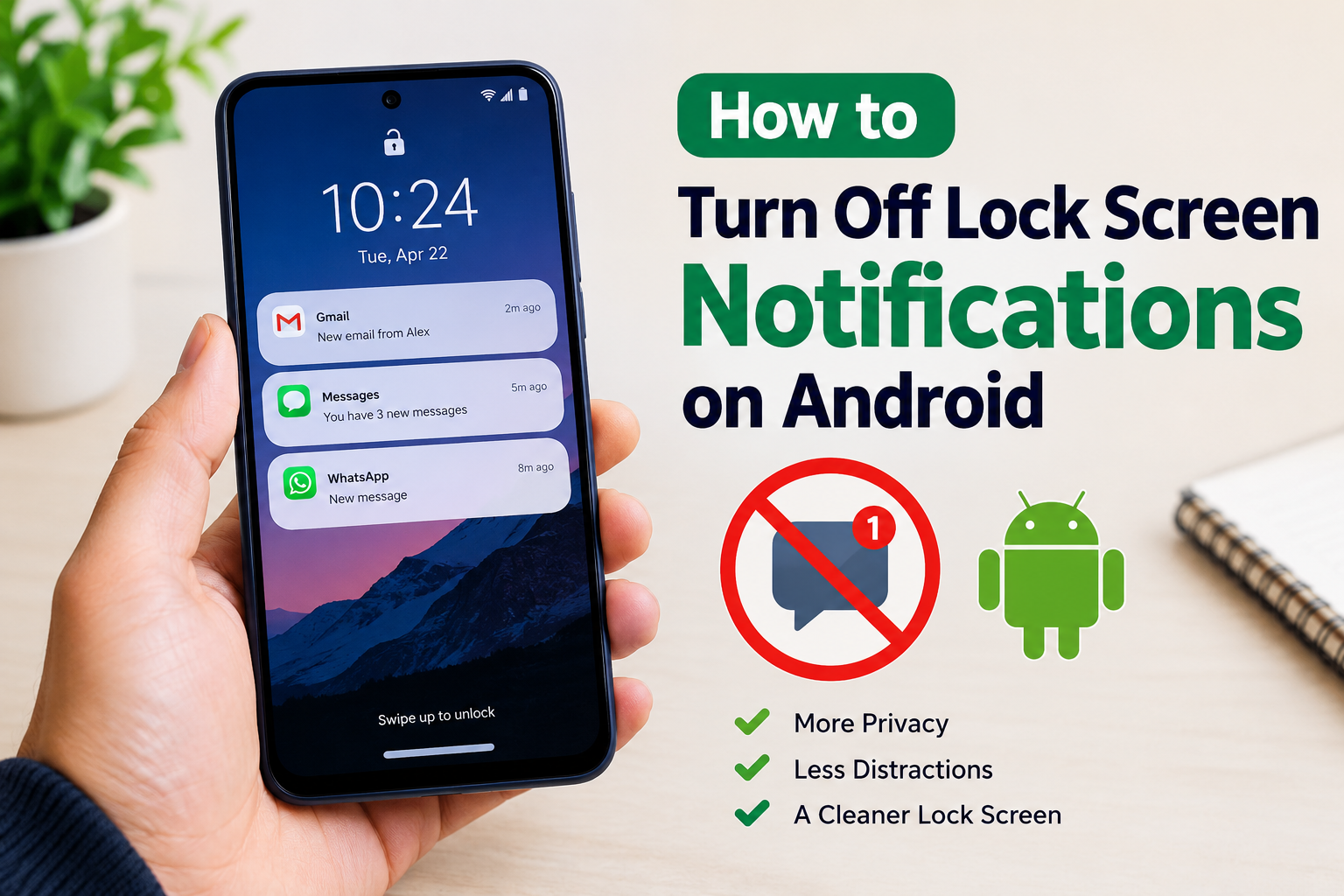
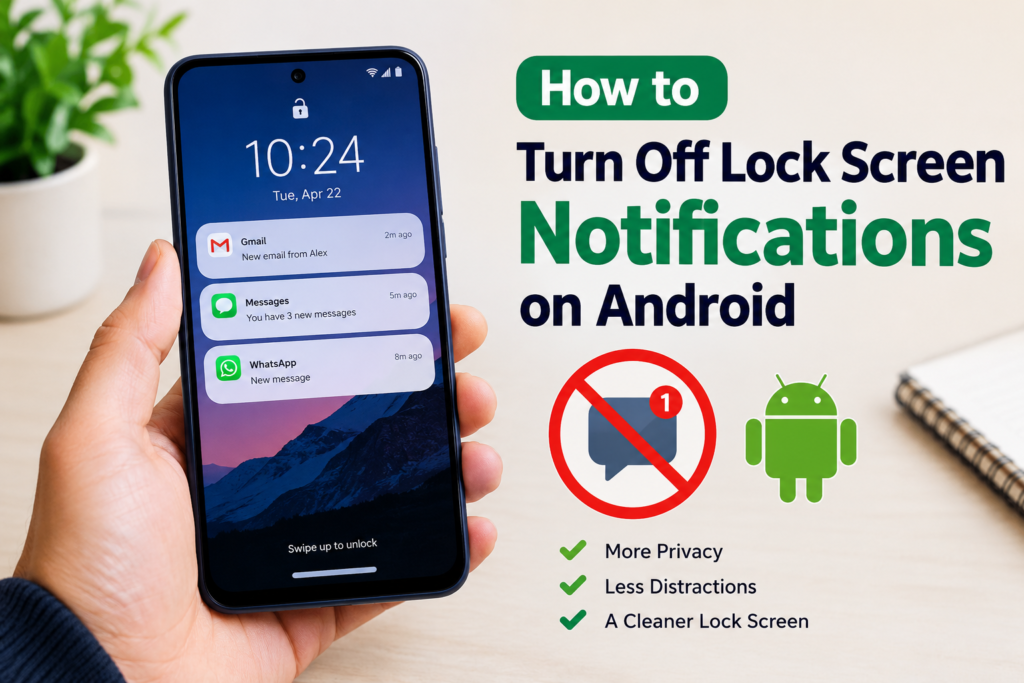
Lock screen notifications are useful because they let us see new messages, emails, reminders, and other alerts without unlocking the phone. However, there are times when I prefer to keep these notifications hidden. A message appearing on the lock screen can sometimes reveal private information to anyone who can see the phone.
If you are wondering how to turn off lock screen notifications on Android, the good news is that Android provides several notification and privacy settings that can help. The exact options can be slightly different depending on your phone brand and Android version, but the basic process is quite similar.
In this guide, I will explain how I manage lock screen notifications on Android and how you can hide or completely disable them. I will also explain how to control notifications for individual apps so you can keep important alerts while protecting your privacy.
Why Turn Off Lock Screen Notifications?
In my opinion, privacy is one of the main reasons to turn off lock screen notifications. When notifications appear on the screen, someone nearby may be able to read part of a message, email, or other private information.
For example, imagine receiving a personal message while your phone is sitting on a desk. Even if the phone is locked, the notification may show the sender’s name and part of the message.
Turning off lock screen notifications can prevent this information from appearing publicly.
Another reason is that a clean lock screen can be less distracting. If you receive notifications throughout the day, your lock screen can quickly become filled with alerts. Removing them can make the phone feel simpler and more private.
How to Turn Off Lock Screen Notifications on Android
The easiest method is through the Android Settings app. The names of some options can vary depending on whether you use Samsung, Google Pixel, Xiaomi, OnePlus, Motorola, or another Android phone.
Start by opening the Settings app on your Android phone.
Next, look for Notifications. On some phones, you may need to select Notifications and status bar or a similar option.
After opening the notification settings, look for an option related to Lock screen notifications.
Tap this option to see the available choices.
Depending on your phone, you may see options such as showing all notifications, showing notifications but hiding sensitive content, or not showing notifications at all.
Choose the option that prevents notifications from appearing on the lock screen if you want them completely hidden.
After changing this setting, lock your phone and send yourself a test notification. This is a simple way to make sure the setting is working as expected.
How to Hide Sensitive Notification Content
You do not always need to turn off every lock screen notification. In many situations, I find it more convenient to hide sensitive content instead.
This option allows the phone to tell you that you have a notification without showing private details.
For example, instead of showing the complete message, your phone might simply display that you have a new message.
To use this feature, open Settings, then go to Notifications and find the lock screen notification settings.
Look for an option such as Hide sensitive content or a similar privacy setting.
Enable it if you want notifications to remain visible while keeping their contents private.
I personally think this is a useful choice for people who still want to know when something important arrives but do not want the actual message displayed on the lock screen.
How to Turn Off Notifications for a Specific App
Sometimes the problem is not all notifications. You may only want to stop notifications from one particular application.
Android allows you to control notifications separately for individual apps.
Open Settings and select Notifications.
Look for App notifications or See all apps.
Find the application whose notifications you want to control.
Tap the app and review its available notification categories.
You can then disable the notification types you do not want.
For example, you may want to keep notifications from your email application but stop notifications from a social media application.
This method gives you more control without completely changing your Android notification experience.
How to Hide Notifications on a Samsung Galaxy Phone
Samsung Galaxy phones use the One UI interface, so the settings may look different from standard Android.
Open Settings on your Samsung phone.
Tap Notifications.
Look for Lock screen notifications.
Depending on your One UI version, you may see different settings for controlling how notifications appear.
You can choose whether notifications are shown on the lock screen and how much information they display.
Samsung also provides notification controls for individual apps, so you can adjust notifications without disabling everything.
Because Samsung regularly updates One UI, the exact wording and location of settings can change between phone models and software versions.
How to Hide Notifications on Google Pixel Phones
Google Pixel phones generally use an Android interface that is close to the standard Android experience.
Open Settings.
Tap Notifications.
Look for the lock screen notification settings.
From there, you can choose how notifications are displayed while your phone is locked.
You may also find privacy options that allow you to hide sensitive notification information.
If you want stronger privacy, select the setting that prevents notification content from being displayed when the phone is locked.
How to Stop Message Previews on the Lock Screen
If your main concern is private messages, you may not need to disable all notifications.
Instead, you can hide notification previews.
A preview can include the sender’s name, message text, or other information. This can be convenient when you are the only person using your phone, but it can become a privacy concern in public places.
Open your notification settings and look for an option related to sensitive content.
Choose the setting that hides private details when the phone is locked.
Your phone can still notify you about a new message, but the actual content will remain hidden until you unlock the device.
How to Turn Off Lock Screen Notifications Completely
If you want a completely private lock screen, you can disable notifications from appearing there.
Go to Settings.
Open Notifications.
Select the option related to Lock screen notifications.
Choose Do not show notifications or the closest available option.
Once enabled, notifications should no longer appear on your locked screen.
Keep in mind that this does not necessarily disable notifications completely. Apps can still receive notifications, and you may see them after unlocking your phone or opening the notification panel.
This is important because turning off lock screen notifications is different from turning off app notifications.
What Happens After Turning Off Lock Screen Notifications?
After you disable lock screen notifications, you may notice that your phone looks much cleaner when the screen is locked.
You will not see incoming alerts displayed there, depending on the setting you selected.
However, the notifications themselves may still be available after you unlock the phone.
This means y