I believe privacy on a smartphone starts with knowing what permissions our apps have. Most of us install many apps on Android phones, and over time, we may forget which apps were given access to the camera. Some apps genuinely need camera access, while others may not need it for their main purpose.
The good thing is that Android provides built in privacy controls that allow us to check app permissions and manage camera access. In this guide, I will explain how to check which apps have camera access on Android, how to remove camera permission, and what you should consider before allowing an app to use your camera.
Why You Should Check Camera Access on Android
The camera is one of the most sensitive features on a smartphone. When an app has camera permission, it can use the camera when the operating system allows it according to the permission settings.
For example, a video calling app normally needs camera access so you can make video calls. A social media app may need the camera when you want to take pictures or record videos. A scanning app may also need camera permission.
However, not every app needs access to your camera.
I personally think it is a good habit to review Android camera permissions from time to time. You may discover apps that you no longer use or apps that do not really need camera access. Removing unnecessary permissions is a simple way to improve your overall privacy.
How to Check Which Apps Have Camera Access on Android
The exact names of Android settings can vary depending on your phone manufacturer and Android version. However, the general process is similar on most modern Android phones.
Start by opening the Settings app on your Android phone.
Then look for Privacy, Security and Privacy, or a similar option.
Inside the privacy settings, look for Permission Manager or Privacy Dashboard.
Tap Permission Manager.
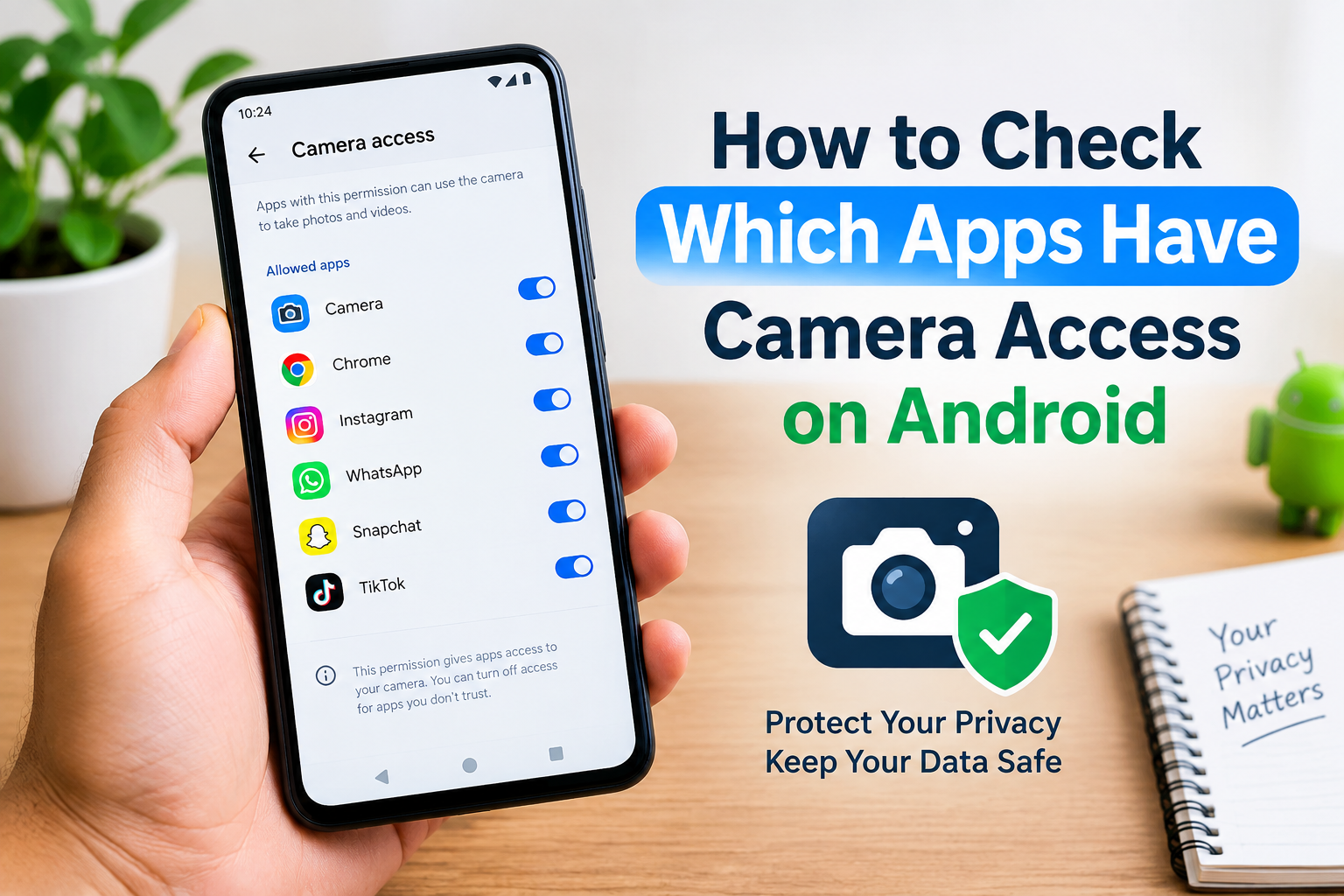
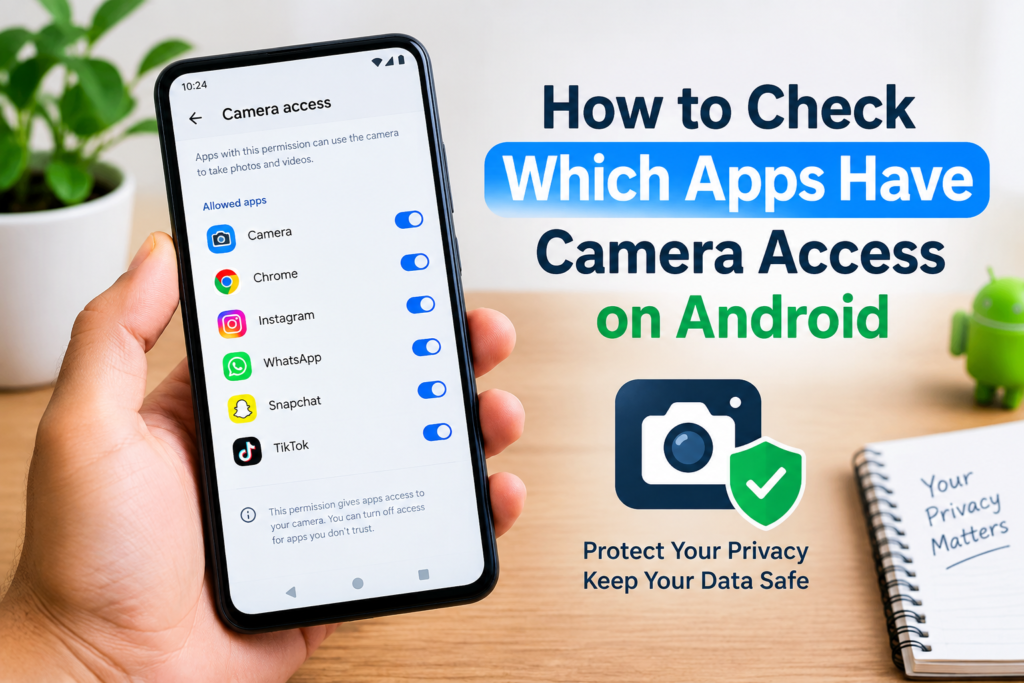
You should see a list of different permissions such as Camera, Microphone, Location, Contacts, and Files.
Select Camera.
Android will then show you apps that have requested or received camera permission. Depending on your Android version, the categories may include apps that are allowed to use the camera, apps that are allowed only while in use, and apps that are not allowed.
This is one of the easiest ways to find apps with camera access on Android.
Check Camera Permission From an Individual App
Another method I find useful is checking permissions directly from an app’s information page.
Open Settings and go to Apps.
Find the application you want to check and tap its name.
On the app information screen, look for Permissions.
Tap Permissions, and you will see the permissions currently associated with that app.
Look for Camera.
If camera access is allowed, Android will show you the current permission status. You can tap the camera permission to change it.
This method is particularly useful when you are concerned about one specific application.
For example, if you recently installed an unfamiliar app and want to know whether it can access your camera, checking its app permissions can give you a quick answer.
How to Turn Off Camera Access for an App
If you find an app that does not need camera access, you can usually remove its permission.
Open Settings.
Go to Apps and select the application.
Tap Permissions.
Select Camera.
Choose Don’t allow or the equivalent option shown on your Android phone.
After this, the application will no longer have normal permission to use your camera.
Keep in mind that an app may stop working correctly if camera access is essential to one of its features. For example, a video calling application may need camera permission to provide video calls.
If you change the permission and later discover that a feature is not working, you can return to the same settings and allow camera access again.
What Does Allow Only While Using the App Mean?
Some Android phones provide more than one permission option. You may see an option such as Allow only while using the app.
This can be a useful choice when you want an application to access your camera for a specific purpose without giving it unrestricted access.
For example, suppose you use an application to scan documents. The app needs your camera when you are actively scanning a document, but you may not want to give it unnecessary access outside that situation.
When available, allowing camera access only while using the app can provide a practical balance between functionality and privacy.
The exact options can vary depending on your Android version and the type of application.
Use the Privacy Dashboard to Monitor Camera Access
On supported Android versions, the Privacy Dashboard can provide a useful overview of how apps have accessed certain permissions.
Open Settings.
Go to Privacy or Security and Privacy.
Look for Privacy Dashboard.
From there, you may be able to see recent permission activity, including camera access.
This can be helpful because checking permissions tells you what an app is allowed to access, while privacy activity can help you understand when certain permissions have actually been used.
The available information and time period can differ between Android versions and phone manufacturers.
Pay Attention to the Camera Indicator
Modern Android phones can also provide visual privacy indicators when the camera or microphone is being used.
Depending on your Android version and device, you may see a small green indicator or another privacy notification when an application is actively using the camera or microphone.
If you notice the indicator while using an app that should not need the camera, it is worth investigating.
You can check your recent apps and permission settings to understand which application may have requested access.
This does not mean that every unexpected indicator automatically represents harmful activity. System features, legitimate applications, and specific phone functions can sometimes use sensitive hardware. The important thing is to investigate rather than immediately assume something is wrong.
Review Apps You No Longer Use
One simple privacy habit I recommend is removing applications that you no longer need.
If an old application has camera permission and you no longer use it, uninstalling the application removes its ability to access your camera through that installed app.
Go through your app list every few months and ask yourself whether you still need each application.
This can also help free storage and reduce unnecessary notifications.
If you do not want to uninstall an application but rarely use it, reviewing its permissions is still worthwhile.
Be Careful With Camera Permissions
When installing a new application, Android may ask whether you want to allow camera access.
Before selecting Allow, think about why the application needs the permission.
A photo editing application may reasonably need camera access if it lets you take pictures directly. A video meeting application obviously needs the camera for video calls. A QR code scanner also has a clear reason to request camera access.
But if the purpose of an application does not appear to require the camera, you can consider denying the permission.
You can always change many app permissions later through Android settings.
What Happens When You Deny Camera Permission?
When you deny camera access, the application cannot normally use the camera through the standard Android permission system.
The application may still work normally if the camera is not important to its features.
However, if the camera is essential, you may see an error message or find that a particular feature does not work.
For example, if you deny camera permission to a video calling application, you may still be able to participate in an audio call, but video functionality may not work.
This is why I prefer reviewing permissions individually rather than simply denying every permission for every app.
Check Permissions After Installing New Apps
I think checking permissions should become part of the routine whenever you install a new application.
You do not need to spend a long time doing this. Simply notice what permissions the application requests and consider whether they make sense.
If a new application asks for camera access, ask yourself what feature requires it.
If the reason is clear, you can decide whether you are comfortable granting permission. If the reason is unclear, you can deny it and see whether the app still works.
This approach gives you more control over your Android privacy without making your phone difficult to use.
Keep Android Updated
Keeping your Android phone updated is another important part of smartphone security.
Android updates can include security improvements, privacy changes, bug fixes, and other system improvements. Phone manufacturers may also provide their own security updates.
I recommend checking Settings > System > Software Update or the equivalent option on your device.
The exact location can vary between manufacturers.
An updated phone gives you access to the latest security and privacy features supported by your device.
Frequently Asked Questions
How do I see which apps have camera permission on Android?
Open Settings, go to Privacy or Security and Privacy, select Permission Manager, and then choose Camera. You should see the applications associated with camera permission.
Can I remove camera access from an app?
Yes. Open Settings, select Apps, choose the application, open Permissions, select Camera, and change the permission to Don’t allow when that option is available.
Why does an app need camera permission?
Some apps need camera access for features such as photography, video calls, document scanning, QR code scanning, or uploading pictures directly from the camera.
Can an app use my camera after I deny permission?
Under normal Android permission controls, an app that has been denied camera permission should not be able to access the camera through the standard camera permission system.
How often should I check Android camera permissions?
There is no fixed schedule, but checking your permissions every few months and after installing unfamiliar applications is a useful privacy habit.
Final Thoughts
Knowing how to check which apps have camera access on Android is a simple but useful privacy skill. In my view, we should not give every application access to sensitive features without considering whether that permission is actually necessary.
The process is straightforward. Open your Android settings, find the privacy or permission management section, select Camera, and review the applications listed there. You can then remove camera access from apps that do not need it.
I also recommend checking the Privacy Dashboard when it is available, paying attention to camera indicators, removing applications you no longer use, and keeping your phone updated.
You do not have to become an expert in smartphone security to improve your privacy. A few minutes spent reviewing Android app permissions can give you a much better understanding of what your applications can access and help you keep greater control over your device.