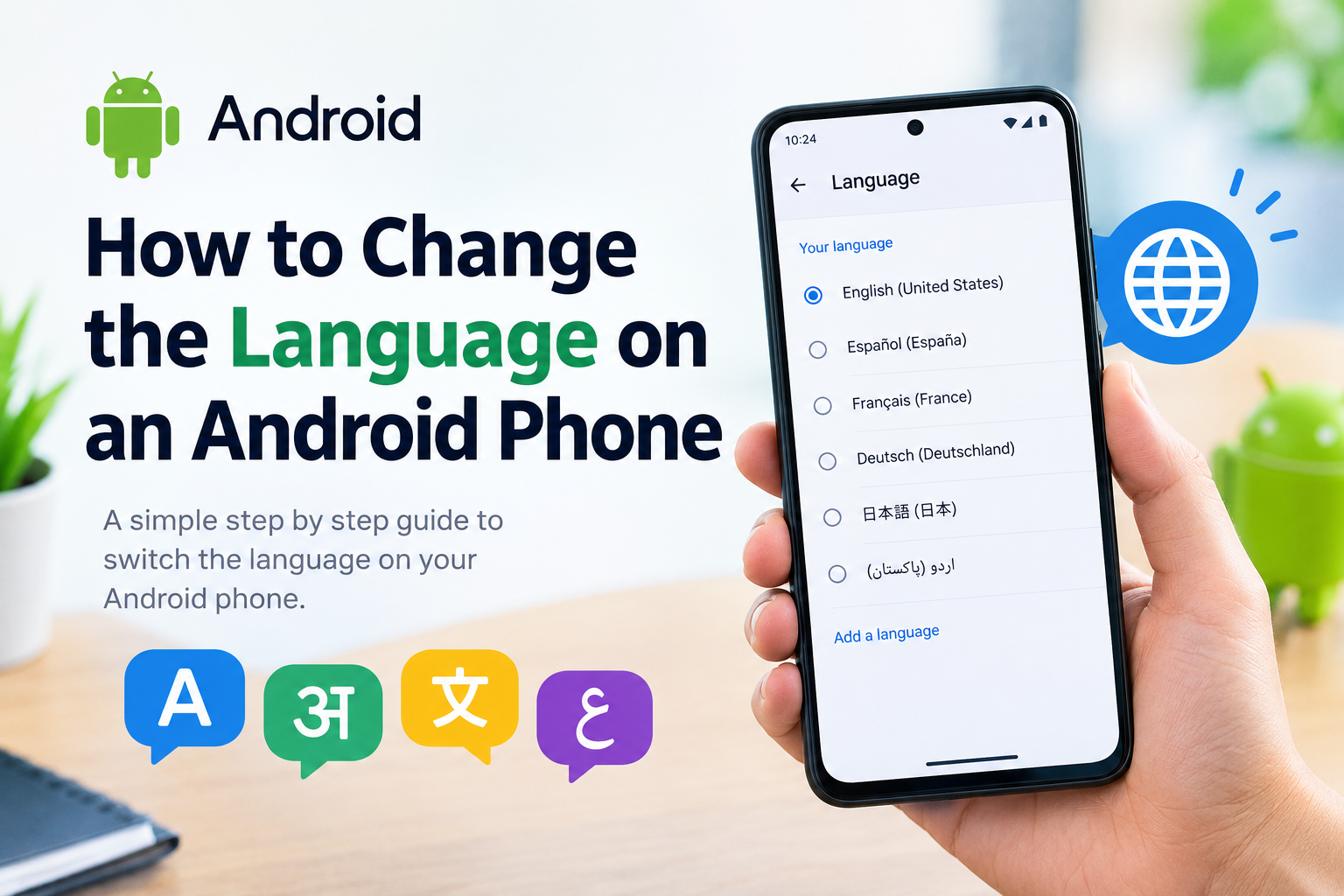
Changing the language on an Android phone is one of those settings that can make a big difference in how comfortable your phone feels. Whether you accidentally selected the wrong language, bought a phone from another country, or simply want to use your preferred language, Android gives you an easy way to change it.
In my experience, the process is quite simple once you know where the language settings are located. The exact names of some options can be slightly different depending on your phone brand, Android version, and software interface. Samsung, Google Pixel, Xiaomi, OnePlus, Motorola, and other Android phones may organize these settings differently.
In this guide, I will explain how to change the language on an Android phone step by step. I will also cover how to add another language, move a language to the top of the list, change the keyboard language, and fix some common problems.
Why Change the Language on an Android Phone?
There are many reasons why someone may want to change their Android phone language.
Some people prefer using their native language because it makes menus and settings easier to understand. Others may be learning a new language and want to practice by using it on their phone.
You might also need to change the language after purchasing a phone from another country. Sometimes a family member may use your phone and prefer another language.
Changing the system language normally affects menus, settings, notifications, and many built in Android features. It can make the entire phone feel more familiar.
How to Change the Language on an Android Phone
The general process is straightforward. Here are the steps I normally recommend.
Step 1: Open Settings
First, unlock your Android phone and open the Settings app.
You can usually find Settings in your app drawer. You can also swipe down from the top of the screen and tap the gear icon if your phone provides that option.
Once Settings is open, look for an option related to System, General Management, or Additional Settings.
The exact name depends on your phone.
Step 2: Find Language Settings
On many Android phones, you can find language options by going to:
Settings > System > Languages
On some phones, the path may look like:
Settings > General Management > Language
Other Android devices may use a slightly different name.
If you cannot find the option, use the search box inside Settings and type Language. This is one of the easiest methods because Android can take you directly to the relevant setting.
Step 3: Open the Language Option
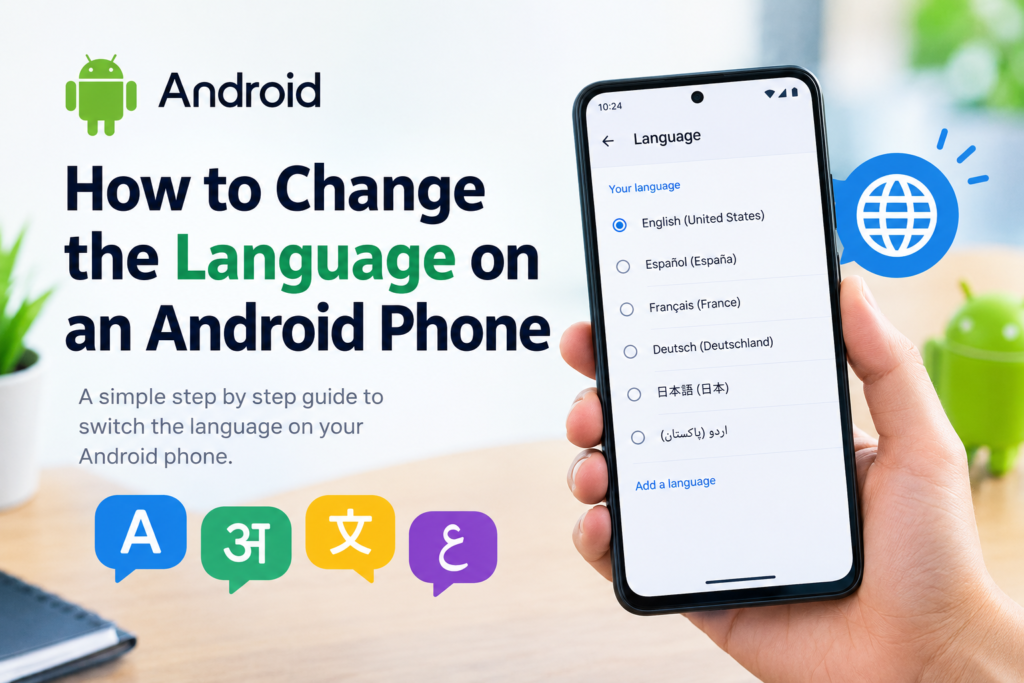
After opening the language settings, you should see the language currently being used on your phone.
You may also see an option such as Add a language.
Tap this option if you want to add a new language.
Step 4: Select Your Preferred Language
Android will show a list of available languages.
Scroll through the list and select the language you want to use.
Depending on the language, you may see different regional versions. For example, English may include different options for countries and regions.
Choose the version that matches your preference.
Step 5: Make the New Language Your Main Language
After selecting a language, Android may automatically make it your primary language.
On some phones, you may need to move the language to the top of the list.
If you see a language list, press and hold the language you want and move it above the current language. Some phones may instead provide a menu button or an option such as Set as default.
Once the new language is at the top, Android should begin using it for the system interface.
How to Add More Than One Language
One useful Android feature is the ability to keep multiple languages on your phone.
For example, you may want English as your main language while keeping Urdu, Arabic, Spanish, or another language available.
To add another language, open the language settings and select Add a language.
Choose the language you want. Android will add it to your language list.
Having multiple languages can be useful if you regularly communicate with people who speak different languages. It can also be helpful when traveling.
I personally think keeping more than one language available is better than repeatedly changing the main language if you only need another language occasionally.
How to Remove a Language
If you have added several languages and no longer need some of them, you can usually remove them.
Go back to your phone’s language settings and look at the list of installed languages.
Depending on your Android phone, you may see a three dot menu, an edit option, or a delete option.
Select the language you want to remove and follow the instructions shown on the screen.
Remember that Android may require you to keep at least one language installed as the main system language.
How to Change the Keyboard Language
Changing the Android system language and changing the keyboard language are not always the same thing.
You might want your phone menus in English but your keyboard available in Urdu, Arabic, Hindi, Spanish, or another language.
To change the keyboard language, open an app where you can type, such as Messages or Notes.
When the keyboard appears, look for the language or globe button. On many phones, tapping this button switches between installed keyboard languages.
If the language you want is not available, open your keyboard settings and look for Languages.
For Google Keyboard, commonly known as Gboard, you can open its settings and add the languages you need.
This is particularly useful if you communicate in more than one language every day.
What Happens After You Change the Language?
After changing the main Android language, many parts of your phone will automatically update.
This can include Settings, system menus, notifications, buttons, and other built in features.
Some third party apps may continue using their own language settings. This means that changing the Android system language does not necessarily change every app on your phone.
Some apps follow the phone’s system language, while others allow you to choose a language separately inside the app.
So if one application remains in the old language, check that app’s individual settings.
What If Your Phone Is Already in a Language You Cannot Understand?
This can be confusing, but there is a simple solution.
Open Settings and look for the familiar gear icon. From there, try to find the language settings.
If you cannot understand the menus, use the Settings search function if your phone provides one. Search for the word Language using the current keyboard.
Another useful option is to use visual clues. The language settings usually have a globe, letter, or language related symbol depending on the phone interface.
If you recently changed the language by mistake, avoid changing random settings. Take your time and search for the language option.
Language Settings on Different Android Phones
Android is used by many different manufacturers, so the exact steps can vary.
On a Google Pixel, language settings are generally found under the System section.
On Samsung Galaxy phones, you will commonly find language settings under General Management.
Other manufacturers may place language settings under Additional Settings or a similar section.
This does not mean your phone cannot change languages. It simply means the menu structure may be different.
If the steps in this guide look slightly different on your phone, open Settings and search for Language. In my opinion, this is the quickest method for finding the correct option.
Common Problems When Changing Android Language
Sometimes changing the language does not work exactly as expected.
One common issue is that the selected language is added but does not become the main language. In this situation, return to the language list and move the desired language to the top or select the option to make it the default.
Another issue is that an app remains in the old language. As mentioned earlier, some apps have independent language settings.
You may also notice that the keyboard does not automatically change. System language and keyboard language can be controlled separately, so check your keyboard settings.
If the new language is not available, make sure your phone supports that language and that you are selecting the correct regional version.
Tips Before Changing Your Android Language
Before changing the language, I recommend remembering where the language settings are located. This is especially important if you are changing to a language that you cannot read.
It is also a good idea to change only one setting at a time. That way, if something looks unfamiliar afterward, you will know what caused the change.
If you are experimenting with a new language for learning purposes, you can always return to your previous language later.
There is normally no need to reset the phone or delete your personal information simply because you want to change the system language.
Final Thoughts
Learning how to change the language on an Android phone is useful for almost every Android user. The process is generally simple, although the exact menu names can differ between manufacturers and Android versions.
The easiest approach is to open Settings, search for Language, open the language settings, and select your preferred language. You can also add multiple languages and manage your keyboard languages separately.
In my view, Android’s language options are especially useful for people who speak more than one language, travel frequently, or simply feel more comfortable using their phone in their native language.
If you cannot find the exact option shown in this guide, do not worry. Android phones often use different menu layouts, but the language setting is usually easy to locate through the Settings search feature.
Once you know where the option is, changing your Android phone language takes only a few moments.