Dark Mode has become one of my favorite features on Android phones. I personally find it more comfortable when I use my phone at night or when I am in a room with low lighting. Instead of seeing a bright white screen, Dark Mode changes many parts of the Android interface to darker colors, making the overall appearance feel softer and more comfortable.
If you are using an Android phone and want to know how to turn on Dark Mode, the process is usually very simple. However, the exact steps can be slightly different depending on your phone brand, Android version, and software interface.
In this guide, I will explain how to turn on Dark Mode on Android, where to find the setting, how to use Dark Mode from Quick Settings, how to schedule it, and what you should do if Dark Mode does not work properly.
What Is Dark Mode on Android?
Dark Mode is a display setting that changes the appearance of supported parts of your phone from light colors to darker colors. Instead of having a mostly white background, many menus and supported applications use black, dark gray, or other dark shades.
I think Dark Mode is especially useful when using a phone at night. A bright screen can feel uncomfortable in a dark room, while a darker interface can make the screen feel less intense.
Dark Mode does not necessarily make every application dark. Some applications have their own Dark Mode settings, while others may continue using a light appearance. This means that enabling Android Dark Mode does not always change every screen on your phone.
How to Turn on Dark Mode on Android
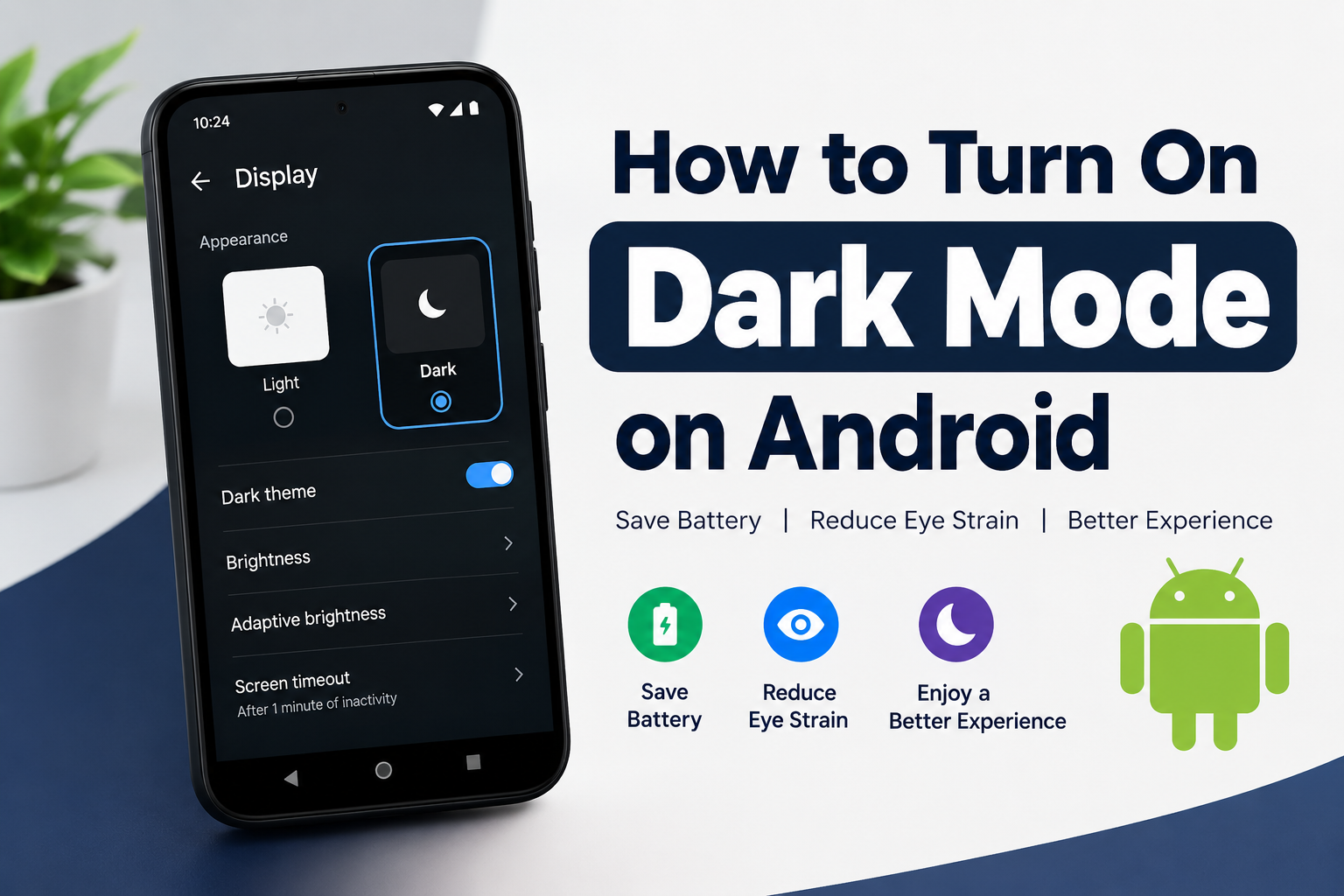
The easiest way to turn on Dark Mode is through the Settings application. The names of the options can vary slightly between Android phones, but the general process is similar.
First, open the Settings application on your Android phone.
Next, look for an option called Display. On some phones, you may see an option called Display and brightness or something similar.
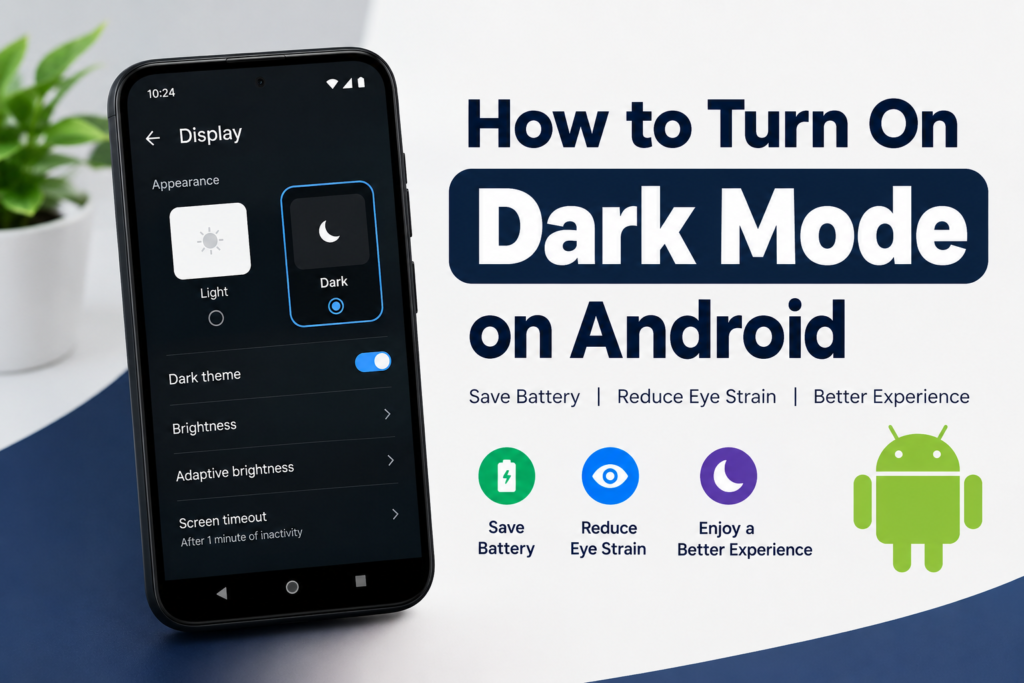
Tap Display and look for Dark Mode, Dark theme, or Theme.
Once you find the option, select Dark or turn on the Dark Mode switch.
Your phone should immediately change to a darker appearance.
In my experience, this is the most reliable method because you can also find other display settings in the same area. You can adjust brightness, screen timeout, font size, and other options from the Display settings.
Turn on Dark Mode From Quick Settings
If you want a faster way to enable Dark Mode, you can usually use Quick Settings.
Swipe down from the top of your Android screen. Depending on your phone, you may need to swipe down twice to see the complete Quick Settings panel.
Look for a button called Dark Mode, Dark Theme, or Dark theme.
Tap the button to turn it on.
If you cannot see the Dark Mode button, you may be able to add it to your Quick Settings panel. Tap the edit button or pencil icon and look through the available settings. If Dark Mode is available, drag it into the active Quick Settings area.
I personally prefer this method when I only want to switch between light and dark appearances temporarily. It saves time because I do not have to open Settings every time.
How to Schedule Dark Mode on Android
Some Android phones allow you to automatically schedule Dark Mode. This can be useful if you prefer Light Mode during the day and Dark Mode at night.
To check whether your phone supports scheduling, open Settings and go to Display.
Open the Dark Mode or Dark Theme settings.
Look for an option such as Schedule, Turn on automatically, or Custom schedule.
Depending on your phone, you may be able to choose an automatic schedule based on sunset and sunrise or select your own starting and ending times.
For example, you could set Dark Mode to turn on in the evening and turn off in the morning.
I think automatic scheduling is one of the most convenient options because you do not have to remember to change the display mode yourself.
How to Turn on Dark Mode on Samsung Phones
Samsung Galaxy phones use Samsung’s own software interface, so the steps can look slightly different from standard Android.
Open Settings on your Samsung phone.
Tap Display.
At the top of the screen, you should see options related to Light and Dark.
Select Dark to enable Dark Mode.
Samsung also provides scheduling options on many devices. You can look for Dark mode settings and choose a schedule that works for you.
The exact names and locations can change depending on your Samsung phone model and software version, so do not worry if your screen looks slightly different from another Samsung tutorial.
How to Turn on Dark Mode on Google Pixel Phones
Google Pixel phones usually provide a straightforward Dark Theme option.
Open Settings.
Tap Display and touch or the relevant display option available on your Android version.
Look for Dark theme.
Turn on the Dark Theme option.
You can also check the Quick Settings panel because Dark Theme may be available there for faster access.
Google can change the layout of Android settings with software updates, so the exact location may vary between Pixel models and Android versions.
Does Dark Mode Save Battery?
One common reason people turn on Dark Mode is to reduce battery consumption. Whether you notice a meaningful battery difference depends on the type of screen your phone uses and how you use your device.
Phones with OLED or AMOLED displays can benefit more from dark colors because individual pixels can be turned off when displaying true black. This can potentially reduce power consumption in some situations.
However, I would not turn on Dark Mode only because you expect a huge battery improvement. Battery life depends on many things, including screen brightness, applications, mobile data, WiFi, gaming, location services, and background activity.
For me, the biggest advantage of Dark Mode is the overall viewing experience rather than battery savings.
Can Dark Mode Reduce Eye Discomfort?
Many people prefer Dark Mode because it feels more comfortable in low light. I also find a dark interface easier to look at when I am using my phone in the evening.
However, Dark Mode is not a guaranteed solution for eye problems. Your screen brightness, viewing distance, room lighting, and how long you use your phone can also affect comfort.
If your screen feels too bright, reducing brightness and avoiding prolonged screen use can also help.
One useful approach is to use Dark Mode together with automatic brightness. This allows your phone to adjust the screen brightness according to the surrounding light.
What If Dark Mode Does Not Work in an App?
After enabling Dark Mode on Android, you may notice that some applications remain bright. This is normal.
Not every application automatically follows the system theme.
Open the application that remains in Light Mode and check its settings. Many popular applications have their own appearance settings where you can choose between Light, Dark, or System Default.
If you see an option called System Default, selecting it may allow the application to follow your Android Dark Mode setting.
If the application does not support Dark Mode, you may not be able to change its appearance until the developer adds support for it.
What If You Cannot Find Dark Mode?
If you cannot find Dark Mode on your Android phone, start by checking the Display section in Settings.
You can also use the search function inside the Settings application. Type Dark Mode, Dark Theme, or simply Dark into the search box.
Your phone may use a different name for the feature.
It is also worth checking whether your phone has a pending software update. Android interfaces change over time, and some features may become available after an update.
Keep in mind that older Android phones may not have the same Dark Mode features available on newer devices.
Dark Mode and Android Widgets
Dark Mode can also affect some Android widgets, although the result depends on the widget and application.
Some widgets automatically change their colors when the system theme changes. Others may have separate appearance controls.
If you use widgets frequently, I recommend checking them after enabling Dark Mode. You may find that some widgets look better in the darker interface, while others remain unchanged.
Should You Keep Dark Mode On All the Time?
This really comes down to personal preference.
I personally think Dark Mode is useful for evening and nighttime phone use, but there is no requirement to keep it enabled all day.
If you enjoy the darker appearance, you can leave it enabled permanently. If you prefer a brighter screen during the day, scheduling Dark Mode can provide a good balance.
The important thing is to choose the display setting that feels comfortable for your own usage.
Final Thoughts
Learning how to turn on Dark Mode on Android is simple once you know where to look. In most cases, you can open Settings, go to Display, and select Dark Mode or Dark Theme. You can also use Quick Settings if your phone provides a Dark Mode button there.
I personally recommend trying Dark Mode for a few days rather than deciding immediately whether you like it. After using it at night, reading messages, browsing websites, and using your favorite applications, you can decide whether it suits your daily routine.
Remember that Android phones are not all identical. Samsung, Google Pixel, OnePlus, Xiaomi, Motorola, and other manufacturers may organize their settings differently. The names can also change with Android updates.
If you cannot find the exact option shown in a guide, use the Settings search box and type Dark Mode or Dark Theme. This is often the fastest way to locate the feature.
Dark Mode is a simple Android customization, but it can make the phone feel very different. Whether you want a darker appearance, a more comfortable nighttime experience, or simply want to try something new, enabling Dark Mode takes only a few moments.