Knowing which Android version your phone is running may seem like a small thing, but I have found it surprisingly useful. Whenever I am trying to install a new app, check whether a feature is available, troubleshoot a problem, or decide whether my phone needs an update, the Android version is one of the first things I look at.
Android changes regularly, and different phone manufacturers can also organize their settings differently. Because of that, finding the Android version may not look exactly the same on every phone. However, the basic process is usually very simple.
In this guide, I will explain how I check the Android version on a phone, where to find additional software information, how to check for updates, and what the Android version actually means.
What Is an Android Version?
Before checking the version, it helps to understand what it means.
Android is the operating system that powers many smartphones and tablets. Google develops Android, while companies such as Samsung, Xiaomi, OnePlus, Motorola, Oppo, Vivo, and others use it on their devices with their own interface and additional features.
Android versions are released over time with new features, security improvements, performance changes, and compatibility updates.
For example, a phone might be running Android 13, Android 14, Android 15, or another version depending on its age and whether it has received software updates.
I personally think knowing this number is useful because it gives me a quick idea of how current the phone’s software is.
Why Should You Check Your Android Version?
There are several reasons why you might want to know your Android version.
The first reason is app compatibility. Some applications require a minimum Android version. If an app does not install or does not work properly, checking your Android version can help explain why.
Another reason is software troubleshooting. When searching for a solution to an Android problem, instructions often depend on the Android version installed on your phone.
It is also useful when buying accessories or learning about new Android features. Some features may only be available on newer versions of Android.
Security is another important reason. Android updates can include security fixes that protect your phone from known problems. Knowing your current version makes it easier to understand whether your device may need an update.
How to Check Android Version on Most Phones
The easiest way to check your Android version is through the Settings app.
First, open the Settings app on your Android phone.
Scroll down and look for an option such as About phone, About device, or System. The exact name can be different depending on your phone manufacturer.
Tap the relevant option.
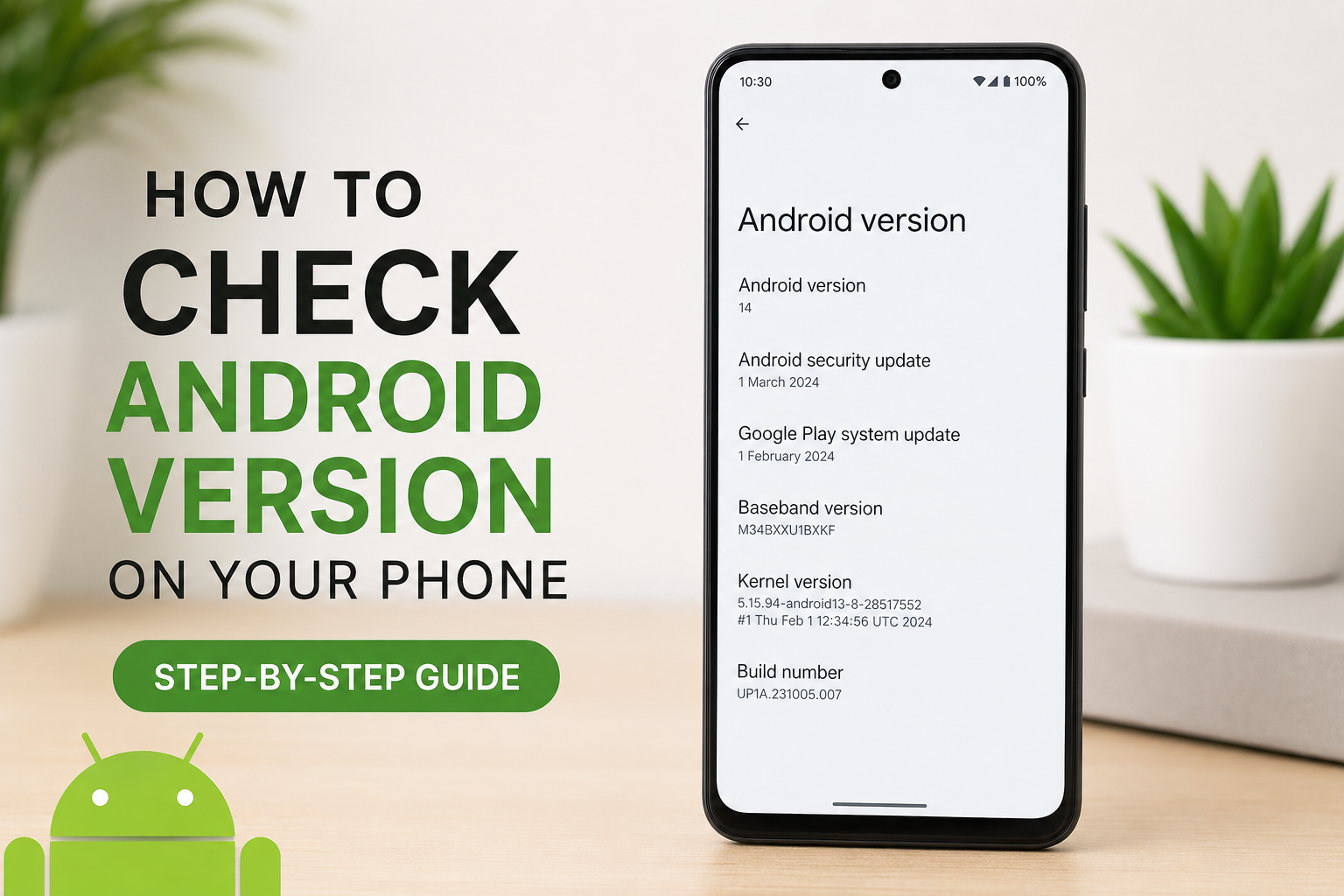
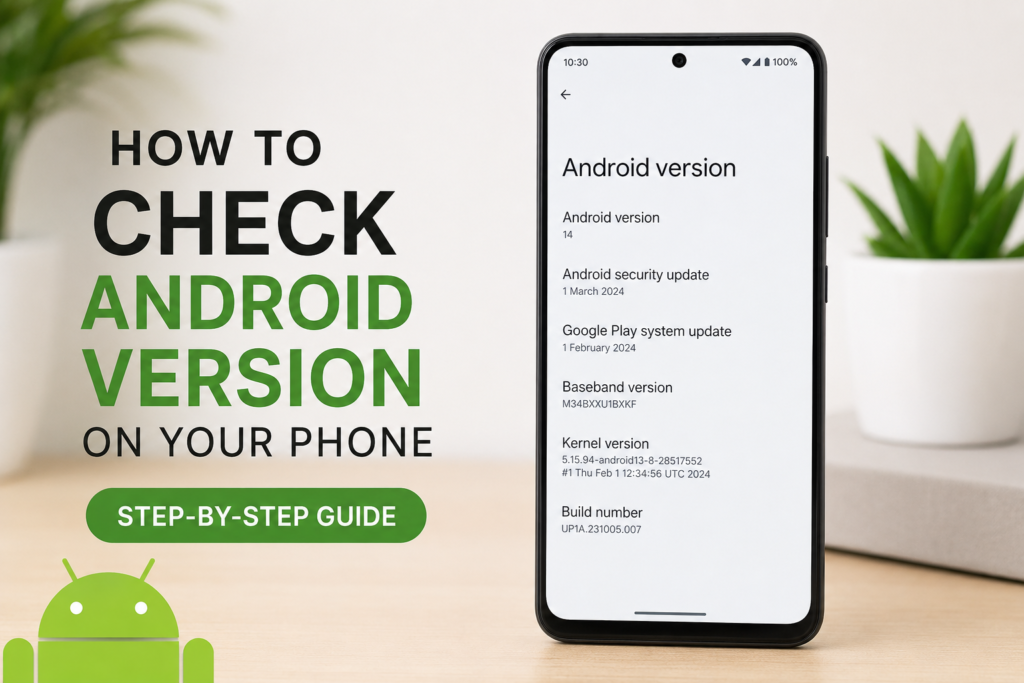
Now look for Android version. You should see a number such as Android 13, Android 14, Android 15, or another version.
That number is the Android operating system version currently installed on your phone.
This is normally the quickest method, and I recommend trying it first.
How to Check Android Version on Samsung Phones
Samsung phones use the One UI interface, so some settings may look different from phones using standard Android.
To check the Android version on a Samsung phone, open Settings.
Scroll down and tap About phone.
Then select Software information.
You should see several details on the screen, including Android version.
You may also see information such as the One UI version, build number, and Android security patch level.
I find this screen particularly helpful because it gives more software information than just the Android version.
How to Check Android Version on Google Pixel Phones
Google Pixel phones generally keep the Android settings relatively straightforward.
Open Settings and scroll down.
Tap About phone.
Look for Android version.
You can also find other information about your device on this page, including the model and other software details.
If you are using a Pixel phone, this is usually one of the simplest ways to check the Android version.
How to Check Android Version on Xiaomi Phones
On Xiaomi phones, the settings can vary depending on the version of MIUI or HyperOS installed.
Open Settings.
Look for About phone or a similar option.
Tap it and search for the Android version or software information.
You may also see information about the phone’s operating system interface, such as HyperOS.
If you cannot immediately see Android version, check the software information section.
How to Check Android Version on OnePlus Phones
OnePlus phones also have their own software interface, but the process is still easy.
Open Settings.
Scroll down and tap About device or About phone.
Look through the software information.
You should find the Android version listed there.
The exact wording may change after a major software update, so do not worry if your settings look slightly different from an older tutorial.
What Is the Android Security Patch Level?
While checking the Android version, you may notice another item called Android security update or Android security patch level.
This is different from the Android version.
For example, your phone could be running Android 15 while also showing a particular security patch date.
The security patch level tells you when the security updates included in your current software were released.
I think this is worth checking because two phones can have the same Android version while having different security update levels.
If your phone has an available security update, installing it can help keep your device protected.
How to Check for Android Updates
After checking your Android version, you may also want to see whether a newer update is available.
Open Settings.
Look for System, Software update, or Software update and download depending on your phone.
Tap the update option.
Your phone may check automatically for available updates.
If an update is available, you will normally see information about the update and an option to download and install it.
Before installing a major update, I personally recommend making sure the phone has enough battery and that important information is backed up.
It is also better to use a reliable WiFi connection when downloading a large software update.
Can You Check Android Version Without Settings?
In most cases, the Settings app is the easiest and most reliable method.
Some phones may display software information through other menus, but I would still recommend using Settings because the information there is official for your device.
You can also search for Android version inside the Settings app if your phone has a search function.
Open Settings and use the search bar.
Type Android version.
Your phone may take you directly to the relevant page.
This can be especially helpful if you have difficulty finding the About phone section.
What If You Cannot Find Android Version?
If you cannot find the Android version, do not assume that your phone does not have the information.
The menu location can change between manufacturers and software versions.
Try opening Settings and searching for Android version.
You can also search for About phone, About device, Software information, or System information.
If you are following an online tutorial, remember that the instructions may have been written for an older version of Android. Your phone may therefore have slightly different menus.
Does Android Version Affect Phone Performance?
The Android version can influence the features and software experience of your phone, but it is not the only factor that determines performance.
Your phone’s processor, RAM, storage, battery condition, and manufacturer software can all affect how smoothly it works.
A newer Android version does not automatically make every older phone fast.
However, software updates can improve performance, fix bugs, introduce new features, and improve security.
This is why I prefer keeping my phone updated when an official update is available and compatible with the device.
How Often Should You Check Your Android Version?
You do not need to check it every day.
I would recommend checking it when you are troubleshooting a problem, installing an application with specific requirements, following an Android tutorial, or checking whether your phone is up to date.
If you are buying a used Android phone, checking the Android version is also a good idea. It gives you useful information about the software installed on the device.
You should also check the security update information if you are considering purchasing an older phone.
Final Thoughts
Checking the Android version on your phone is a simple process, but it can be useful in many situations. In most cases, you only need to open Settings, go to About phone or About device, and look for Android version.
The exact steps can vary depending on whether you use Samsung, Google Pixel, Xiaomi, OnePlus, Motorola, or another Android phone. If you cannot find the option, using the Settings search function is often the quickest solution.
I personally recommend knowing your Android version because it makes troubleshooting and understanding your phone much easier. It can also help when checking app compatibility, following online tutorials, and deciding whether your device needs a software update.
Once you know where this information is located, checking it takes less than a minute. It is one of those small Android tips that may not seem important at first, but can save you time whenever you need to understand your phone’s software.