Keeping Android apps updated is something I personally believe every smartphone user should take seriously. When I install several apps on my phone, I do not want to remember every few days that I need to check for new updates. This is where automatic app updates become useful. Once automatic updates are enabled, Android can download and install newer versions of supported apps without requiring me to update each application manually.
In my experience, automatic updates make everyday phone usage much easier. They can help keep apps working properly, provide new features, improve compatibility, and sometimes fix known problems. Instead of opening the Play Store again and again, I can simply allow the system to handle updates in the background.
In this article, I will explain how to update apps automatically on Android, how to change the update settings, what to do when automatic updates are not working, and when manual updates may actually be a better option.
Why I Prefer Automatic App Updates
I have found automatic updates particularly useful because Android phones often contain many different applications. I might have social media apps, messaging apps, banking apps, browsers, productivity tools, games, and other utilities installed at the same time.
Checking every application individually can quickly become annoying. Automatic updates remove that responsibility from me.
Another important reason is security. App developers regularly release updates that can fix bugs and security related problems. While an app update does not guarantee complete security, keeping applications reasonably up to date is a sensible habit.
Updates can also introduce useful improvements. Sometimes an application receives a redesigned interface, better performance, improved accessibility, or additional features. If automatic updates are enabled, I do not have to wait until I remember to check for those improvements.
How to Turn On Automatic Updates in Google Play Store
For most Android phones, the easiest way to manage automatic app updates is through the Google Play Store.
First, I open the Google Play Store on my Android phone. Then I tap my profile picture or profile icon in the upper right corner.
From there, I select Settings.
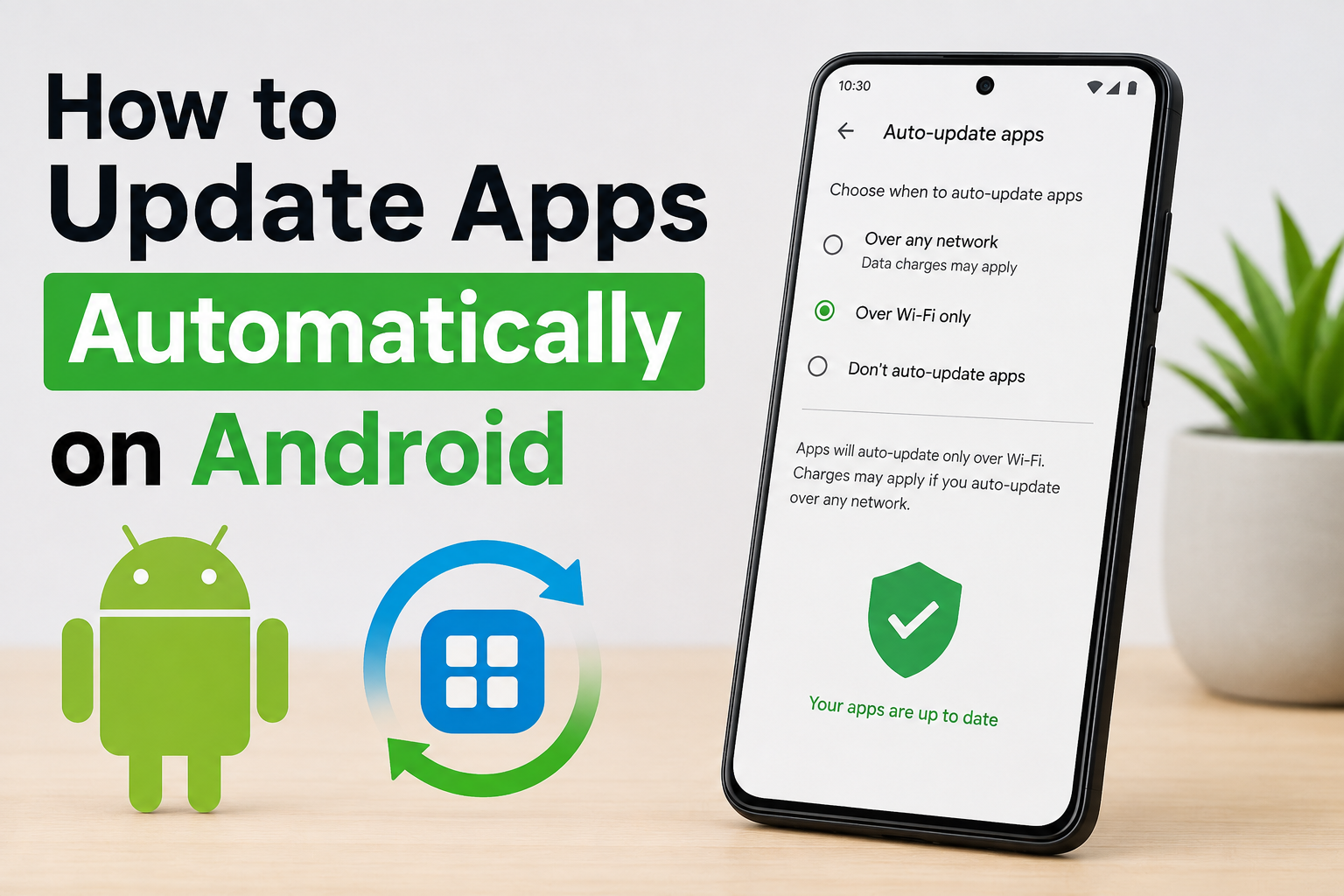
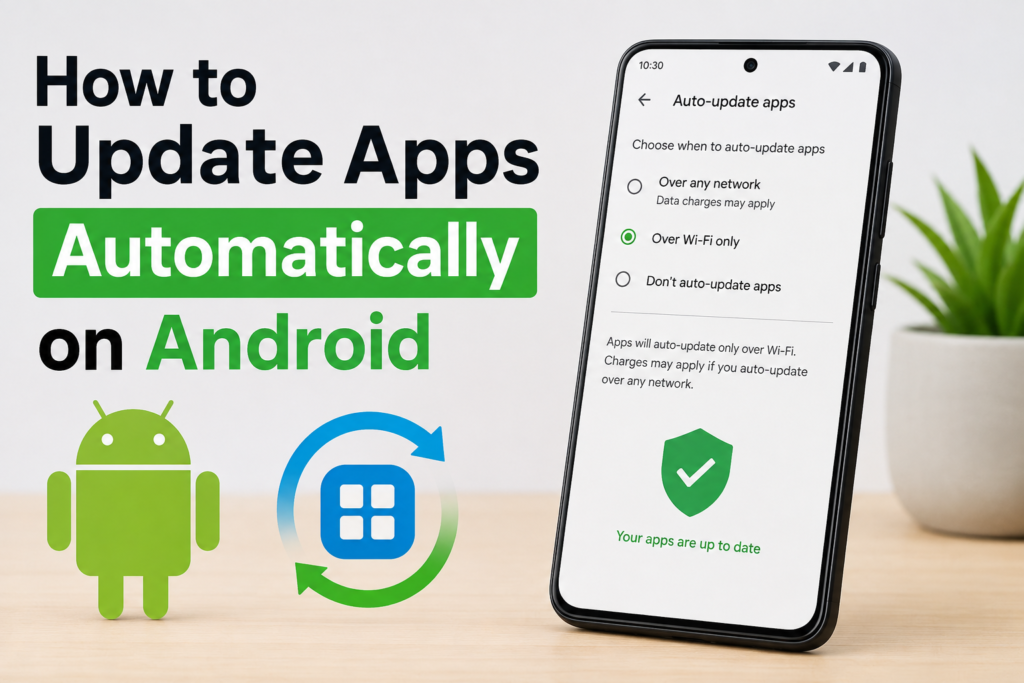
Next, I look for Network preferences and open it. Inside this section, there is an option called Auto update apps.
When I tap this option, Android normally provides several choices. Depending on the phone and Android version, the available options can vary slightly, but I generally see choices related to updating apps over any network or only over WiFi.
If I want my apps to update automatically whenever updates are available, I can choose the option that allows updates over WiFi or mobile data.
Personally, I prefer WiFi for automatic updates because applications can sometimes be quite large. Using mobile data for every update could consume a significant portion of a limited data package.
Choosing WiFi for Automatic Updates
For many people, WiFi is the safest option for automatic app updates.
If I choose WiFi only, my Android phone can update applications when it is connected to a suitable WiFi network. This means I do not have to worry as much about unexpectedly using mobile data.
This setting is especially useful for people who have limited mobile data plans.
For example, a game update can sometimes be much larger than a normal application update. If several large games update at the same time using mobile data, the data usage can become noticeable.
That is why I personally recommend choosing the WiFi option if controlling mobile data usage is important to you.
How to Update Apps Manually
Even when automatic updates are enabled, sometimes I may want to check for updates myself.
To do this, I open the Google Play Store and tap my profile icon. Then I select Manage apps & device.
Here I can see information about available updates. If updates are waiting, I can select the option to update individual apps or update multiple applications together.
I find manual updates useful when I want a particular app updated immediately rather than waiting for the automatic update process.
For example, if an application is not working correctly and I know that a newer version may contain a fix, I can manually check for an update.
What Happens After Automatic Updates Are Enabled?
Once automatic updates are turned on, I do not need to press an update button every time a new version becomes available.
The Play Store manages the update process based on the settings and conditions on the phone.
However, automatic updates do not necessarily mean that every app will instantly update the moment a developer releases a new version. Updates can depend on several factors, including network availability, device settings, available storage, battery conditions, and how the update is being distributed.
So, if I notice that an app has not updated immediately, I do not automatically assume something is broken.
Why Some Apps May Not Update Automatically
There are several reasons why automatic app updates may not happen.
The first thing I check is my internet connection. If my phone is not connected to WiFi when I have selected WiFi only, updates may wait until a suitable connection becomes available.
Storage is another common issue. If my phone is almost full, Android may have difficulty downloading or installing new updates.
I also check whether the Play Store itself is working properly. Sometimes temporary problems with the app or network can prevent updates from starting.
Battery conditions can also influence background activity. Depending on the device and its settings, some background processes may be delayed to save battery.
If an application still refuses to update, I can open its Play Store page and check whether an update is available manually.
How to Check Available Storage
I think checking storage is an important step if automatic updates are not working.
I open my phone’s Settings and search for the Storage section. The exact location can vary depending on the Android manufacturer.
If the storage is nearly full, I remove unnecessary files, old downloads, unused applications, or duplicate media.
I do not recommend deleting important personal files simply to make space. Instead, I first look for things that I no longer need.
Having some free storage can make general phone maintenance easier, not just app updates.
What If Automatic Updates Are Using Too Much Data?
One concern I have with automatic updates is data usage.
If I allow updates over mobile data, my phone may download applications when I am away from WiFi. This can be convenient, but it can also consume data faster than expected.
If I have a limited data plan, I prefer setting automatic updates to WiFi only.
I can also check my Android data usage settings to understand which apps are consuming the most data.
For me, the best balance is usually automatic updates over WiFi while keeping mobile data usage under control.
Should Every App Be Updated Automatically?
In general, I think keeping regularly used apps updated is a good idea. However, there can be situations where I prefer more control.
For example, if I use an app for an important task and a major update changes its interface, I might want to read the update details first.
Some updates can also increase an application’s storage requirements or change certain features.
This does not mean I avoid updates completely. Instead, I occasionally review important applications and make sure that I understand major changes.
Automatic Updates and Phone Performance
I often hear people say that updating apps can make an Android phone slower. In reality, the effect depends on the application, device hardware, Android version, and the update itself.
Some updates improve performance and fix problems. Others may add features that require more resources.
If my phone is older, I pay more attention to major application updates. I also regularly remove apps that I no longer use.
Keeping dozens of unnecessary applications installed can make phone management more difficult, so I prefer maintaining a clean app collection.
Benefits of Keeping Android Apps Updated
There are several advantages to keeping apps updated.
One major benefit is bug fixes. Developers often release updates to solve crashes, freezing problems, and other issues.
Another benefit is compatibility. New versions of Android may introduce changes, and applications sometimes need updates to work properly with those changes.
Updates can also improve security and privacy.
New features are another reason I like updating apps. Developers continuously improve their applications, and updates can bring tools that make the app more useful.
Overall, I see regular updates as basic smartphone maintenance.
When I Prefer Manual Updates
Although automatic updates are convenient, I still like manual control in certain situations.
If I am traveling and using limited internet, I may temporarily avoid large downloads.
I might also manually update an important application when I need its newest version immediately.
Another reason is troubleshooting. If an app is causing problems, I may check its update history and see whether a newer version is available.
So, I do not think automatic and manual updates are competitors. Both options are useful depending on the situation.
Final Thoughts
I personally find automatic app updates one of the simplest Android settings to enable. Once I configure the Google Play Store properly, I do not have to spend time checking every application individually.
For most users, I recommend enabling automatic updates over WiFi. This provides the convenience of keeping apps reasonably current while helping avoid unnecessary mobile data usage.
If automatic updates are not working, I would first check the internet connection, available storage, Play Store settings, and whether the specific app has an update available manually.
Keeping applications updated is not something that requires much effort, but it can make a noticeable difference in everyday smartphone maintenance. For me, automatic updates are one of those small Android features that quietly save time and help keep my phone organized and up to date.